Ensure sign-in to shared mailboxes is blocked

Did you know creating a shared mailbox also creates a user account? Did you know when you convert a user mailbox to a shared mailbox that user can still log in to the tenant? Why doesn't Microsoft automatically lock the account or ask you if you want the account locked out? I have no idea but I do know it's a good idea to routinely check the shared mailboxes to see if any accounts are locked out.
Anyway, there are two ways to go through the list. manually and automatically.
Manually check if sign-in is blocked for shared mailboxes
The manual process is exactly how it sounds. We will manually go through the shared mailboxes and check if sign-on is blocked. First, we'll pull up a list of shared mailboxes, then we'll pull up the users and compare the two.
Get the shared mailboxes
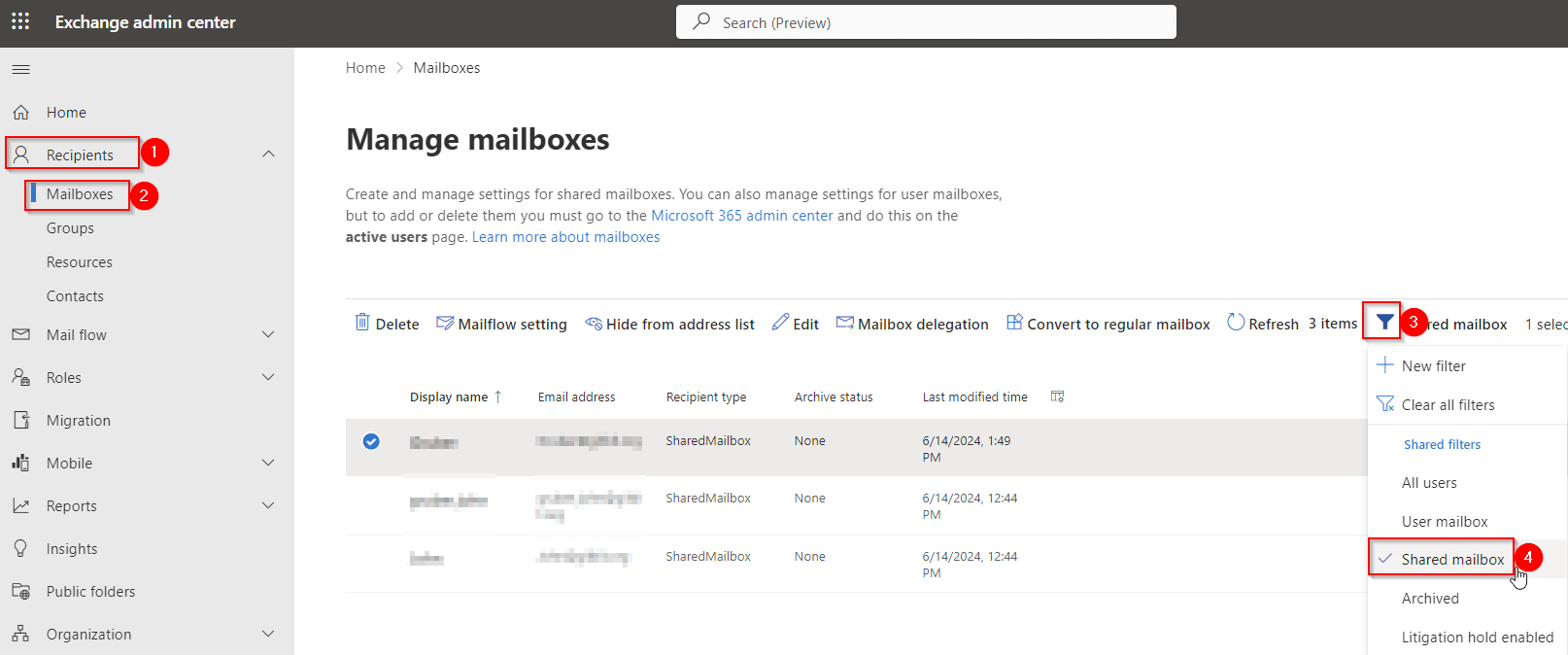
- Open Exchange admin center > Recipients > Mailboxes
- Click Filter > Shared mailbox.
Check each user account
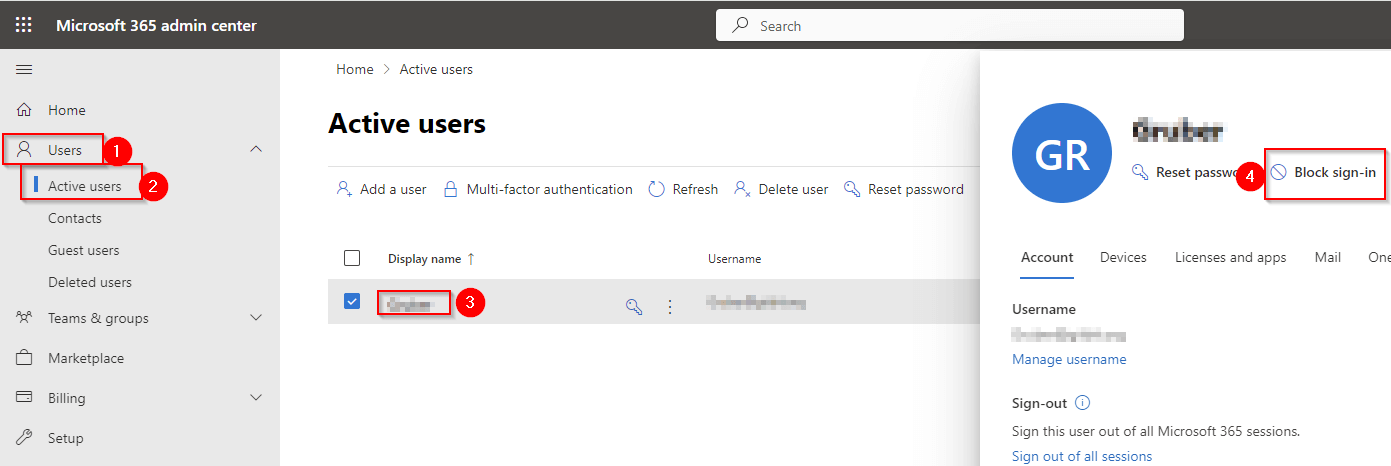
- Open a new tab or new window. Microsoft 365 admin center > Users > Active users.
- Search for each shared mailbox and click on the display name.
- Click Block sign-in.
- Check Block this user from signing in. Click Save changes.
Automatically check if sign-in is blocked for shared mailboxes
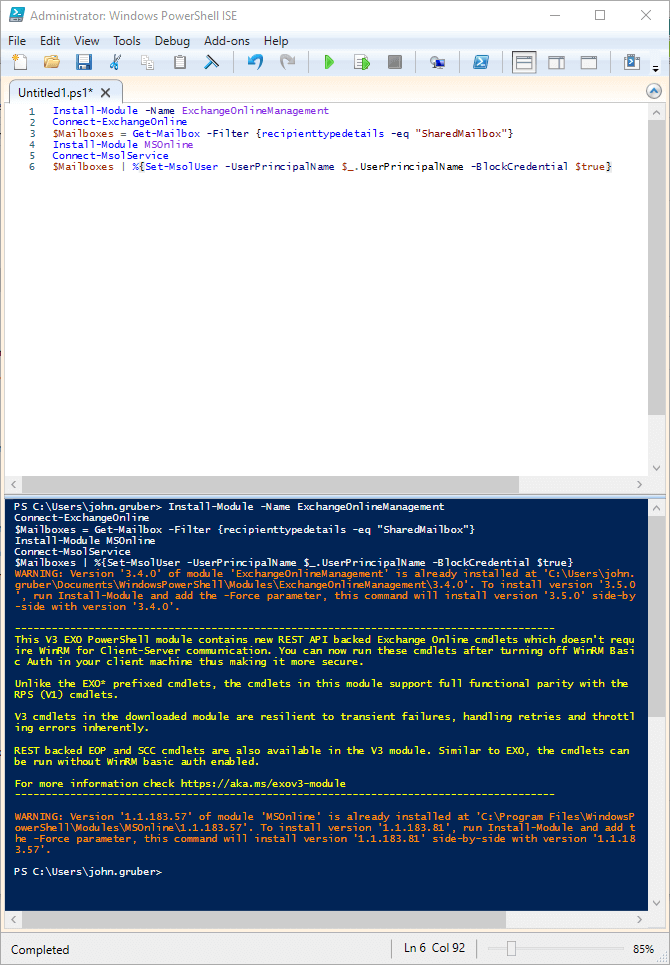 This process should be called Block sign-in for shared mailboxes using PowerShell because that's what it really is but I digress. First, we'll connect to Exchange Online. Then, we'll export a list of shared mailboxes. Then we'll connect to Microsoft 365 and we'll disable sign in for any shared mailbox accounts.
- Connect to Exchange Online PowerShell by running: Install-Module -Name ExchangeOnlineManagement; Connect-ExchangeOnline
- Login with your admin credentials
- Run the following command to get the shared mailboxes: $Mailboxes = Get-Mailbox -Filter {recipienttypedetails -eq "SharedMailbox"}
- Connect to Microsoft 365 by running: Install-Module MSOnline; Connect-MsolService
- Login with your admin credentials
- Run the following to disable access: $Mailboxes | %{Set-MsolUser -UserPrincipalName $_.UserPrincipalName -BlockCredential $true}


