How To Join A Computer To Intune

There are 4 ways to join a Windows 10 or Windows 11 computer to Microsoft Intune. The primary way, at least at first, is the manual enrollment method using the Company Portal app. If you'd like those steps, hop to the "Enroll a Windows Computer in Intune Using the Company Portal App" section.
One of the reasons it's so complicated to enroll a device in Microsoft Intune is the numerous ways you can join a device in Intune.
- Windows Automatic Enrollment
- Windows Autopilot
- Co-management with Configuration Manager
- User Enrollment (BYOD)
Not to mention, there is Azure AD join, aka Entra Id Join, vs Intune enrollment, which is a different topic.
Anyway, let's talk about enrolling a computer in Windows device management through Microsoft Intune.
The Old Method
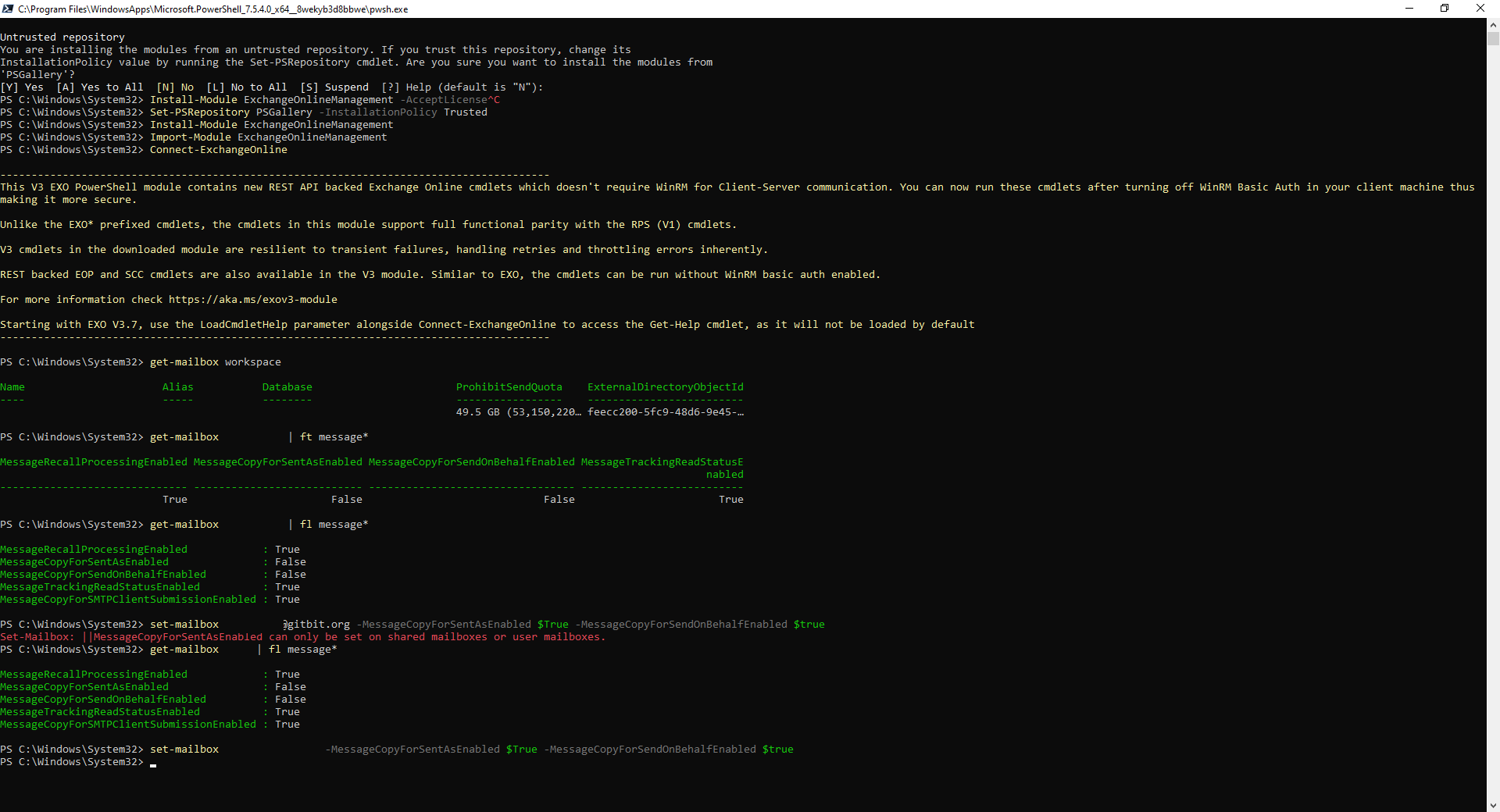
You used to go to Settings > Accounts > etc. This is no longer accurate. That method was deprecated a while ago. Now you need to use the Microsoft Company Portal app for manual installation.
As of the time of this publishing, Microsoft still has outdated steps using this method, which is why it comes up in AI tools.
Windows Automatic Enrollment
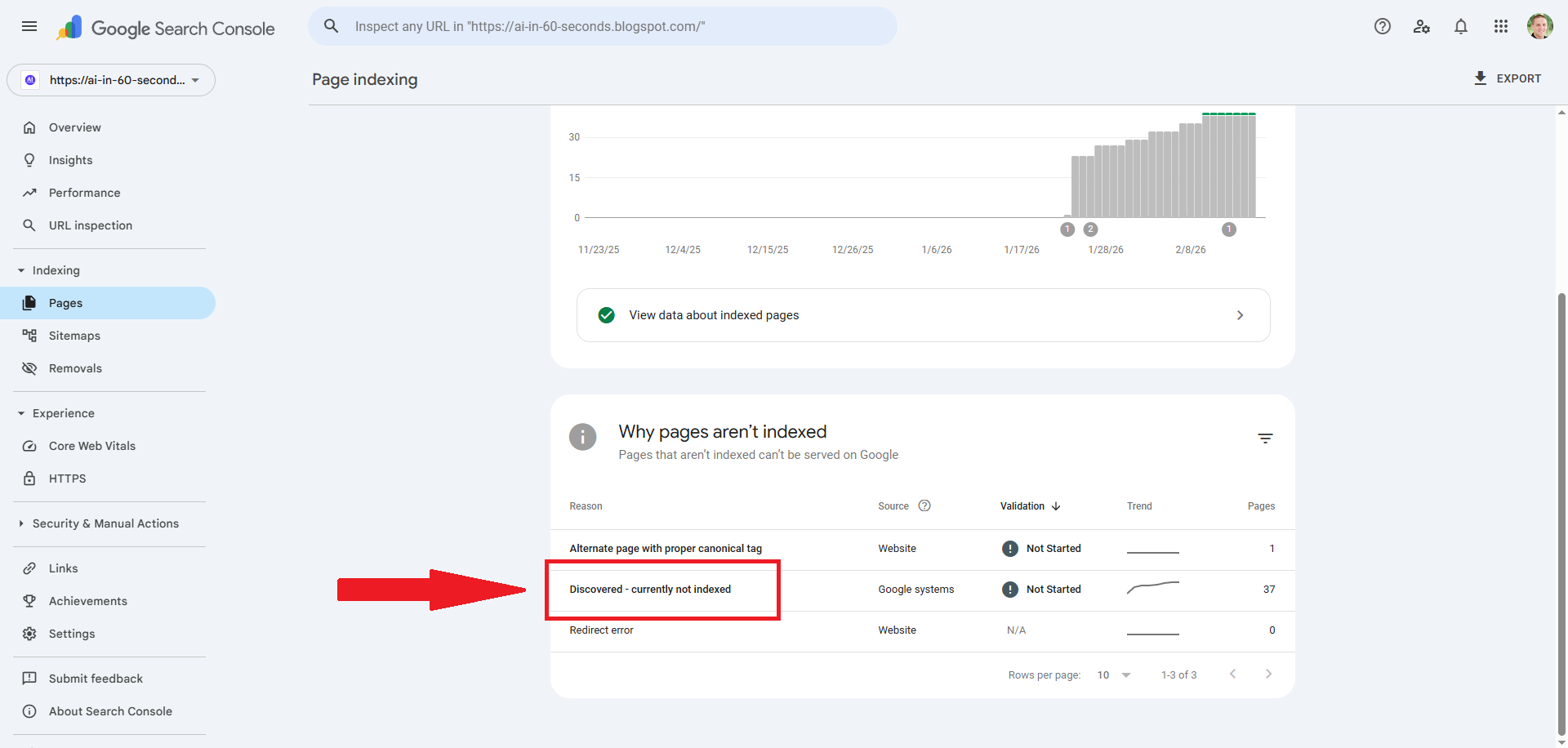
This method requires an Entra Connect server that's syncing your devices from your on-premises AD to Microsoft Entra. Then it requires a group policy. If you have a larger environment, you'll probably need to use it. But it is fragile, and a lot of things can get in the way. If you're trying to set this up and running into an issue, hop over to Device management could not be enabled Windows 11 [SOLVED]. I've documented all the problems quite clearly over there. Sam Teerlinck has done a good job documenting that process over at orbid365.be
Windows Autopilot
Windows Autopilot is Microsoft's replacement for imaging. Essentially, you can call up your device provider (Dell, Lenovo, etc.) and give them your Microsoft 365 ID, and they can link the computer to your environment prior to delivering the computer. That way, you can deliver the computer directly to the end-user, and the device will automatically join Entra, enroll in Intune, deploy apps, etc. Lucas Magoni has done a great job documenting this process over at racetocloud.com
Co-management with Configuration Manager
If you're currently using Configuration Manager and are looking to deploy Microsoft Intune as well, you can use the co-management feature of Configuration Manager. Essentially, it tells Microsoft Intune and Configuration Manager that there are 2 different tools managing the device, and then you can deploy Intune through Configuration Manager. The System Center Dudes have done a great job documenting this configuration.
User Enrollment (BYOD)
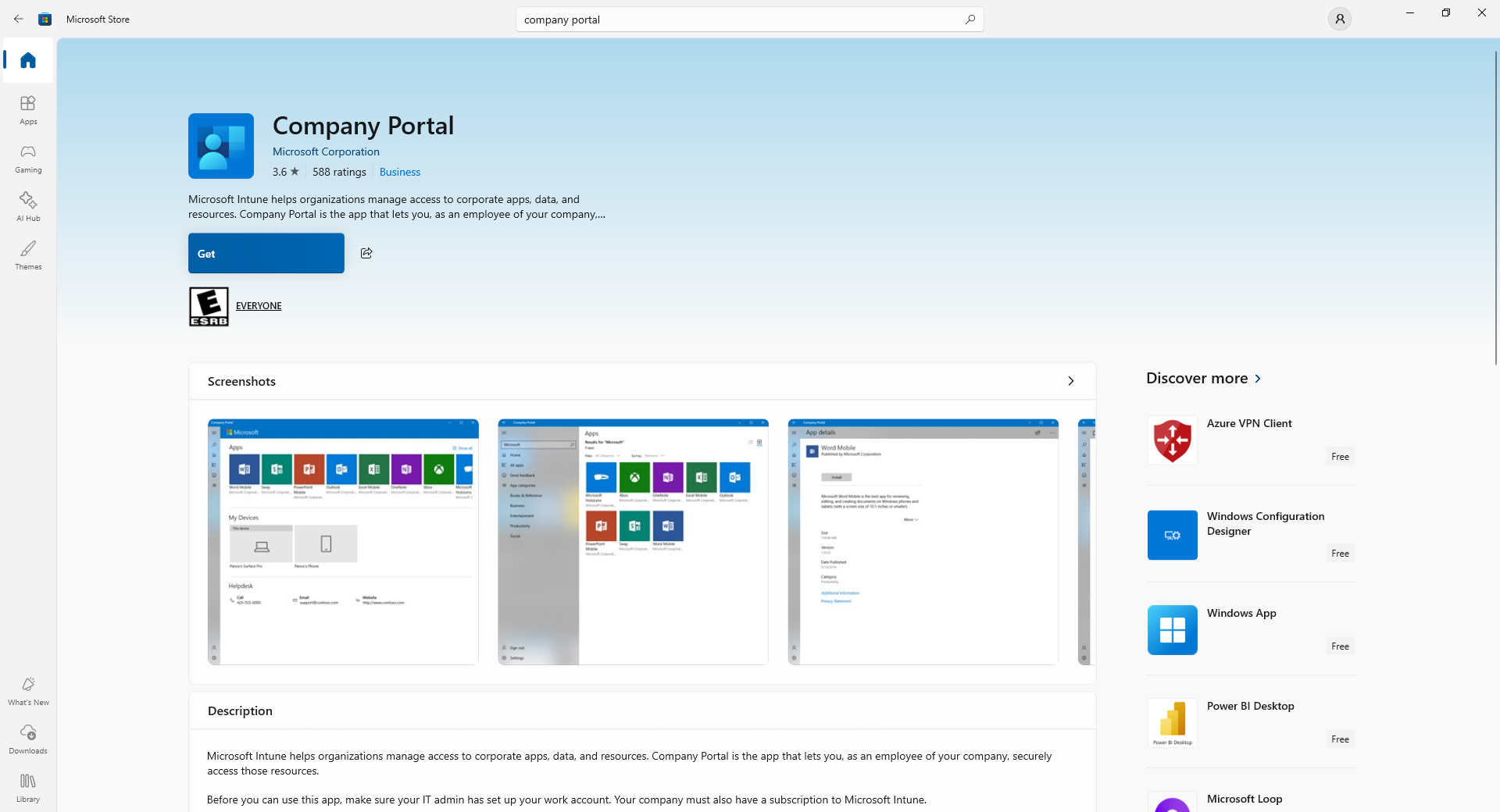
This is the simplest way to join a device to Intune, but the most manual. Essentially, you install the Company Portal app through the Microsoft Store, then launch the app and log in with the user's credentials. It's a fairly simple process to enroll a computer in Intune.
If you're struggling to deploy Intune through one of the more manual methods, this is a great way to either bypass the issue or display a clearer error for you to troubleshoot.
Enroll a Windows Computer in Intune Using the Company Portal App
These steps will manually enroll a Windows device in Intune
These steps can be used to add a Windows 10 computer to Intune. They will also add a Windows 11 computer to Intune.
The device can be enrolled in Entra ID/Azure AD. These steps will enroll an Azure AD-joined device in Intune if the device is already in Azure AD. If the device is not in Azure AD, the process will join the computer to Azure AD in the process.
If the Intune enrollment is not working, follow the steps in that guide. It goes through EVERYTHING that can cause an issue.
These steps will work for personal computers, as well as domain-joined computers.
How to Manually Enroll a Windows device in Intune
- Open the Microsoft Store
- Search for and click on Company Portal
- Click Get. Wait for it to download.
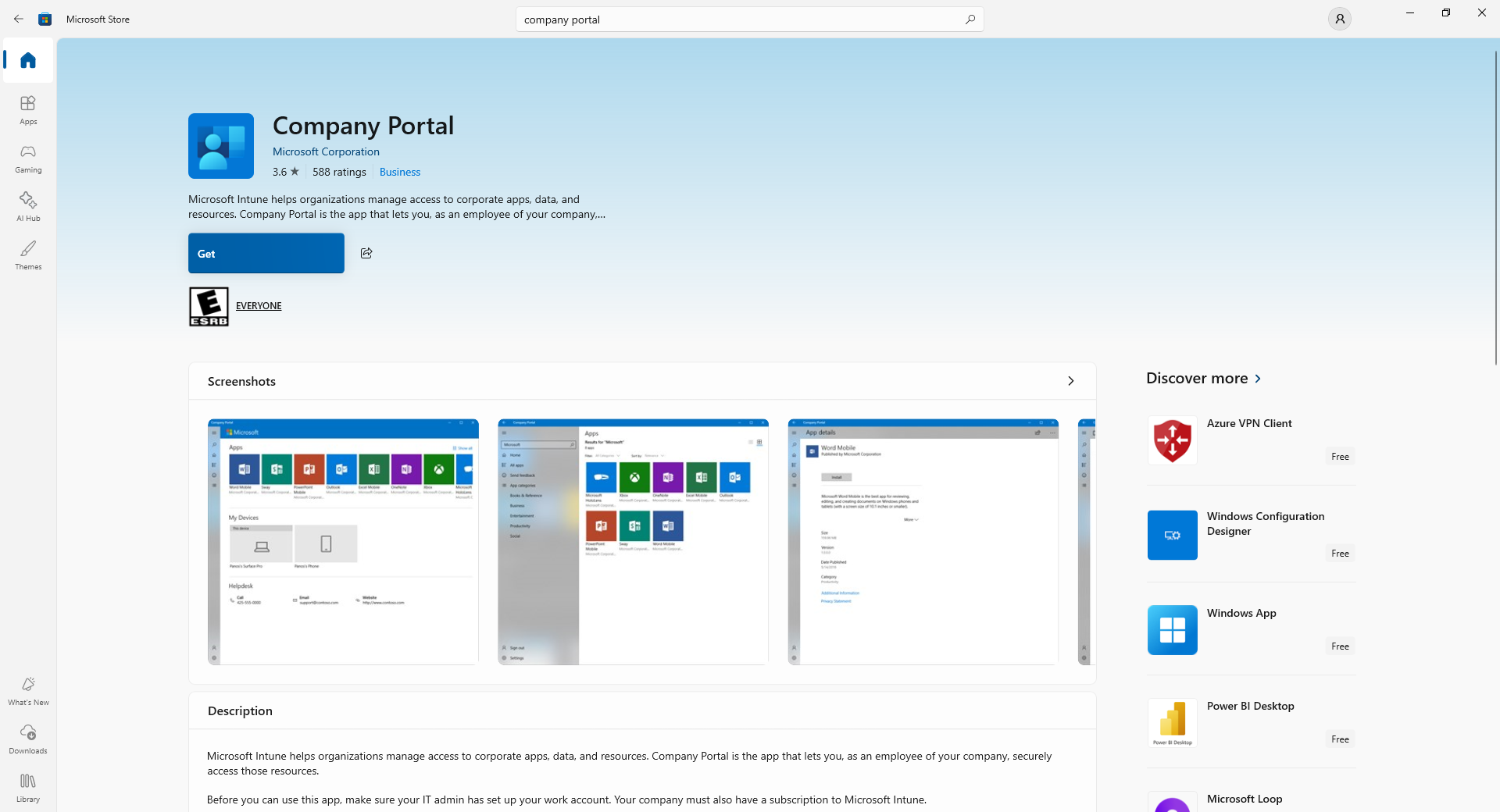
- Open the app by clicking Open or Launch.
- Typically, you'll be prompted for credentials here. If not, you may need to click Enroll. You'll want to sign in with the user's Microsoft 365 credentials.
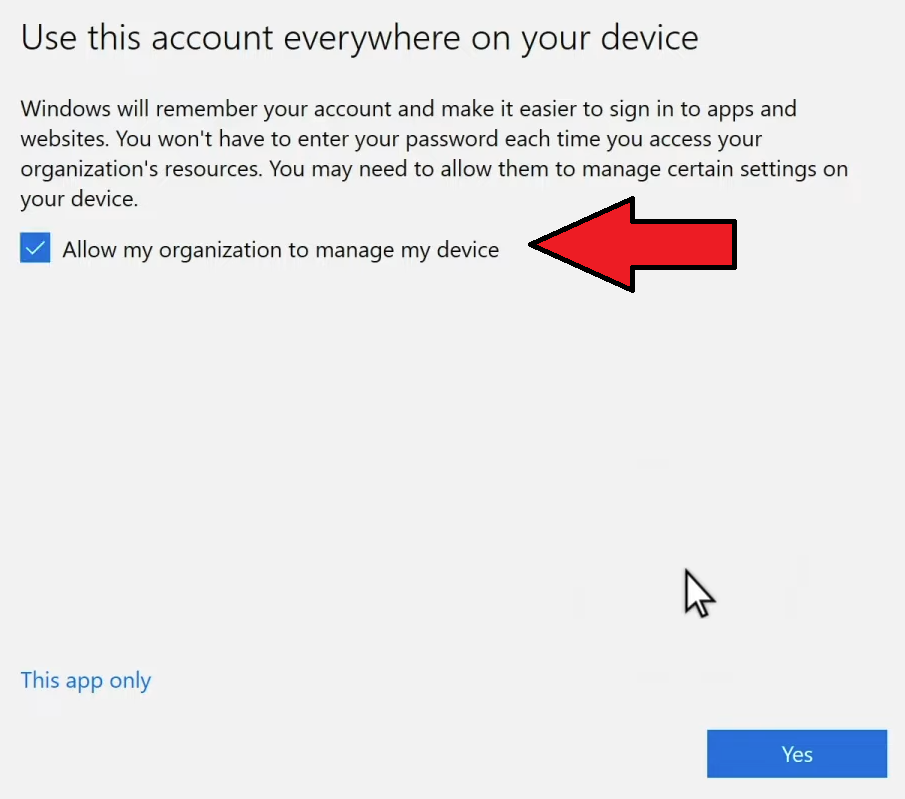
- On the Use This Account Everywhere on Your Device page, make sure Allow my organization to manage my device is checked and click Yes.
- Click Done.
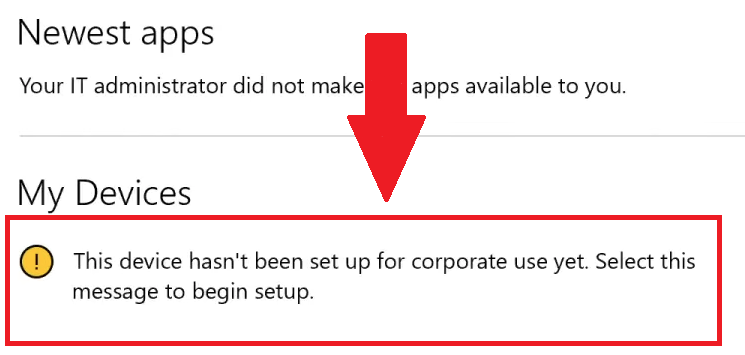
- Click This device hasn't been set up for corporate use yet. Select this message to begin setup.
- On the Set up your device page, click Next.
- On the Connect to work page, click Connect.
- On the Set up a work or school account page, verify your work email is in the box provided and click Next.
- On the Setting up your device page, click Got it.
- Wait for the device to finish setting up and then click Next.
- Click Done.