Ensure that intelligence for impersonation protection is enabled

Impersonation, as Microsoft defines it, is where the sender or the sender's email domain in a message looks similar to a real sender or domain. For example, Jeff@gitbit.org might be a valid email address you correspond with. Jeff@g1tbit.org might be someone pretending to be Jeff. But someone might also have access to Jeff@gitbit.org and send you a malicious email. Mailbox intelligence might block that as well.
Note: If you're here because Secure Score has told you to enable it and you're worried if it will break something, I haven't had any issues. The only thing that may cause an issue is if a user is using their personal email to send to your organization. For example, if I use my personal email john.gruber@notadomain.com that has a display name of John Gruber to email a coworker, who typically emails between my gitbit.org email address, the personal email will get blocked. You can whitelist the john.gruber@notadomain.com, or you can tell the user to use their work account.
How Mailbox Intelligence & Impersonation Protection Works
Mailbox intelligence uses machine learning (ML) to understand each user’s typical communication patterns. That includes who they email, how often, and what those relationships look like. With that baseline, Microsoft 365 can spot anomalies that traditional filters might miss.
In short, it's looking for email addresses that appear similar to someone you've already communicated with to attempt to block phishing attacks.
Now, there are two different settings you can enable:
- Enable mailbox intelligence: Builds behavioral models of user communication
- Enable intelligence for impersonation protection: Use that behavioral model to detect impersonation attempts.
Mailbox Intelligence
Teaches Microsoft 365 how each user normally communicates. It builds a behavioral model of:
- Who a user typically exchanges email with
- How often do they communicate
- What legitimate relationships look like
Once enabled, Defender can flag messages that fall outside a user’s normal patterns — even if the message looks technically valid. Its purpose is to:
- Detect anomalous or suspicious senders
- Catch targeted phishing that bypasses global filters
- Provide personalized context for threat detection
This is broad, user‑specific behavioral learning. Think of it like this. Every day, you email a user Jeff@gitbit.org, about buying flowers and looking at rainbows. Then all of a sudden, you get an email from Jeff@gitbit.org that says you need to read this PDF and sign in to your account. That doesn't fall into normal behavior. BLOCKED.
Impersonation Protection
This setting is narrower and targeted. It uses mailbox intelligence specifically to enhance impersonation detection.
Impersonation protection looks for attempts to mimic:
- Users
- Domains
- VIPs
- Trusted external senders
When you enable this option, Defender uses the behavioral model from mailbox intelligence to decide whether a message is likely impersonating someone the user knows. This is what will block Jeff@g1tbit.org from emailing you and pretending to be Jeff@gitbit.org.
Do I have Mailbox Intelligence?
Mailbox intelligence is available when your organization has Microsoft Defender for Office 365.
There are a ton of licenses that include Microsoft Defender for Office 365, but here are a few:
- Microsoft Defender for Office 365 Plan 1
- Microsoft Defender for Office 365 Plan 2
- Microsoft 365 Business Premium (includes Defender for Office 365 P1)
- Office 365 E5 (includes Defender for Office 365 P2)
- Microsoft 365 E5 (includes Defender for Office 365 P2)
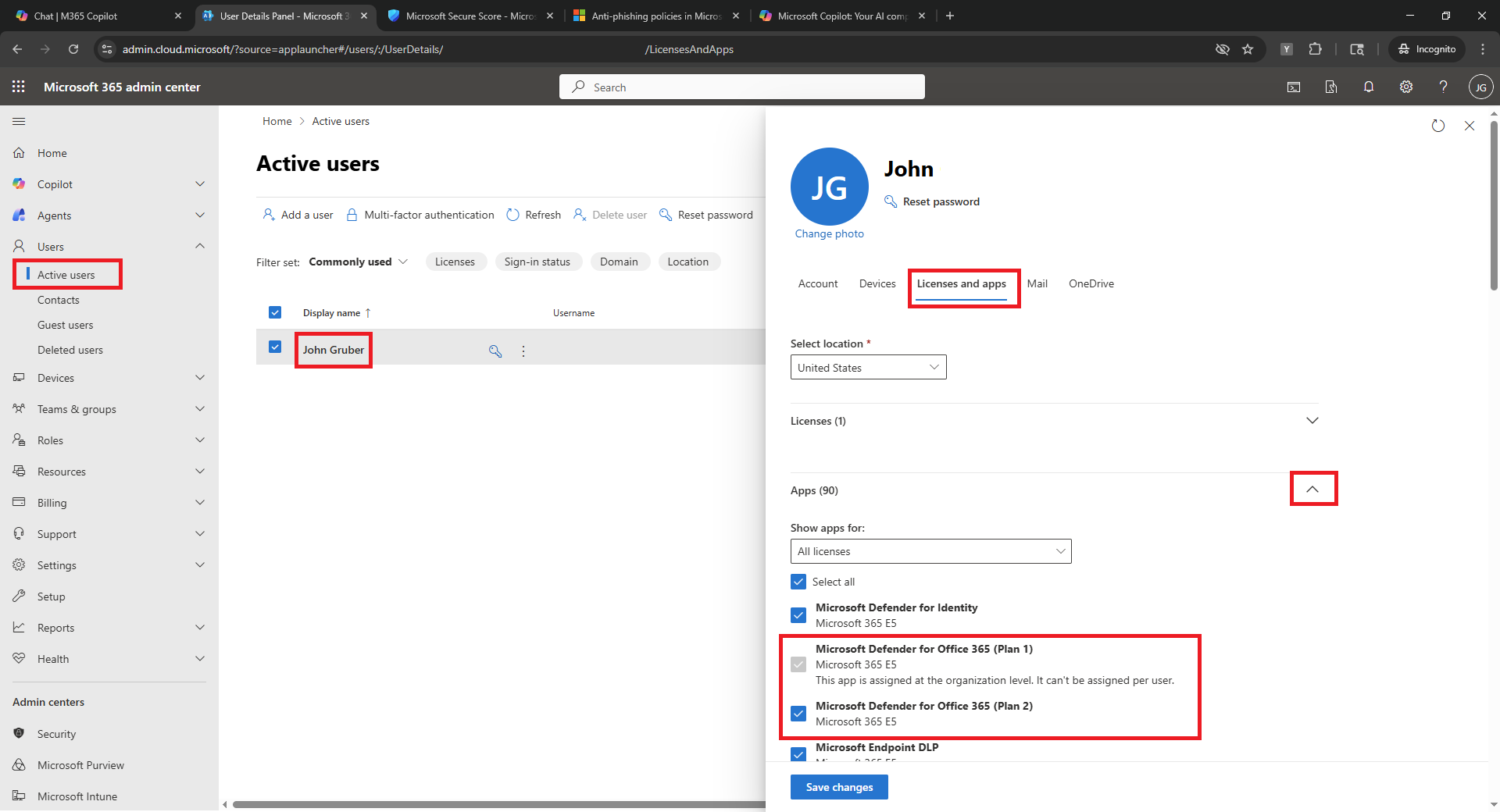
The best way to tell is by opening Microsoft 365 admin center > Users > Active Users > [display name of user] > Licenses and Apps > Apps > [scroll down until you see Microsoft Defender for Office 365 (Plan 1)
How to Enable Intelligence for Impersonation Protection
- Go to the Microsoft 365 Security Admin Center (Defender) >Email & collaboration > policies & rules > Threat policies > Anti-phishing (or click here)
- Click on "Office365 AntiPhish Default (Default)"
- Check Enable mailbox intelligence (Recommended)
- Check Enable Intelligence for impersonation protection (Recommended)
- Click Save.
You may have multiple policies listed in step 1. You'll need to click each policy and perform steps 3-5 on each to fully enable the protection.
Secure Score Isn't Fixed
If you just applied the setting, the secure score may not have updated yet. Wait up to 72 hours and then check again. If you have waited 3 days, you may not have enabled mailbox intelligence or impersonation protection on all of your policies. See the steps "How to Enable Intelligence for Impersonation Protection" above.
Blocked by Mailbox Intelligence
It's not always clear why an email is blocked or sent to the quarantine in Microsoft 365. Here's the fastest way to determine if an email is blocked due to mailbox intelligence:
- Go to Microsoft 365 Security & Compliance Center: https://security.microsoft.com
- Navigate to Email & Collaboration → Explorer (or Threat Explorer if you have Plan 2).
- Search for the email by subject, sender, or recipient. Click the subject line.
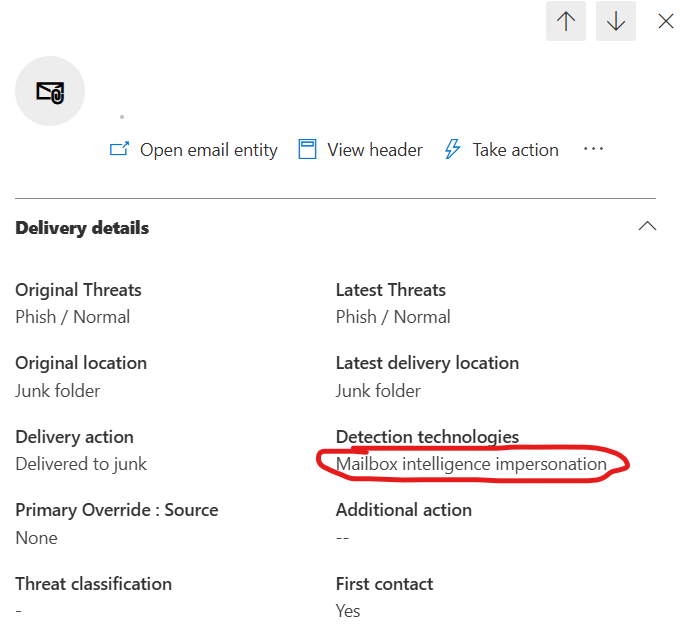
- Check Detection technologies. If it says "Mailbox intelligence impersonation" then it was blocked by mailbox intelligence.
Allow Through Mailbox Intelligence
Have an email being blocked by mailbox intelligence, and you need to allow it through? There are 2 different "options". First, allowing a single email through the quarantine. Next, allowing a sender to bypass mailbox intelligence.
Unfortunately, there's no way to allow something through mailbox intelligence but still be blocked for others.
- Go to Microsoft 365 Security & Compliance Center: https://security.microsoft.com
- Navigate to Email & Collaboration → Policies & Rules → Threat Policies → Tenant Allow/Block List.
- Click Add > Allow
- Enter the sender’s email address or domain.
- Save the changes.