Prevent Accidental Device Wipe Intune

Maybe it's just me, but every time I'm showing someone the Intune Admin Center, the same fear creeps into my head. What if they accidentally click the wipe button on a device? As I just learned, someone at Microsoft had the same fear. They implemented a way to secure device wipe in Intune.
How to enable multi-admin approval in Microsoft Intune
While browsing the web randomly, I discovered Oliver's fantastic article discussing just that case.
In short, Microsoft has implemented a way to secure the device wipe feature in Intune using what's called Multi Admin Approval. In short, you can configure it so that no one user can accidentally wipe a device through Microsoft Intune. Instead, when a user attempts to wipe a device, the wipe won't initiate. It will go to a group of admins, and another member of the group must approve the action as well.
Setting up the Intune approval workflow for wipe is fairly straightforward, although it takes multiple admins to do it.
Oliver did a great job explaining Intune's Multi Admin Approval setup. If you need more detailed instructions, hop over to CloudCoffee.ch and read his blog.
Create A Request For Multi Admin Approval
- Open Intune Admin Center > Tenant administration > Multi Admin Approval (https://intune.microsoft.com/?ref=AdminCenter#view/Microsoft_Intune_DeviceSettings/TenantAdminMenu/~/multiAdminApproval).
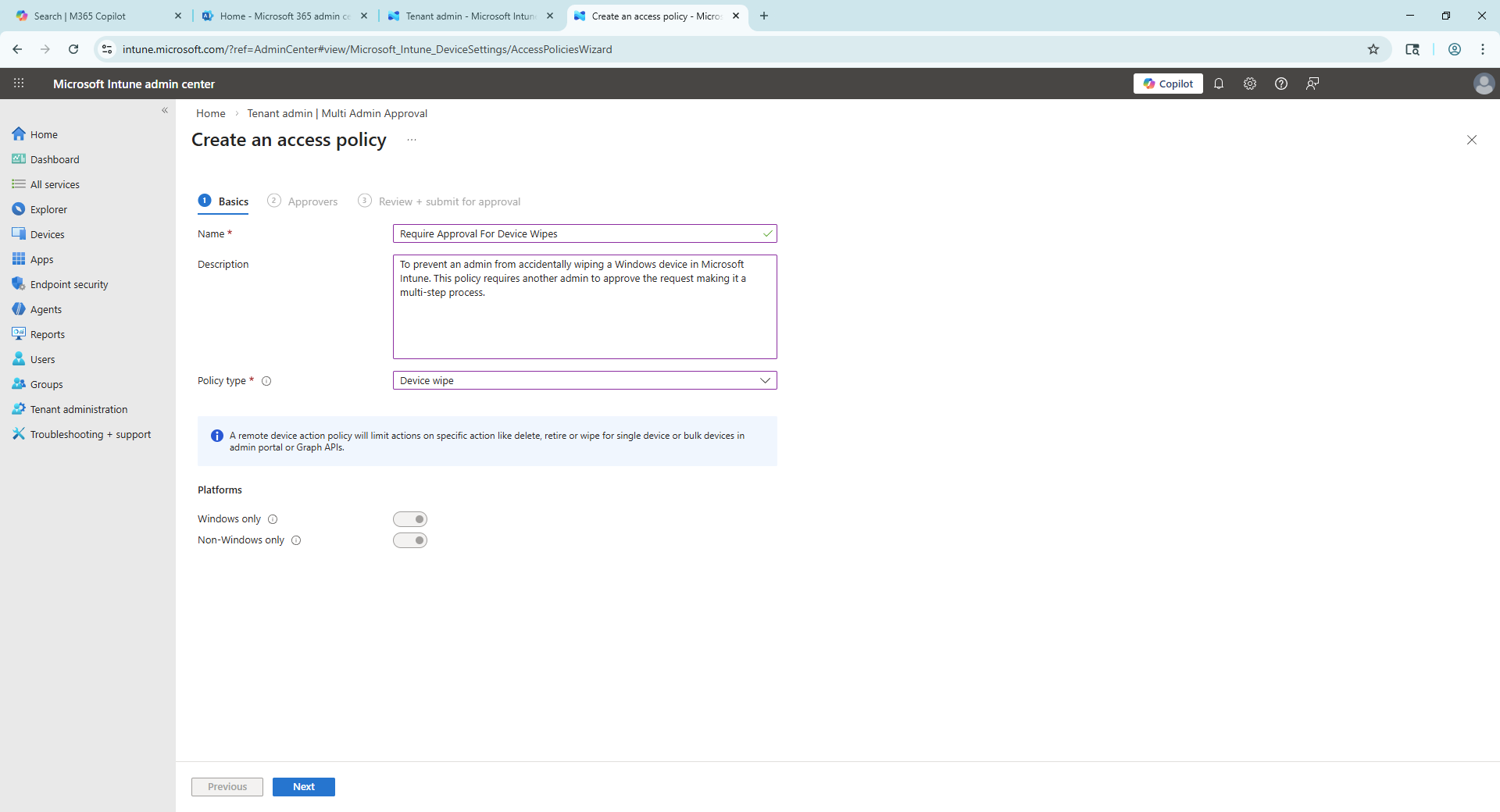
- Click Access policies > Create.
- Configure a name.
- Set the policy type to Device Wipe.
- Click Next. Add the group of approvers and click Next.
- Provide a business justification, then click Submit for approval.
Approve A Request For Multi Admin Approval
Once the approval request has been made, another admin will need to approve the request. Have another admin follow these steps:
- Open Intune Admin Center > Tenant administration > Multi Admin Approval (https://intune.microsoft.com/?ref=AdminCenter#view/Microsoft_Intune_DeviceSettings/TenantAdminMenu/~/multiAdminApproval).
- Click the Name > Add a note > Click Approve Request.
Go Live With Multi Admin Approval In Intune
The policy isn't live quite yet. You need the original admin to go back to the request and finalize it.
- Open Intune Admin Center > Tenant administration > Multi Admin Approval (https://intune.microsoft.com/?ref=AdminCenter#view/Microsoft_Intune_DeviceSettings/TenantAdminMenu/~/multiAdminApproval).
- Click My Requests > Click the name of the request.
- Click Complete Request.
Intune Multi Admin Approval For Wipe Action
After you enable multi-admin approval in Microsoft Intune, you can then test it out. Now, when you click Wipe, the prompt will ask you for Business Justification. In the business justification textbox, you'll input your reasoning for the wipe. I'd recommend using the case or ticket number that the request came in from.
How to approve a Multi Admin Request for Wipe
- Open Intune Admin Center > Tenant administration > Multi Admin Approval (https://intune.microsoft.com/?ref=AdminCenter#view/Microsoft_Intune_DeviceSettings/TenantAdminMenu/~/multiAdminApproval).
- Click the name of the wipe > Add approver notes > Approve Request.
Then the original admin who made the request will need to go in and finalize the request.
- Open Intune Admin Center > Tenant administration > Multi Admin Approval (https://intune.microsoft.com/?ref=AdminCenter#view/Microsoft_Intune_DeviceSettings/TenantAdminMenu/~/multiAdminApproval).
- Click My Requests > Click the name of the request.
- Click Complete Request.