7 Ways I'm Using Copilot in Word and 3 Disappointing Limits

Microsoft 365 Copilot is showing up everywhere in the Microsoft world. From Teams, Word, Excel, to the web portal. There are a couple of key differences between Microsoft 365 Copilot and ChatGPT, or other AI models you may be using. I've written out 7 ways you can use Microsoft 365 Copilot in Word desktop apps. That's not to say these tips can't help in Macs, or on the web, but the instructions are for Word desktop apps. I tried to find unique ways that Copilot integrates with Microsoft Word. These tips go beyond the "Help me write a rough draft about X."
Note: I've found a couple of things I'm unhappy with in Copilot in Word. I've reported them to Microsoft, but who knows when they'll get to minor little inconviences. I've noted those things throughout this document. Though the more I use Copilot, the more I hope Microsoft fixes it and then makes apps more "Copilot first." I'm also a little disappointed with the lack of agents inside Word, but I'm sure Microsoft is working to improve that.
At its core, Microsoft 365 Copilot acts as a digital assistant for knowledge work. If you'd like to try your hand at your first Copilot agent, I've already written about my first experience.
Here are a couple of quick notes on things it can do:
- Writing rough drafts.
- Summarizing long documents.
- Explaining complex documents.
- Cleaning up notes.
- Expanding, summarizing, or cleaning up certain sections.
- Converting one document type to another.
- Creating useful images in Word using Copilot
Is it perfect? No. But it's still helpful. Let's jump in and explore how it works
Using Microsoft 365 Copilot in Word
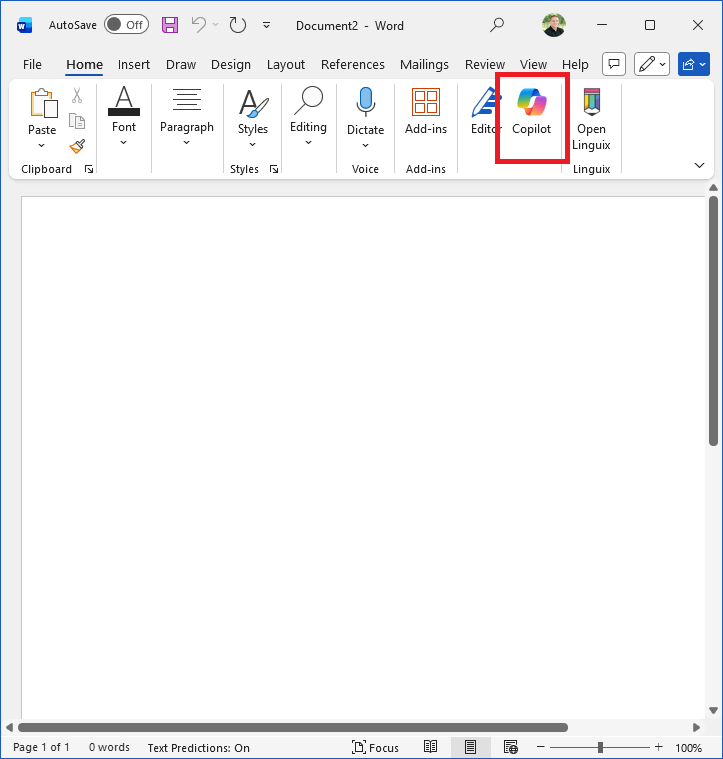 To open Microsoft Copilot in Word, click the Copilot button in the Home ribbon.
Pro Tip: When you open the Copilot pane (Home Ribbon), it’s often too narrow. Since Copilot is "half your workforce," give it some room! Drag the divider to the left to expand your workspace.
1. Draft Rough Content Instantly
Stop staring at a blank page. Copilot is excellent at generating "v0.1" of any document.
- How to do it: Open the Copilot pane and type: "Write a 1-page executive summary about [Topic] for [Audience]."
- The Reality Check: Copilot can be wordy. It might give you two pages when you asked for one, but it’s easier to edit than to create from scratch.
- Workflow: Use the + sign to insert text into your doc. Note that you may need to manually reapply Heading Styles after inserting.
After the Copilot pane opens, you can type in your prompt. I started with something I need. An executive summary explaining what Microsoft 365 Copilot is. I've been getting asked a lot about it, so I decided I needed a quick summary explaining what it is. So I asked Copilot:
Write a 1-page executive summary about Microsoft 365 Copilot so my users can understand what it does and how to use it. Please include an example that shows value in my business.
It printed a bit of a wordy 2-page document explaining what Microsoft 365 Copilot is. Apparently, Copilot believes people have longer attention spans than I do, but at least it's given us a starting point.
If you scroll to the bottom of the page, you'll see several options. The sources will list where the information is from. The + sign will automatically add the text to your Word document. The thumbs will tell Copilot you're happy or unhappy. The Volume button will read the response aloud to you. The text in the boxes is recommended responses to Copilot to update its response.
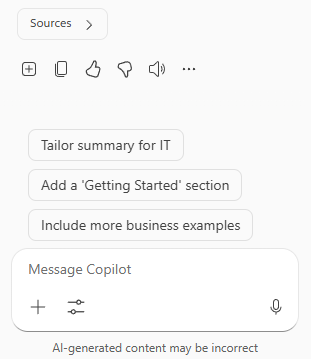 Click the + sign to copy the output to your Microsoft Word document. One quick note, this may be resolved by the time you are reading this, but the headings didn't come over properly. I had to click on each heading in my document and then click the appropriate heading button in the ribbon.
Now, I can save this document in SharePoint and point all my users to it so they can understand how to use Microsoft 365 Copilot.
2. Summarize Long Documents
Don't have time to read a 10-page brief? Let Copilot give you the "TL;DR."
- Quick Shortcut:
Ctrl + A(Select All) > Right-click > Summarize. - Interactive: Use the Copilot pane to ask follow-up questions about specific parts of the summary.
But who's going to read a 2-page brief? Not me, but have no fear, Copilot is here.
Now I can open this document, see it's 2 pages long and think "I ain't got time for that." Ctrl+A to select all the text > right-click the text and click Summarize.
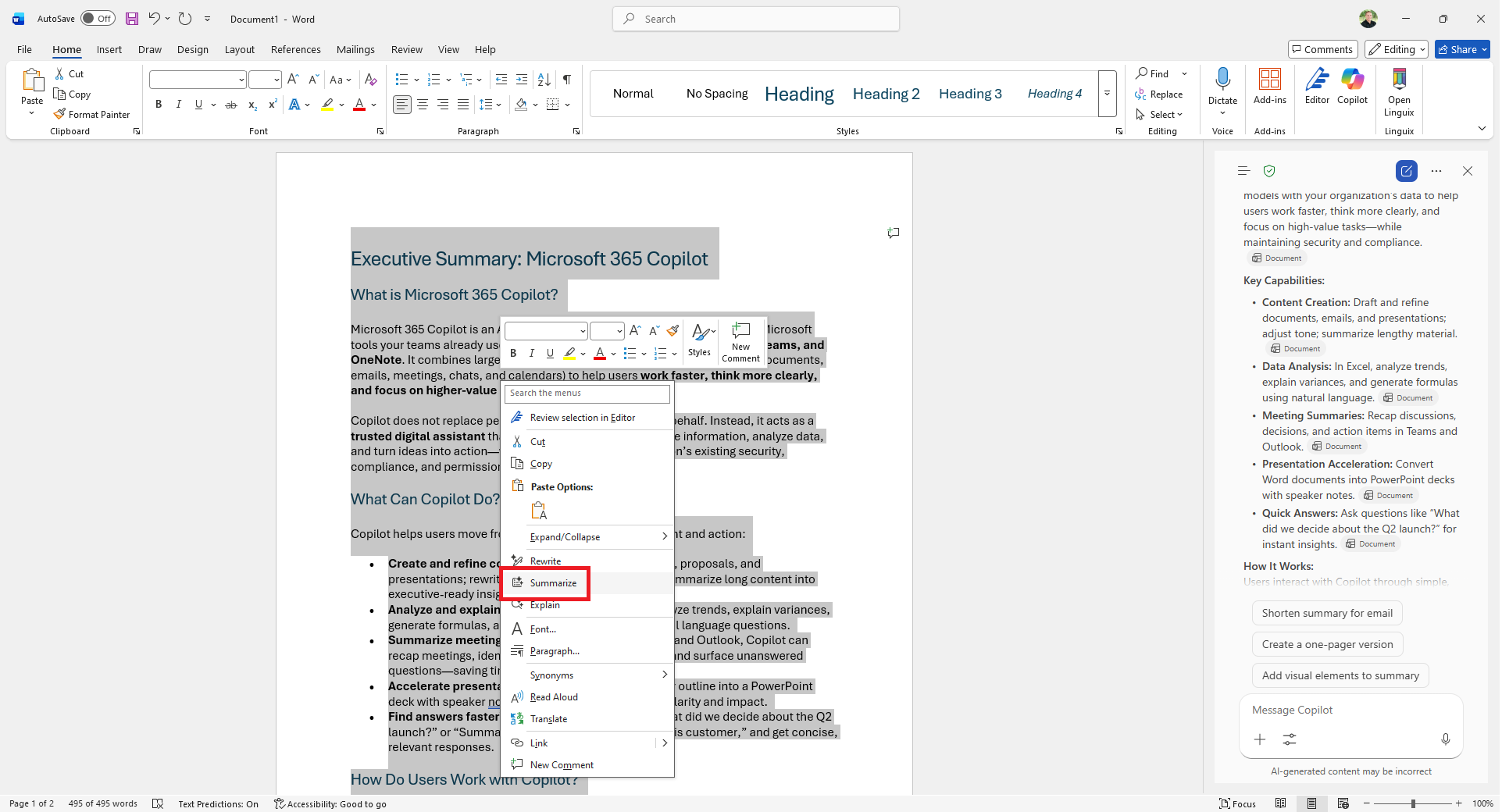 Of course, that Copilot window is just that, a window into Copilot. Feel free to ask follow-up questions, explain things in more detail, or provide feedback using the thumbs up/down to help improve Copilot.
3. Explain Complex Concepts
If a paragraph feels like legal jargon or technical gibberish, use the context menu.
- How to do it: Highlight the confusing text > Right-click > Explain.
- Why it's better: Unlike ChatGPT, Copilot uses the entire document as context, providing answers that actually make sense within your specific project.
Maybe you don't understand the document. So we can ask Copilot to explain it or ask Copilot questions about the text. Highlight the part you need help with > right-click > select Explain.
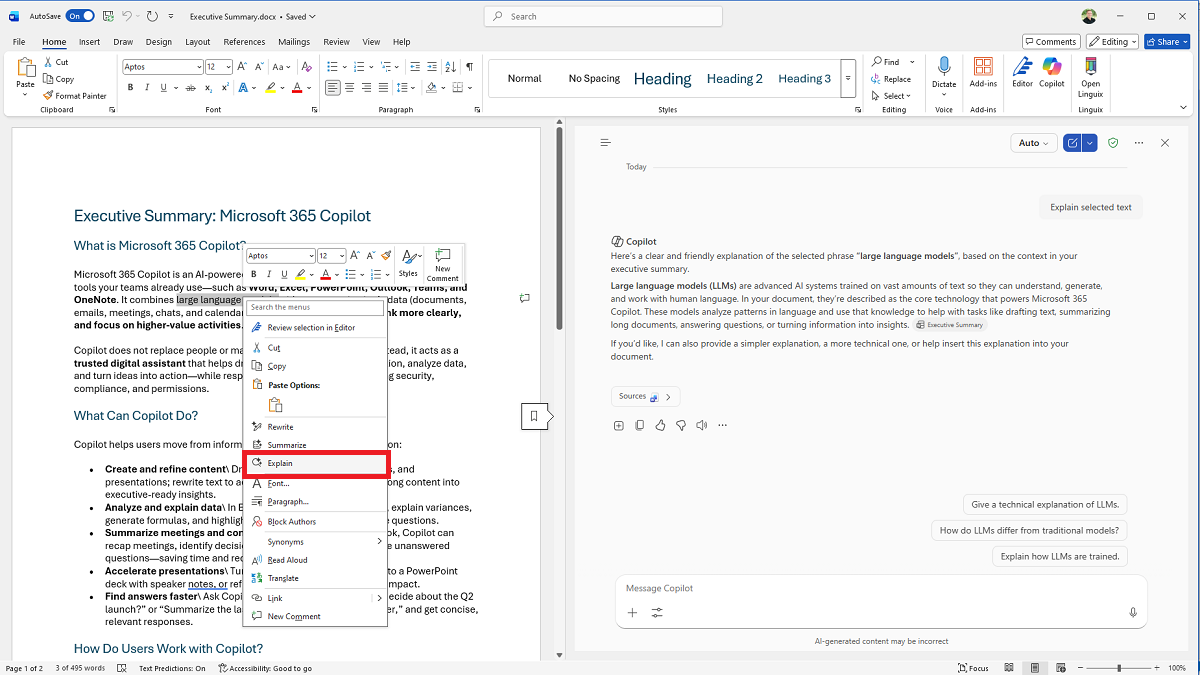 This is sort of like copying and pasting into Copilot or ChatGPT in your browser, but it also uses context. So you can see in Copilot's answer above, it says "based on the context" so it is pulling information from the rest of the document.
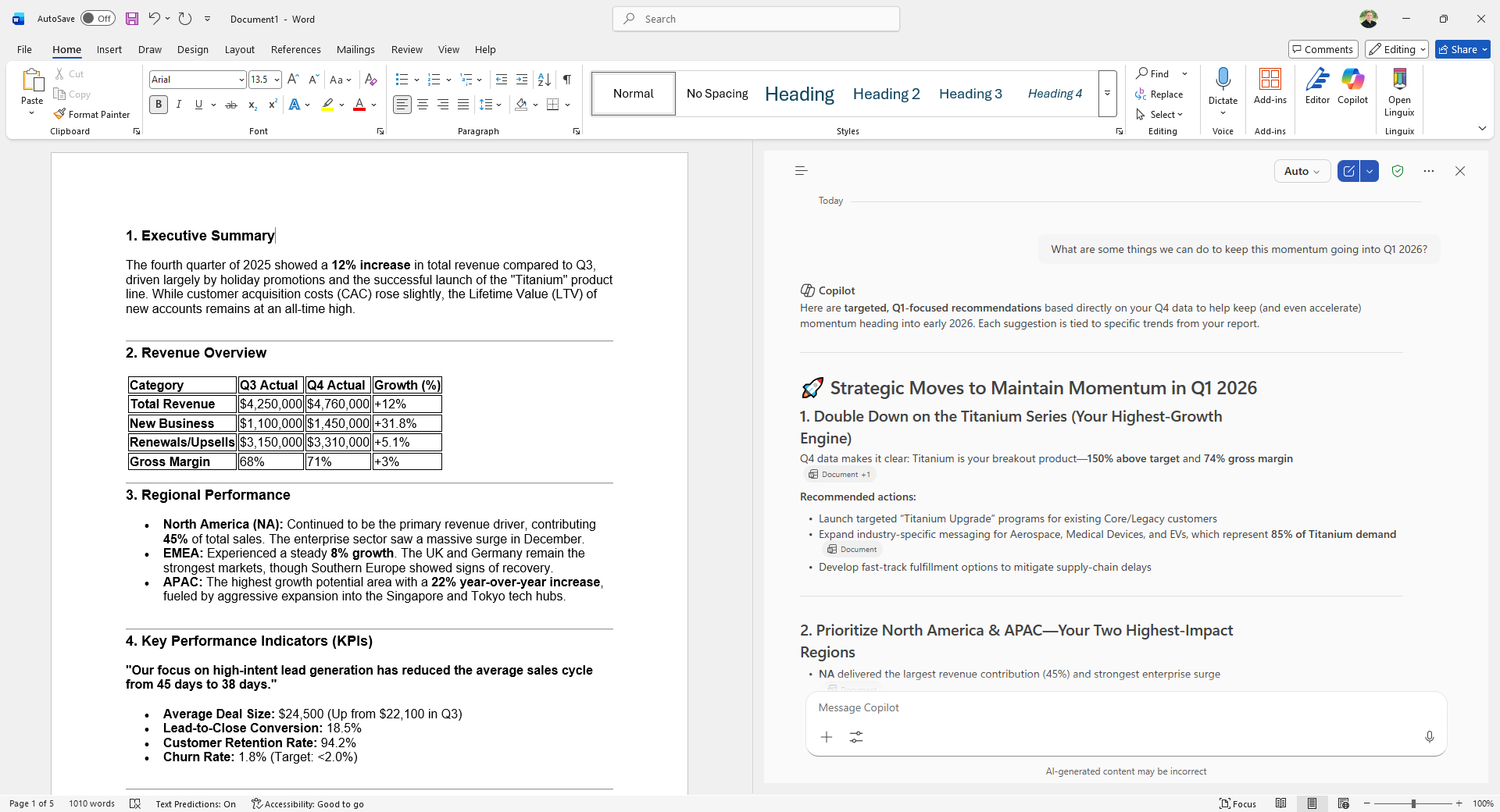
Here's another neat way to use Copilot to help "explain" something. Simply ask Copilot questions. It will use the open document to guide its answer. For example, I created a mock sales report in Gemini (so Copilot couldn't cheat) and copied it into Word. Then I asked Copilot, "What are some things we can do to keep this momentum going into Q1 2026?" It gave, what I would think, are some solid ideas to help keep the growth going.
 4. Transform Messy Notes into Minutes
If your meeting notes are a chaotic list of bullets, Copilot can "professionalize" them.
- The Prompt: "Rewrite this document to be professional and structured as meeting minutes. Expand notes and clean up bullets."
- The Bug: Currently, Copilot often puts the result in the chat window rather than replacing the text. You may need to copy/paste or specifically ask: "Insert this into the document with proper formatting."
This one didn't dawn on me because I use OneNote for my note-taking. I know my project managers use Word, though, because then they can send them to everyone in the meeting. My notes are almost always a mess, and sometimes I forget what and why I wrote certain things. So using Copilot to expand on my notes quickly is a game-changer. As an example, I decided to do a bit of research on ideas to use Copilot in the Office suite. Then I saved those notes in a Word document and asked Copilot to expand and make it pretty with: "Rewrite the document to be professional, clearly structured, and ready to send out as meeting minutes. Expand short notes, clean up bullets, and replace the existing text."
Unfortunately, Copilot didn't respond exactly how I'd like. It didn't replace the text; it delivered the output in the Copilot chat window. It's an easy copy and paste, but still. Then I followed up with "Yes, please insert this into my document with proper formatting." It gave me a new document, but it looked like Markdown text instead of using the proper header styles, bullets, etc. All in all, I got to use the "thumbs down" option in Copilot for the first time.
5. Refine Specific Sections
You don't have to overhaul the whole file. You can perform "surgery" on specific paragraphs.
- How to do it: Highlight a section and type: "Expand and reword the highlighted section to be more persuasive."
- Tip: Copilot identifies "highlighted" as whatever text you have currently selected.
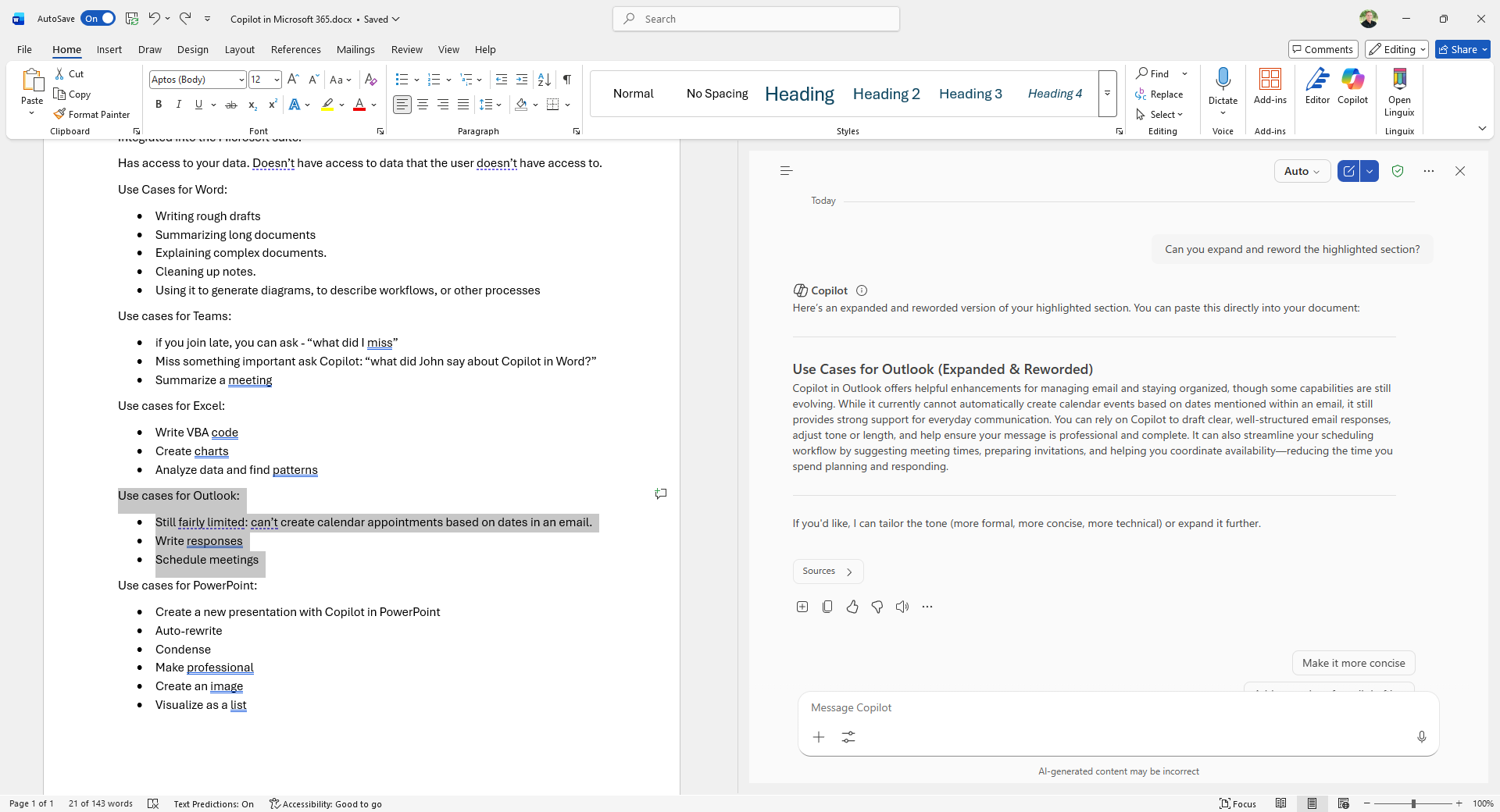
Not sure if this counts as its own tip, but I digress. As you may have missed above, you can ask Copilot to handle the entire document or just a section. You can highlight a couple of words and then ask Copilot, "Can you expand and reword the highlighted section?" or any of the other ideas I listed above. Copilot will understand "highlighted" as the selected text.
 6. Convert Document Types (Personas)
Need to turn a technical "deep dive" into a C-suite summary?
- How to do it: Ask Copilot: "Convert this technical brief into an executive summary for a non-technical audience."
- Use Case: This is perfect for turning raw project notes into official Post-Incident Reports (PIR).
This is another one I HATE doing. When I need to "convert" my documents into another "type" (I use both those terms loosely). Let me explain, I'll have a technical explanation of what Copilot is for my engineers, but then someone in the C-suite wants an explanation. I have to rewrite the document as an executive summary so they can understand it. Or needing to convert my notes to the official post‑incident report. Copilot can do this for us. Just ask, "Can you convert this to an executive summary?"
7. Create "Useful" Visuals (The Diagram Trick)
If you ask for an "image," Copilot often gives you generic AI art. For business value, change your vocabulary.
- The Secret Word: Instead of "image," use "diagram."
- Example: "Generate a diagram to help people understand the workflow in this document." This produces functional visuals rather than decorative ones.
If you're like me, you love a useful image. I don't need an image of an android working on a Word document. I need an image that helps explain the text (which is why I use so many screenshots). At first glance, if you ask Copilot to "Create an image," you'll notice it creates junk. Things that you might see on some blog somewhere that don't really help tell the story of the document. But there's a nifty trick to getting Copilot to create useful images. That's replacing the word "image" with the word "diagram".
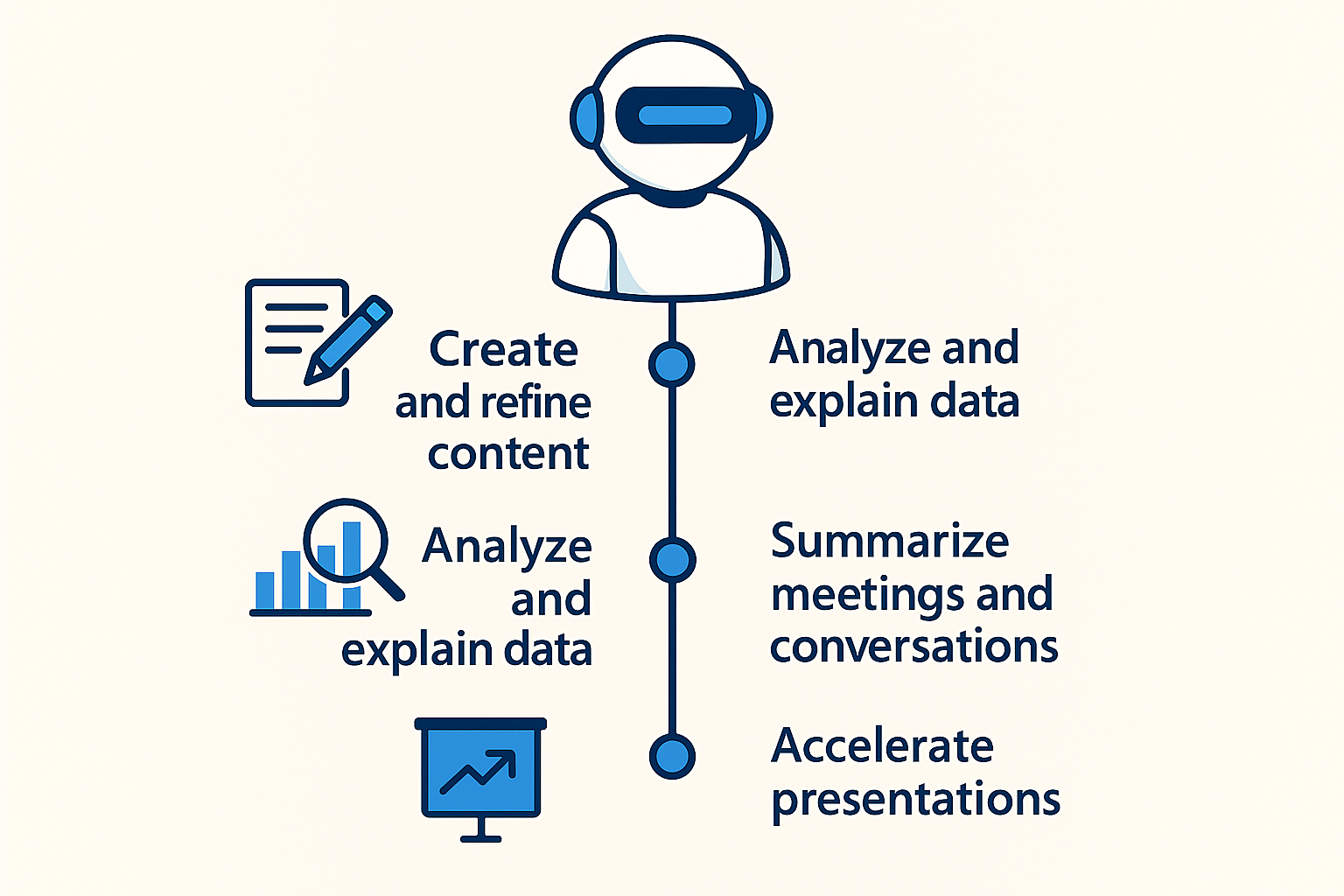
Once you do that, everything changes. Here's the image that is generated when I asked Copilot: "Can you generate an image to help people understand this document?"
 Here's an image from Copilot when I asked the same thing, but I used the word "diagram": "Can you generate a diagram to help people understand this document?"
 Current Limitations to Watch For
While powerful, Copilot still has some "growing pains" I've reported to Microsoft:
- Formatting Loss: Copilot often loses Header styles when inserting text. Keep the Home Ribbon handy.
- Markdown Text: Sometimes it outputs raw Markdown (e.g.,
### Header) instead of Word styles. - Placement: It doesn't always "replace" text when asked; check the chat pane if your document doesn't update.



![Device management could not be enabled Windows 11 [SOLVED]](/assets/imgs/docs/something-went-wrong-1200-si1gvpv8.png)