Device management could not be enabled Windows 11 [SOLVED]

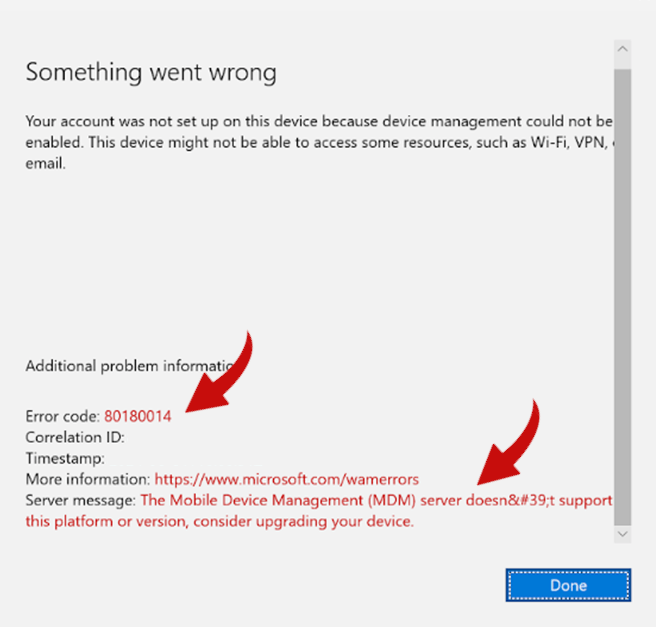
Device management could not be enabled is one of the most common errors and one of the least helpful at the same time. In short, your device is attempting to enroll in Intune, but there's typically no reason given. Just a generic "I can't do this". Sometimes, there's a number that indicates the failure if you look it up. But it reminds me of the "Task Failed Successfully" error.
Anyways, I've troubleshooted the device management could not be enabled error a lot... And I've realized there's a systematic way to work through the problem. This article does not cover a hybrid setup. If you're using Entra Connect to sync your devices and GPO to enroll in Intune, there's a little more complication to it. But 2 things to check: Make sure the device is in Entra as a hybrid device, and make sure the GPO is deployed to the computer.
What does "device management could not be enabled" mean?
In short, your device is attempting to enroll in Microsoft Intune, and it failed. Microsoft Intune is a cloud-based software solution that helps IT administrators manage devices. Through it, they can install apps, update the configuration of the device, and verify that the device is secure.
The error fundamentally means that Windows successfully authenticated the user's credentials, but when it reached out to Intune to say, "Hey, manage me," Intune said, "No."
Troubleshooting device management could not be enabled
Part of the problem with this error is that it can occur in numerous different scenarios. For example, it can happen on Windows 10, Windows 11, Android, iOS, and Mac. Within the Windows space, this can occur in Autopilot, hybrid, and manual enrollment scenarios. So, we're going to focus on Windows 11 in this guide. I'll start generic and then get more in-depth as the article continues.
First, we'll break down the three areas this error is most likely to be caused by: backend/cloud, networking, and client.
Configuring Intune Backend Settings to Fix Enrollment Errors
First, we need to eliminate the backend. If your Intune environment is not configured properly, a device won't be able to enroll. Lastly, I like to start with the backend because I don't have to schedule time or talk to users. I can simply hop in and check the settings.
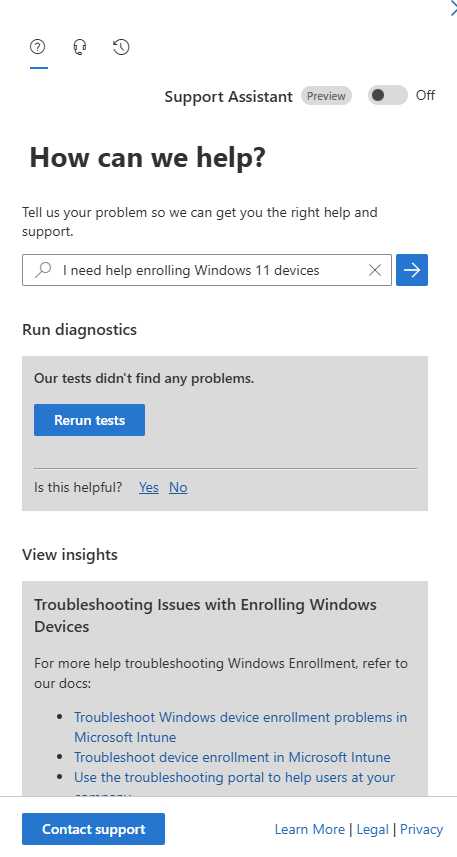
Now, Microsoft has provided us with a handy troubleshooter that will search the backend for most issues, so let's start there:
- Open https://admin.cloud.microsoft/?#/copilot/discover > Help & Support.
- Type "I need help enrolling Windows 11 devices" in the chat and click Enter.
- Type the user's primary email address in the "What's the email address of the affected user?" space provided, and click Run Tests.
Hopefully, it will find the issue. But, it might not.
 No problem. Onward and upward!
User License Required for Intune Enrollment
This error may be the "Device management could not be enabled" but it can also be the "Something went wrong". "This user is not authorized to enroll. You can try to do this again or contact your system administrator with the error code 801c0003." error.
A user must have an Intune Plan 1 license assigned to their account to enroll a device in Intune. NOTE: An Intune Plan 2 license is an add-on. A user must have an Intune Plan 1 license. Intune licenses are included in the following, but there may be more licenses that have Intune included:
- Intune Plan 1
- Microsoft 365 Business Premium
- Microsoft 365 E3 / E5
The easiest way to check is by looking at the apps in the user account in the Microsoft 365 admin center.
- Open Microsoft 365 admin center, Active users (https://admin.cloud.microsoft/?#/users)
- Find the user and click on their display name
- Click Licenses and apps > Apps.
- Find Intune Plan 1 in the list
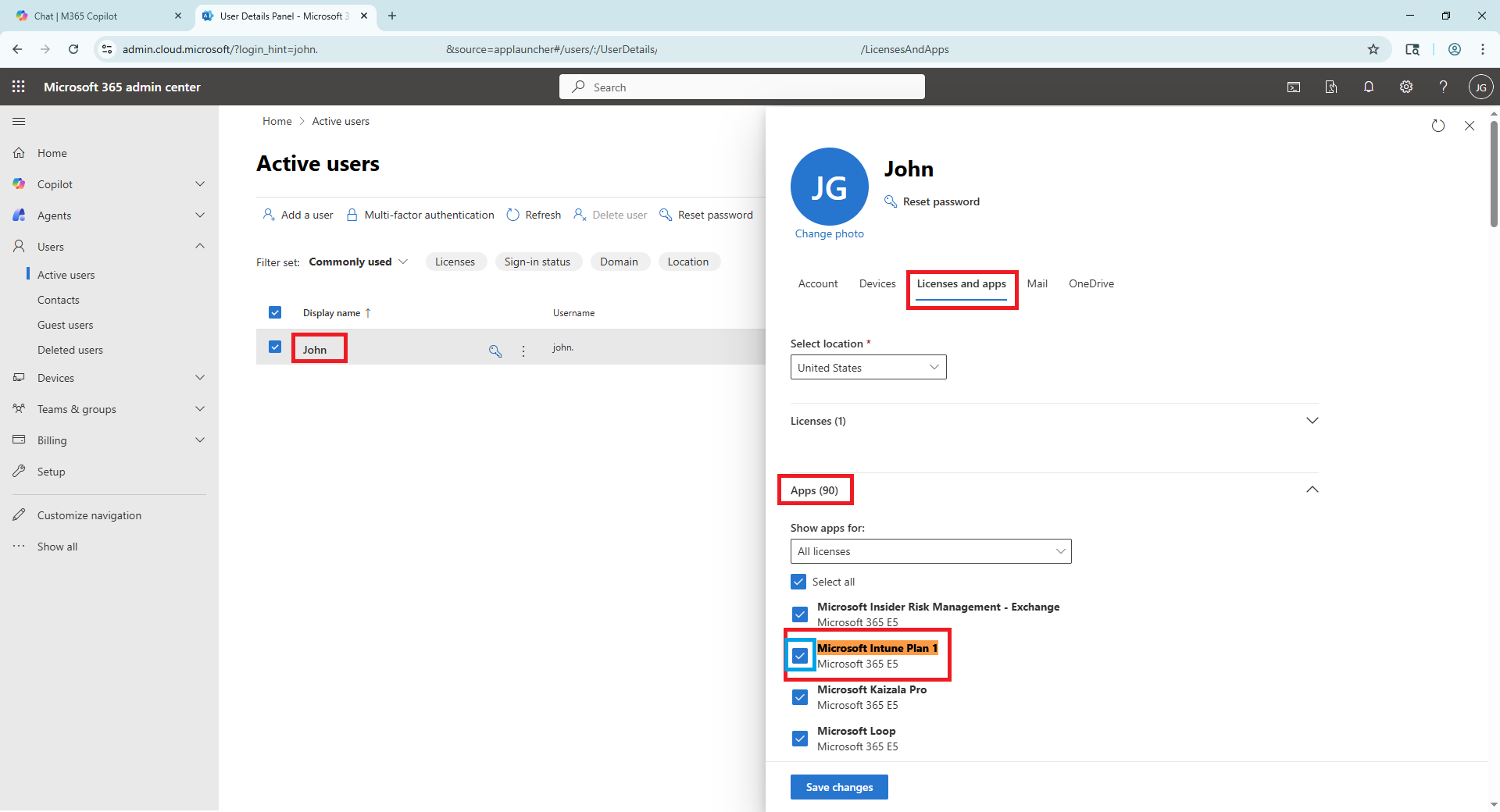
If the user does not have Intune Plan 1 and the license does not have a blue check box next to it in the apps list, they do not have the correct license. Assign the correct license and try to enroll the device again.
Fix: 'Maximum Number of Devices Reached' in Intune
Another issue may be that the user has enrolled the maximum number of devices in Intune. In short, Microsoft Intune limits the number of devices a user can enroll in Microsoft Intune. You can adjust the limit lower, but there is a ceiling too. This error can show up in multiple ways as well. It can show up in one of the following errors:
- Device management could not be enabled
- Error (The maximum number of devices that can be joined to the workplace by the user has been reached) during a Workplace Join
- Confirm you are using the current sign-in info, and that your workplace uses this feature. Also, the connection to your workplace might not be working right now. Please wait and try again."
- DeviceCapReached
- Company Portal Temporarily Unavailable
There are two parts to this root cause analysis.
- Check the maximum number of devices the user can enroll.
- Check the number of devices the user has enrolled.
How to check the maximum number of devices the user can enroll:
- Open the Microsoft Intune admin center (https://intune.microsoft.com/?ref=AdminCenter#home)
- Click Devices > Windows > Enrollment > Device limit restriction
- Find the enrollment limit assigned to your user.
- Note the value in the Device limit column.
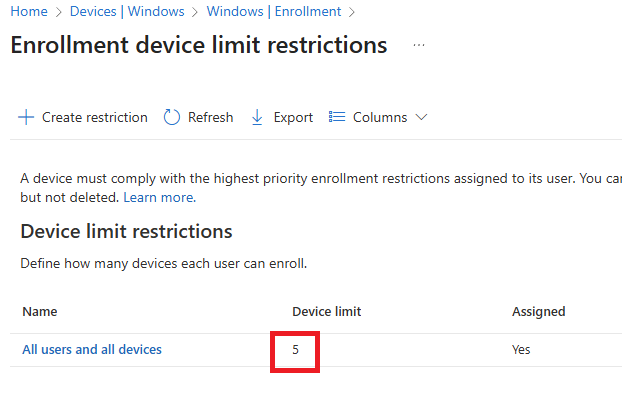
How to check the number of devices the user has enrolled:
- Open the Microsoft Intune admin center (https://intune.microsoft.com/?ref=AdminCenter#home)
- Click Users. Select the user you need to check. Click Devices.
- Compare the number of devices that have Microsoft Intune listed under the MDM column, and compare that to the maximum number of devices a user can enroll above.
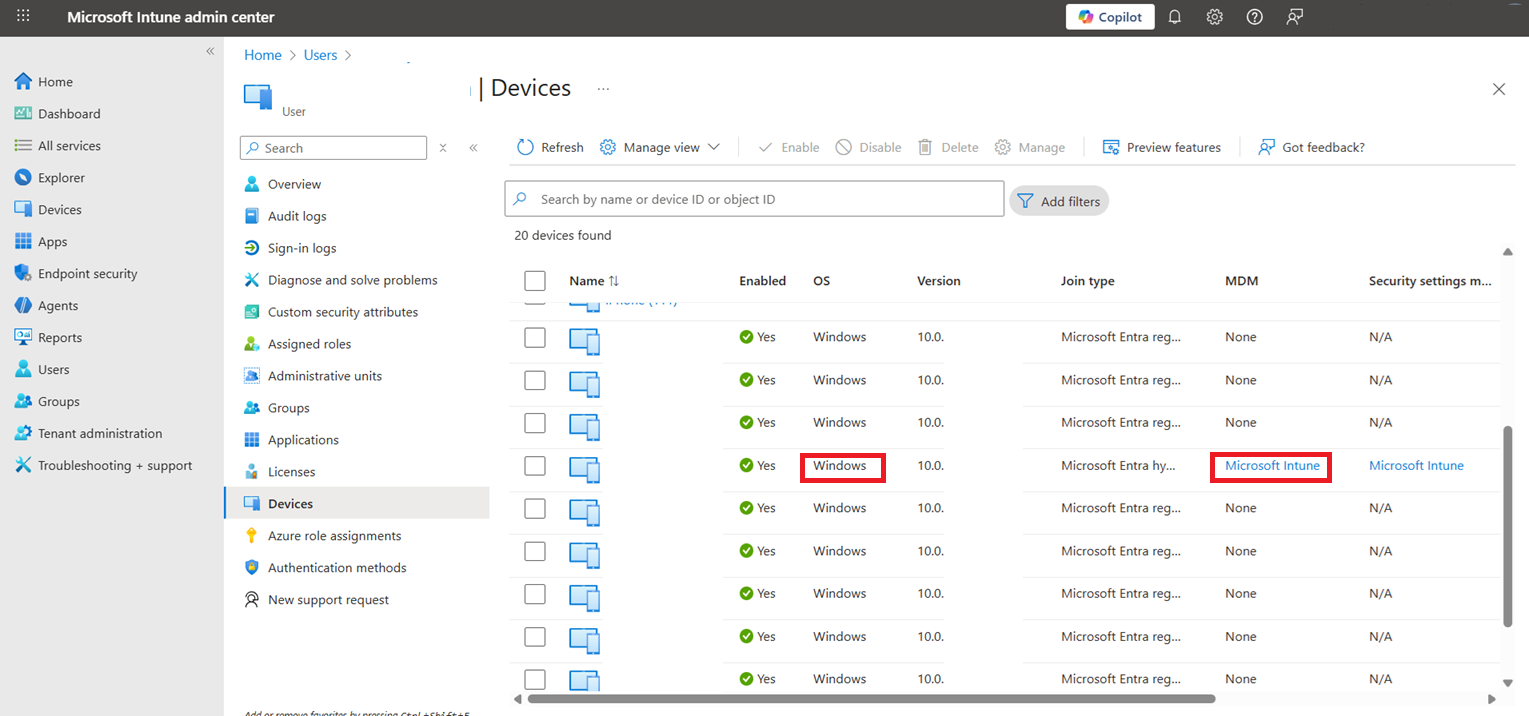 How to increase the device limit in Microsoft Intune:
- Open the Microsoft Intune admin center (https://intune.microsoft.com/?ref=AdminCenter#home)
- Click Devices > Windows > Enrollment > Device limit restriction
- Find the enrollment limit assigned to your user.
- Click the name of the enrollment limit.
- Click Properties > Edit (next to Device limit)
- Increase the number.
- Click Review + Save > Save.
You should be able to enroll the new device right away, but a lot of times, I wait a couple of hours before I tell the user to try again.
How to delete devices assigned to a user in Microsoft Intune:
- Open the Microsoft Intune admin center (https://intune.microsoft.com/?ref=AdminCenter#home).
- Click Devices > Windows.
- Find and click on the device you want to delete.
- Click Delete.
You should be able to enroll the new device right away, but a lot of times, I wait a couple of hours before I tell the user to try again.
Check device date and time
You can also make sure that the date and time on the user's device are set correctly:
- Restart the device.
- Make sure that the date and time are set close to GMT standards (+ or - 12 hours) for the end user's time zone.
- Uninstall and reinstall the Intune company portal (if applicable).
I created a bit of a guide for device management errors in Windows 10 a while ago, but it wasn't as complete as this one.
Fix: Intune Enrollment Restrictions Blocking Windows 11 Devices
I've only seen this one once. By default, Intune doesn't block you from enrolling devices in Intune. But one time, another admin limited the scope of devices allowed to enroll in Intune. They were attempting to block users from enrolling personal devices, which makes sense. But by default, this shouldn't be your issue. But it's a good thing to check regardless. Anyways, this setting allows you to lock down your Intune environment so users cannot enroll personal devices. It can also prevent older or new OS's from being enrolled in your Intune environment.
There are a number of errors that can indicate this is your issue too:
- Your account was not set up on this device because device management could not be enabled.
- Error 80180014
- Error 80180002
Here's how to check and fix the enrollment restrictions in Microsoft Intune:
- Open the Microsoft Intune admin center (https://intune.microsoft.com/?ref=AdminCenter#home).
- Click Devices > Windows > Enrollment > Device platform restrictions.
- Go through the policies one by one and find the policy that's assigned to your user/device.
- Check the platform settings for anything that could be blocking your device from being enrolled in Intune
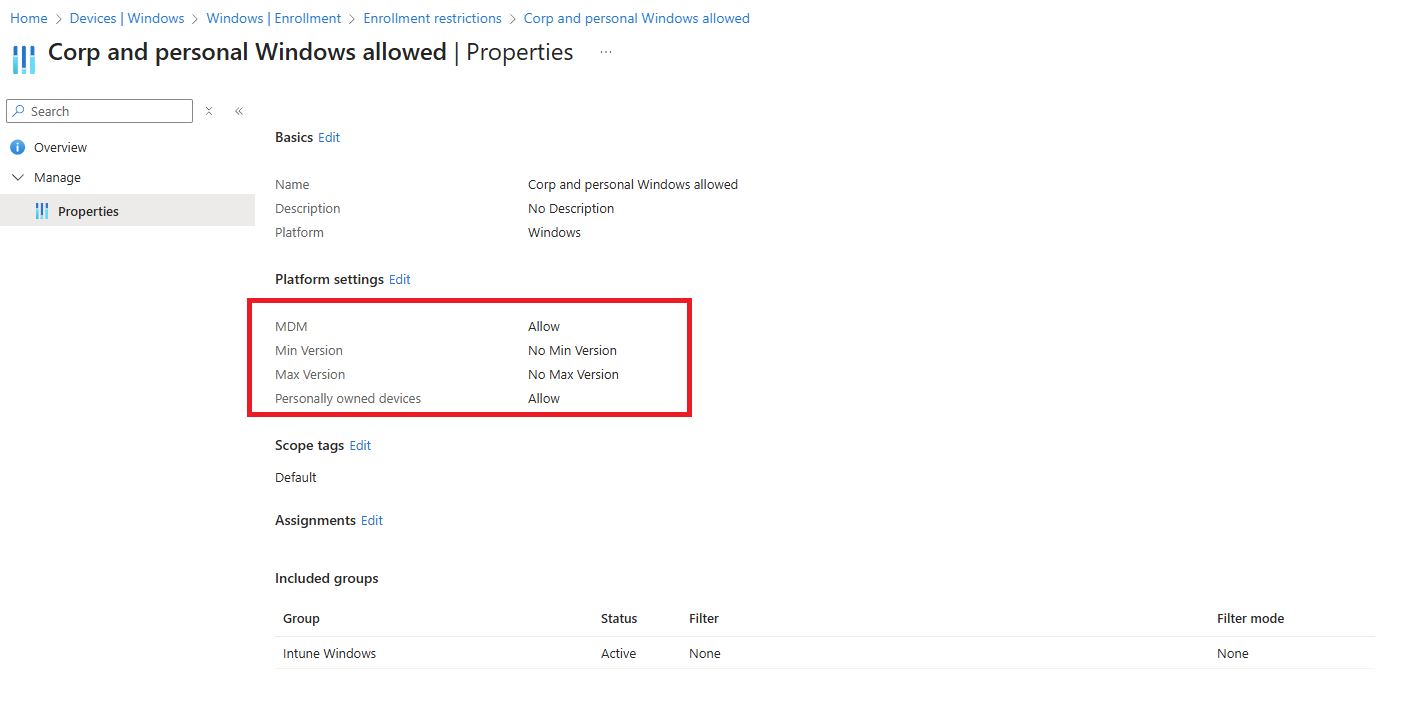 Fix: MDM User Scope Issues Preventing Device Enrollment
Another reason your users cannot enroll devices can be because they are not allowed to enroll devices. I'm grouping this with the MDM terms of use URL, MDM discovery URL, and MDM compliance URL errors because they are all located in the same space. This is another hidden error, but it can show up in the following ways:
- Device management could not be enabled.
- Your account was not set up on this device because device management could not be enabled.
- Error 80180002
- User not allowed to enroll devices.
- Error 80180014
- We can’t connect to the URL for your organization’s MDM terms of use.
- Something went wrong. Looks like we can’t connect to the URL for your organization’s MDM terms of use.
- 0x80180031 — Mobile Device Management is not configured
- User-driven Autopilot enrollment fails with no MDM enrollment (no error)
These all indicate either that the user is blocked from enrolling devices or there's an issue with 1 of the 3 URLs I listed above.
How to check if the user has the permissions to enroll a device:
- Open the Microsoft Intune admin center (https://intune.microsoft.com/?ref=AdminCenter#home).
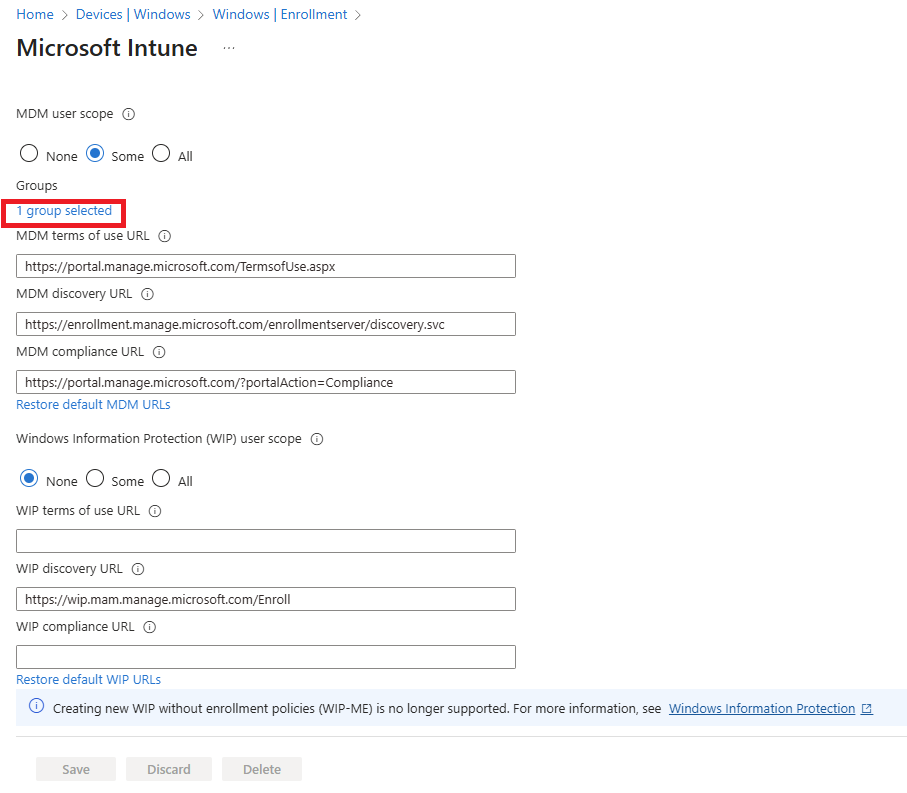
- Click Devices > Windows > Enrollment > Automatic Enrollment.
- Check if the MDM user scope is set to All or Some. If it is set to Some, verify the user is in one of the groups that are allowed to enroll devices.
- Verify the MDM terms of use URL is set to https://portal.manage.microsoft.com/TermsofUse.aspx
- Verify the MDM discovery URL is set to https://enrollment.manage.microsoft.com/enrollmentserver/discovery.svc
- Verify the MDM compliance URL is set to https://portal.manage.microsoft.com/?portalAction=Compliance
- Verify that the MAM User scope is set to None
Identify and Fix Conditional Access Policies Blocking Intune
Conditional Access is often the "hidden" reason for enrollment failures because it doesn't always provide a clear error message on the device. Also, it's a pain in the butt to find because you can have A TON of conditional access policies.
I typically recommend excluding Intune enrollment from all conditional access policies. What hacker is going to allow you to install Intune and manage their device? Probably none of them. If you're really concerned about it, I'd recommend creating special conditional access policies that only manage the Intune enrollment. For example, lock down Intune enrollment so you can only enroll devices from your corporate network.
What errors will the user see if it's a conditional access policy blocking Intune enrollment?
- You cannot access this right now
- Authentication window loops or fails (Modern Auth prompt reappears)
- Enrollment fails because CA blocks the “Device Management Client” app
- Sign‑in logs may show CA failures even if the user sees only generic errors
How to check if Conditional Access policies are blocking Intune enrollment:
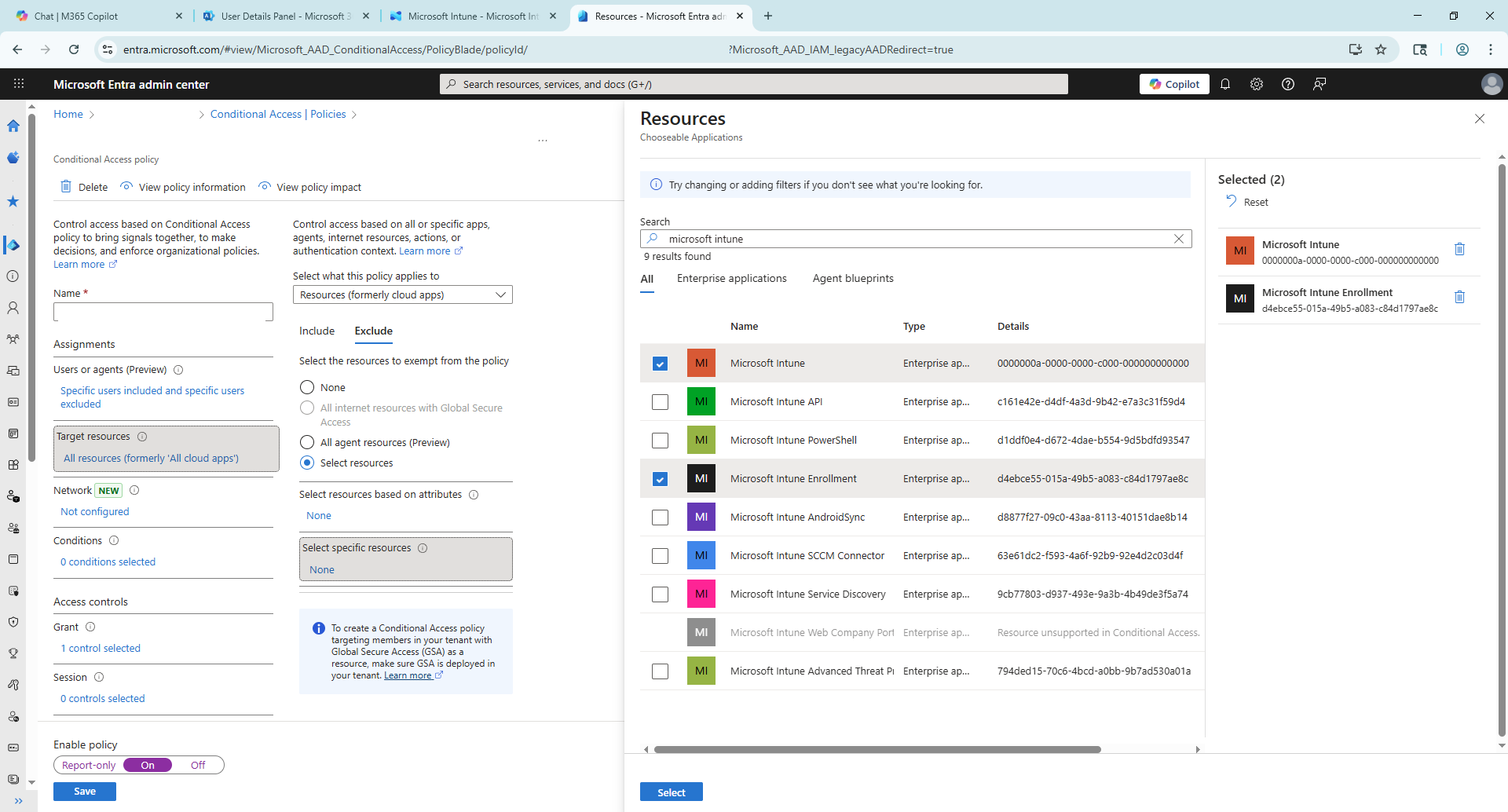
- Go to Microsoft Entra admin center > Entra ID > Conditional Access > Policies (https://entra.microsoft.com/#view/Microsoft_AAD_ConditionalAccess/ConditionalAccessBlade/~/Policies/menuId//fromNav/Identity).
- Open the CA policy you want to adjust.
- Click the link under Target resources.
- Select Exclude > Select resources > None (under Select specific resources)
- find and select:
- Microsoft Intune Enrollment
- Microsoft Intune
- Click Select > Save.
Fix: MDM authority is incorrect in Intune
I almost forgot this one because I haven't seen it in ages. In short, Intune has an "MDM authority" setting. When in a hybrid environment with Microsoft System Center or when migrating from Microsoft System Center, you may need to update the MDM authority. I believe there may be another reason it's set wrong if your tenant is really old and you haven't ever changed it. Anyways, it should be set to Microsoft Intune.
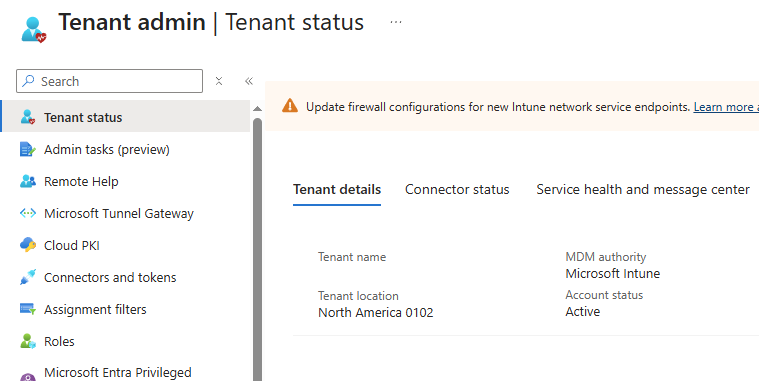
- Open the Intune admin center > Tenant administration (https://intune.microsoft.com/?ref=AdminCenter#view/Microsoft_Intune_DeviceSettings/TenantAdminMenu/~/tenantStatus)
- Check that the MDM authority is set to Microsoft Intune.
- If it isn't, there should be a banner at the top that says something like "You're using Office 365 for device management..."
- Click the banner and set the MDM authority to Microsoft Intune.
As a last-ditch effort, you might want to check the Microsoft 365 admin center > Health > Service Health (https://admin.cloud.microsoft/#/servicehealth) and check for any issues that may be related to your problems.
I think that's all the locations I've checked the backend for Intune enrollment errors. If I think of any more, I'll update this article. Onward to networking!
Fix: Windows 11 Intune Enrollment Networking & Connection Errors
There are a few things that can go wrong networking-wise. The first is a misconfigured DNS in your environment. Which, hooray, we don't need to be in front of the user's computer to check, so of course, I start there.
Verify Public DNS is configured properly
The first place I typically look is the public DNS. I verify the domain is configured properly in the Microsoft 365 admin center. Then I run the test in the Intune admin center. In short, Intune requires 2 public DNS entries on your domain: enterpriseregistration & enterpriseenrollment. Both of these are CNAME records that need to be made available in your public and private DNS configuration so your devices can properly enroll.
How to check and add Microsoft Intune DNS records to the Microsoft 365 admin center:
- Open the Microsoft 365 admin center > Settings > Domains (https://admin.cloud.microsoft/?source=applauncher#/Domains)
- One by one, click each domain name, then click DNS records. Verify both DNS records located under Basic Mobility & Security have green check boxes with the word OK next to them.
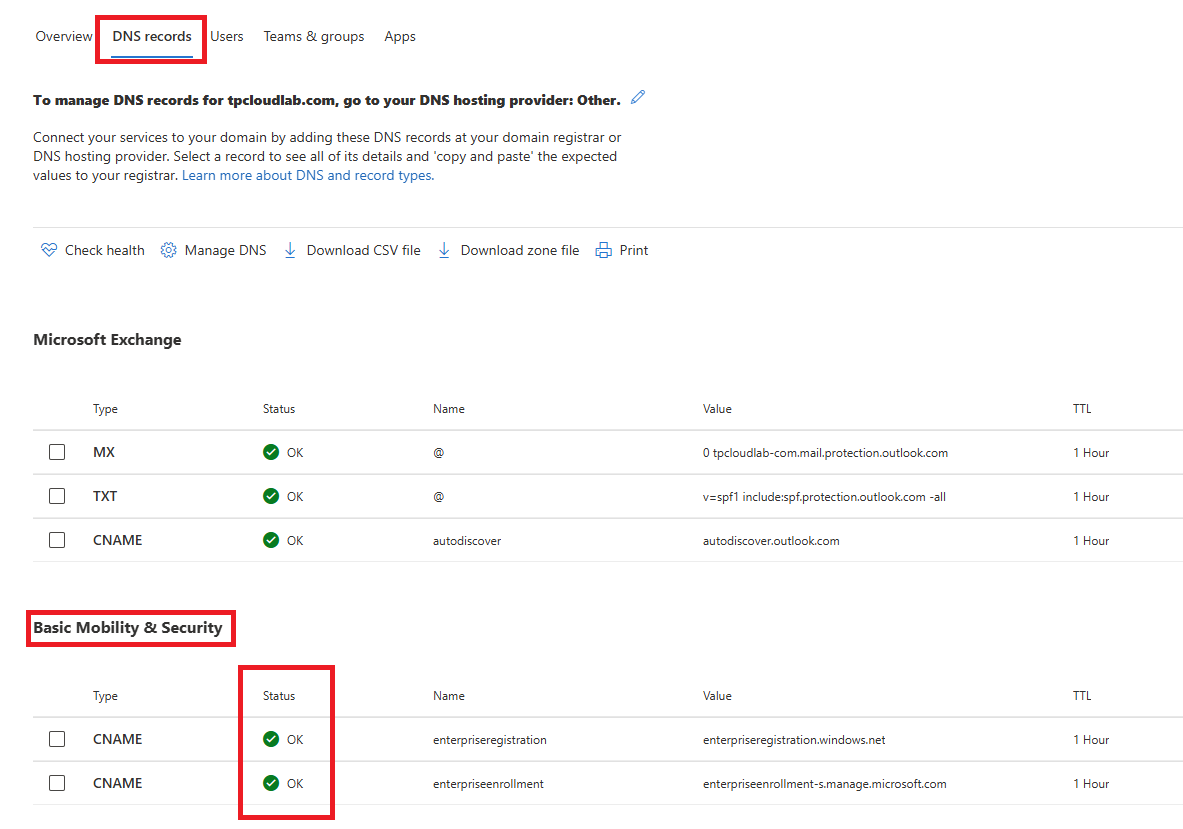 If you don't have the Basic Mobility & Security section, you'll need to add it.
- Click Manage DNS > Continue > Expand Advanced options.
- Check Intune and Mobile Device Management for Microsoft 365.
- Click Continue and Done until the wizard is complete.
Add the Intune DNS records to your public DNS:
If you have the Basic Mobility & Security section but it doesn't show green check boxes you'll need to add those records to your public DNS.
- Add a CNAME record to your public DNS with the name enterpriseregistration and Points to: enterpriseregistration.windows.net.
- Add a CNAME record to your public DNS with the name enterpriseenrollment and Points to: enterpriseenrollment-s.manage.microsoft.com.
- Go back to the Microsoft 365 admin center and then verify the DNS records.
Check your DNS records in the Intune admin center:
If you get green check marks there, I next jump over to Intune and verify it's working properly.
- Go to Intune admin center > Devices > Enrollment (https://intune.microsoft.com/?ref=AdminCenter#view/Microsoft_Intune_DeviceSettings/DevicesMenu/~/enrollment)
- Click CNAME validation.
- Enter the domain name you want to test in the space provided and click Test.
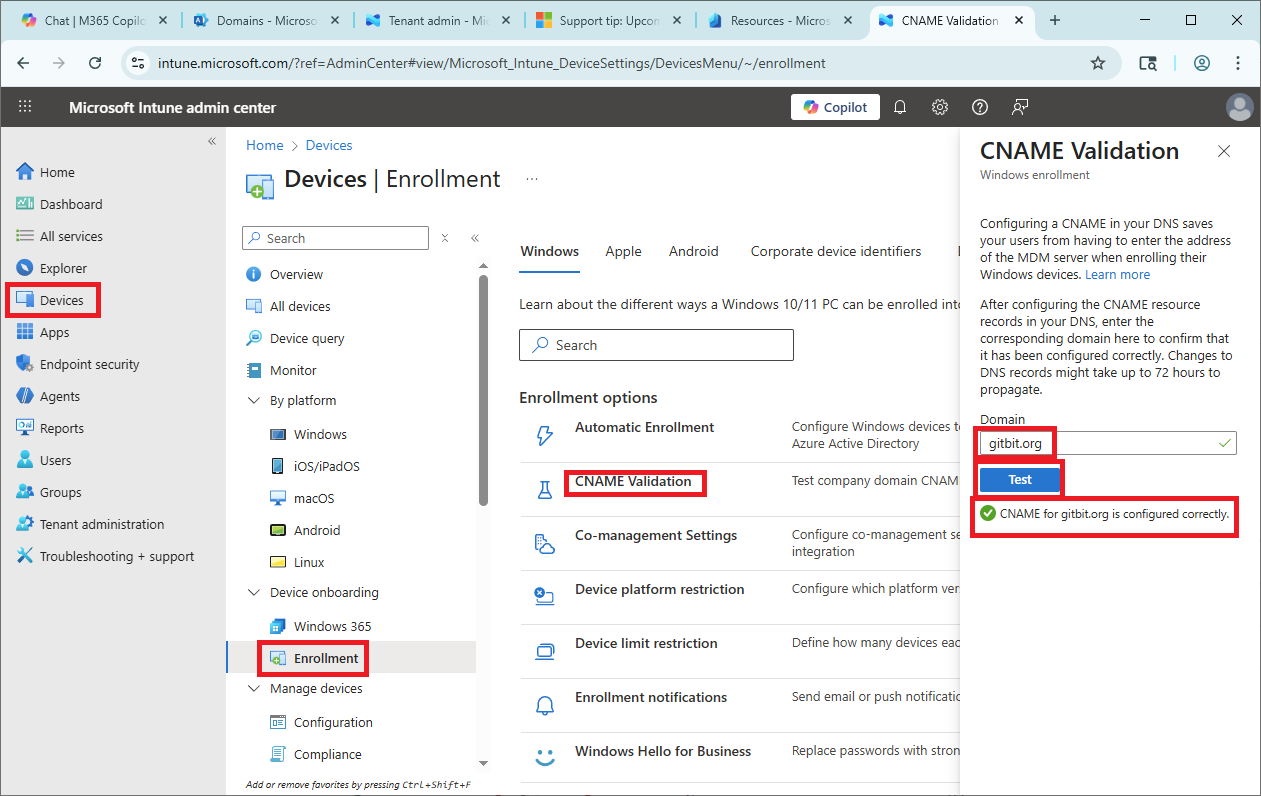 Setting up Intune DNS in your private DNS records:
Quick note, if you have a split-brain DNS, you'll need to also add those records to your DNS records inside your environment. Split-brain is when you have public DNS records, for example, I can register gitbit.org at GoDaddy. Then I may also have gitbit.org in my internal Active Directory environment. If you haven't added those two records to your private DNS as well, you may need to add them there as well.
How to check DNS records on the client machine:
Okay, we've avoided the client machine for as long as possible. If everything above looks good, we'll now need to hop onto the client machine and start troubleshooting. I know, we did our best to avoid it, but it's not always possible.
Anyway, we need to verify that the client computer can access a handful of different URLs. If you can't access one of these locations, there are a number of things it could be. From your client firewall, network firewall, reverse proxy, and web filtering. So I won't be able to help you. But I can tell you this:
If you can't access the resource from one device, try another device. Then try taking that device to a new location or closing your VPN. Isolate, then isolate some more, then troubleshoot.
Note: in some of these I'll be putting [YOUR_DOMAIN] in the URL. Replace the [YOUR_DOMAIN] with your actual domain. In my case it's gitbit.org so I would go to https://enterpriseenrollment.gitbit.org/
- Open https://enterpriseenrollment.[YOUR_DOMAIN]/. It should redirect to https://intune.microsoft.com/#home
- Open https://enterpriseregistration.[YOUR_DOMAIN]/. It should redirect to a site that says something like: {"odata.error":{"code":"NotFound","message":{"lang":"en","value":"Unsupported method or endpoint."}}}
- https://enterpriseregistration.windows.net/ should return something like this: {"odata.error":{"code":"NotFound","message":{"lang":"en","value":"Unsupported method or endpoint."}}}
- https://login.microsoftonline.com should direct you to the Microsoft 365 login or to the Microsoft 365 portal.
- https://device.login.microsoftonline.com should direct you to a page that says "AADSTS90014: The required field 'request' is missing from the credential. Ensure that you have all the necessary parameters for the login request."
- https://login.microsoft.com should direct you to the Microsoft 365 login or to the Microsoft 365 portal.
- https://graph.microsoft.com should redirect you to https://developer.microsoft.com/en-us/graph
- https://enrollment.manage.microsoft.com should redirect you to the Intune admin center
- https://manage.microsoft.com should redirect you to the Intune admin center
- https://portal.manage.microsoft.com should direct you to a login screen followed by a webpage that says "Access Denied. You are not authorized to view this page. Your IT department may be able to help."
- Open PowerShell and run: "Test-NetConnection -ComputerName ztd.dds.microsoft.com -Port 443". It should return TcpTestSucceeded : True
- Open PowerShell and run: "Test-NetConnection -ComputerName cs.dds.microsoft.com -Port 443". It should return TcpTestSucceeded : True
- Go to this Microsoft website (https://learn.microsoft.com/en-us/intune/intune-service/fundamentals/intune-endpoints?tabs=north-america#azure-front-door-connectivity-diagnostics-tool) and download the PowerShell script and run it. It will test all the new URLs and endpoints for you.
The results of the PowerShell script should look something like this:
====================================================================== Intune AFD Connectivity Checker v1.0.0
(c) Microsoft Corporation
======================================================================
======================================================================
Testing Azure Front Door IP address ranges
======================================================================
13.107.219.0/24 ... PASSED
13.107.227.0/24 ... PASSED
13.107.228.0/23 ... PASSED
150.171.97.0/24 ... PASSED
2620:1ec:40::/48 ... SKIPPED
2620:1ec:49::/48 ... SKIPPED
2620:1ec:4a::/47 ... SKIPPED
======================================================================
Testing service endpoint URL
======================================================================
Service Endpoint ... PASSED
======================================================================
Test Results
======================================================================
Azure Front Door IP Addresses
4/4 IPv4 ranges reachable
3/3 IPv6 ranges skipped (no IPv6 connectivity)
Service Endpoint
HTTPS endpoint reachable
Overall Status: PASSED
Results saved to: Intune_AFD_Connectivity_20260122_153159.json
Script execution completed with exit code: 0
I think that's all the network locations that Intune enrollment contacts. Heck, they may have changed since I started writing this article until now.
If it isn't networking, now you're into my worst fear... It's the client.
Troubleshooting the Windows 11 Client: On-Device Fixes for Enrollment Errors
Keep it simple, reboot first
The first thing I almost always do when I get in front of a client computer is restart it. I can't tell you how many times I've asked users to restart the computer. They said they did, but they still had an issue. I spent hours troubleshooting, rebooted the computer, and it started to work. I don't know if some people don't understand what rebooting is, or maybe they are rebooting a different computer. I don't know why, but some users have issues with it, so I like to do it first thing.
Check the clock
The bloody clock being wrong is my next nightmare. And you have to double-check the time zone, too. Sometimes, users see that their clock is wrong, manually change the clock to the right time, not realizing their time zone was off. So check the date, time, and time zone on the computer next.
Install the Company Portal app
This one tripped me up on my first Windows 11 Intune enrollment. You used to open Settings > Accounts... > Add Work or School Account. Well, that way doesn't work in Windows 11. With Windows 11, you need to install the Company Portal app from the Microsoft Store and then open the app and log in with the user's credentials. Of course, this doesn't apply if you are attempting a hybrid enrollment. Although sometimes with hybrid enrollments, I do attempt to install and configure the Company Portal app. Sometimes, it just works, and I call it a one-off. Sometimes it fails too and gives me more information about the failure.
Fix TPM
I don't know why, but every time I seem to be having a weird issue, it seems to come back to the TPM. Here's the requirements for the TPM:
- TPM 2.0
- TPM must be enabled in BIOS/UEFI
- TPM must be owned and ready (not in a cleared or deactivated state)
- Device must support attestation (some older TPMs do not)
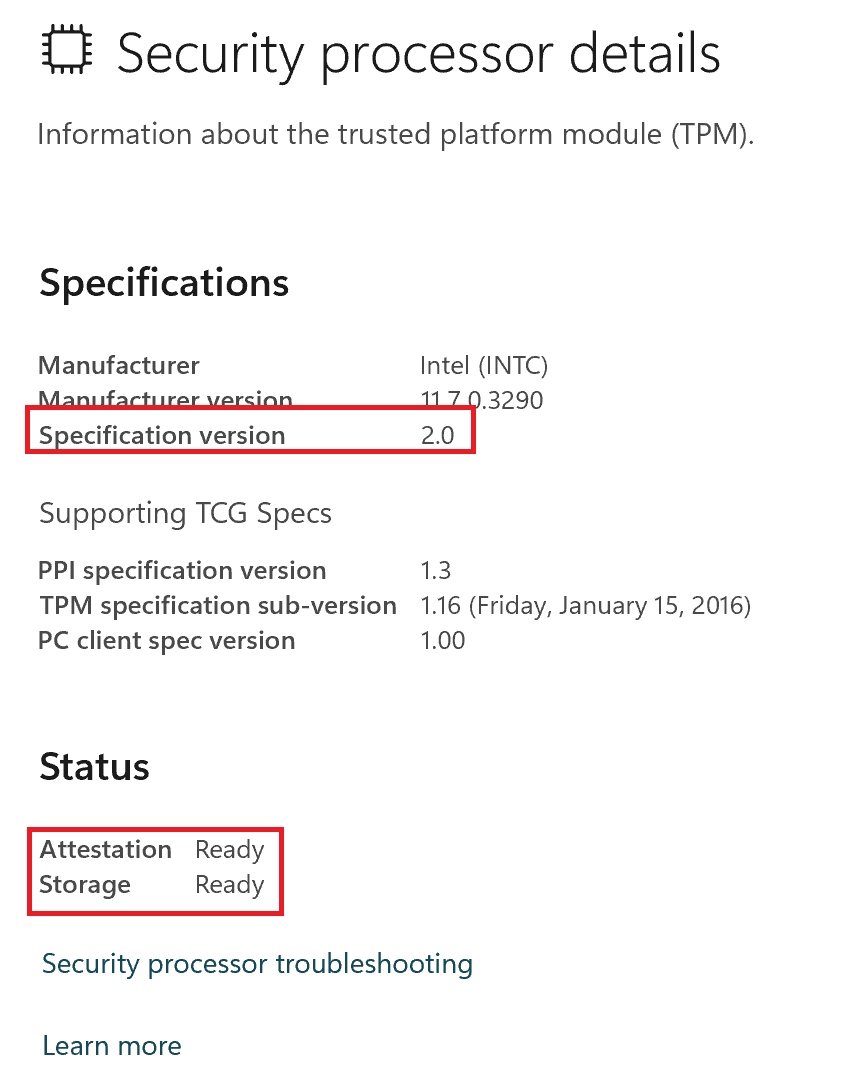 Not all operating systems can enroll in Intune
Here's another gotcha. Not all versions of Windows 11 can enroll in Intune. I've never come across this, but it's worth checking nonetheless.
- Windows 11 Home → Cannot enroll in Intune (no MDM support).
- Windows 11 Pro → Fully supported.
- Windows 11 Enterprise → Fully supported.
- Windows 11 Education → Fully supported.
- Windows 11 SE → Supported but only in specific school-managed scenarios.
Windows 11 needs updates to enroll in Microsoft Intune
Older versions of Windows 11 are unable to enroll in Intune, too. You need to be on version 22H2 to be able to enroll in Intune today. So double-check your updates to verify you are on a current enough version.
Basic troubleshooting
That's it for the basic troubleshooting. You may need to clear some registry keys to manually clean up a previous enrollment but I don't do that for general troubleshooting. I only do that if I know what the issue is and that will resolve it.
Intune enrollment error codes and how to fix them
Most of these errors happen along with the line: "Your Account was not set up on this Device because device management could not be enabled."
Error 8018000a: “Something went wrong. The device is already enrolled. You can contact your system administrator with the error code 8018000a
While researching this error, I came across an article by Jocha regarding the resolution. His resolution was solid and resolved this issue for me.
In short, you need to verify the device isn't in Intune. Then manually clean up the registry.
- Open Intune admin center > Devices > Windows (https://intune.microsoft.com/?ref=AdminCenter#view/Microsoft_Intune_DeviceSettings/DevicesWindowsMenu/~/windowsDevices)
- Search for the device and verify it's not already enrolled in Intune.
- Open Command Prompt as an administrator and run: dsregcmd /status. and verify IsDeviceJoined, IsUserAzureAD, and PolicyEnabled are set to NO.
- Open regedit as an administrator and delate the GUIDs located under HKEY_LOCAL_MACHINE\SOFTWARE\Microsoft\Enrollments.
- Lastly, reboot and retry the Intune enrollment.
Error 80180014: "The Mobile Device Management (MDM) server doesn't support this platform or version."
This is another Your Account was not set up on this Device because device management could not be enabled error. System Center Dudes has covered this error fairly well.
This issue usually boils down to one of two things: restriction or limitation.
- Intune Enrollment Restrictions: Your environment might be explicitly configured to block certain platforms or OS versions. If your device doesn't meet the minimum build requirements defined in the Microsoft Intune admin center, the 'handshake' will fail immediately. See the section above labeled: Fix: Intune Enrollment Restrictions Blocking Windows 11 Devices
- Windows Home Edition: This is the most common hardware-level blocker. Windows Home isn't supported for enrollment in Intune. To Intune, a Home-edition device essentially 'doesn't speak the language' of enterprise management. See the section above labeled: Not all operating systems can enroll in Intune.
Error: 80180014: "unknown error code 0x80180014"
This is one of the worst errors. Surely the software knows exactly why it failed, but it's keeping it a secret from us. Any, there are some event logs you can dig into. But as anoopcnair documents, it's most likely due to Intune blocking the enrollment of the device type. I documented above in Fix: Intune Enrollment Restrictions Blocking Windows 11 Devices.
Error: 80180002: unknown error code 0x80180002
Another non-helpful error that's surprisingly helpful if you know where to look. Urtech assists with this one. It's another enrollment restriction. I documented the resolution above in: Fix: Intune Enrollment Restrictions Blocking Windows 11 Devices.
Error: IT admin needs to assign license for access
"Your IT admin has not given you access to use this app. Please get help from your IT admin or try again later"
This error will pop up in the Microsoft Company Portal. It's caused by the user not having the correct license. Make sure to assign an Intune Plan 1 license to the user and then try again. More details can be found above in the section labeled: User License Required for Intune Enrollment. This may also be caused by the user not having the permissions to enroll a device in Intune. See the section Fix: MDM User Scope Issues Preventing Device Enrollment above.
Error: Your device is already connected to your organization.
You may be trying to re-enroll the device, or the device is registered to a different tenant in some way, shape, or form. See the section Error 8018000a: “Something went wrong. The device is already enrolled. You can contact your system administrator with the error code 8018000a above.
![I built an almost fully automated blog with Copilot [For Free]](/assets/imgs/docs/fast-takes-1200-q6vmzbxd.png)
![AI Agents vs Chatbots vs LLM Apps [Simple Breakdown]](/assets/imgs/docs/chatbot-llm-app-ai-agent-1200-ajzwu1rr.png)