Microsoft Teams: Stop Losing Files in the Microsoft Cloud OneDrive vs. SharePoint

There are a ton of locations your files can be stored in the Microsoft 365 ecosystem. The first thing to understand is that Microsoft Teams does NOT save your files. It doesn't store any files. It saves your files to either OneDrive or SharePoint and then links the files in your team channel or chat.
It’s essentially a window into OneDrive and SharePoint. Understanding this distinction is the first step in any Microsoft Teams files tutorial, as it explains why some of your documents end up in a SharePoint site while others live in your personal OneDrive folder.
Where are files stored in Microsoft Teams
Your files aren't stored in Microsoft Teams. They are stored in either Microsoft OneDrive or Microsoft SharePoint. When you upload a document to chat or a team, Microsoft Teams uploads that file to either OneDrive or SharePoint, depending on where you shared the document. If you shared the document in a chat, it's in your OneDrive in a file called "Microsoft Teams Chat Files". If you shared the document in a Team channel, it's in the SharePoint site documents in a folder that corresponds with the channel name (most likely General).
Files shared in a Team channel
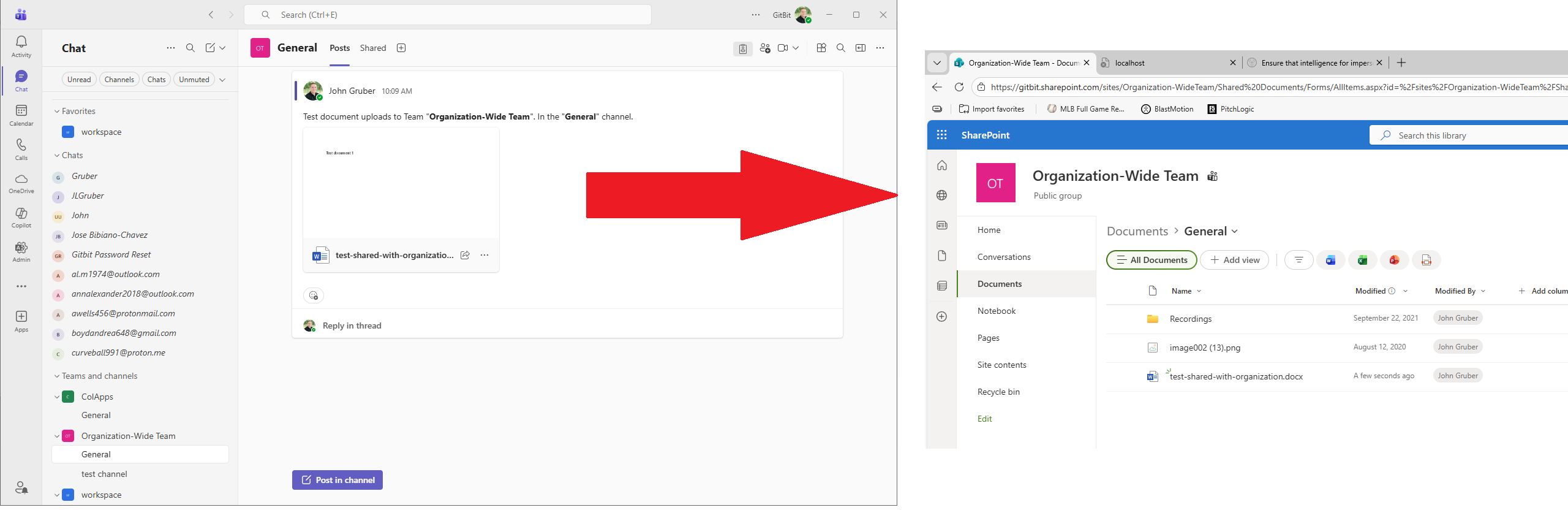
- Stored in the team’s SharePoint site
- Visible in the Files tab of that channel
- Accessible to all members of the team
- Placed in a folder called "CHANNEL NAME"
Files shared in a private or group chat
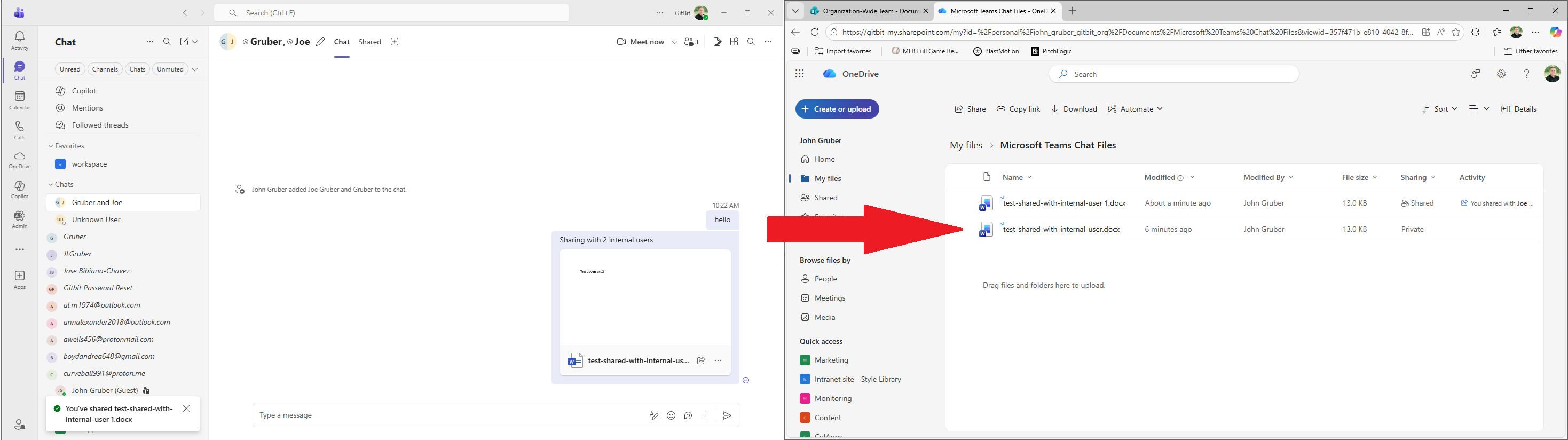
- Stored in your OneDrive for Business
- Placed in a folder called “Microsoft Teams Chat Files”
- Shared only with the people in that chat
Meeting recordings
- Saved to OneDrive or SharePoint, depending on the meeting type
What permissions do people have with the documents I shared with them over Microsoft Teams
When you share a document with someone in Microsoft Teams, they will have full edit and view access. If you need to limit permissions to a file you share over Microsoft Teams, it's best to upload the document to OneDrive or SharePoint, create a link with the permissions the user will need, and then share the link with people in Microsoft Teams.
What's the difference between Microsoft OneDrive and SharePoint?
Microsoft OneDrive is your personal file storage. Every user in the organization will receive their own OneDrive location. SharePoint is a team‑based platform designed to share documents within a team or with every member of a project. You'll typically want to store a document in your OneDrive unless the document should be shared with the entire team.
Microsoft Teams files tab missing
The first place to look is in the "Shared" tab. Microsoft recently renamed the "Files" tab to "Shared". If you have a tab called "Shared" look under there.
If the Shared tab is missing, the next easiest place to look is directly in OneDrive or SharePoint.
Microsoft Teams files tab missing from chat
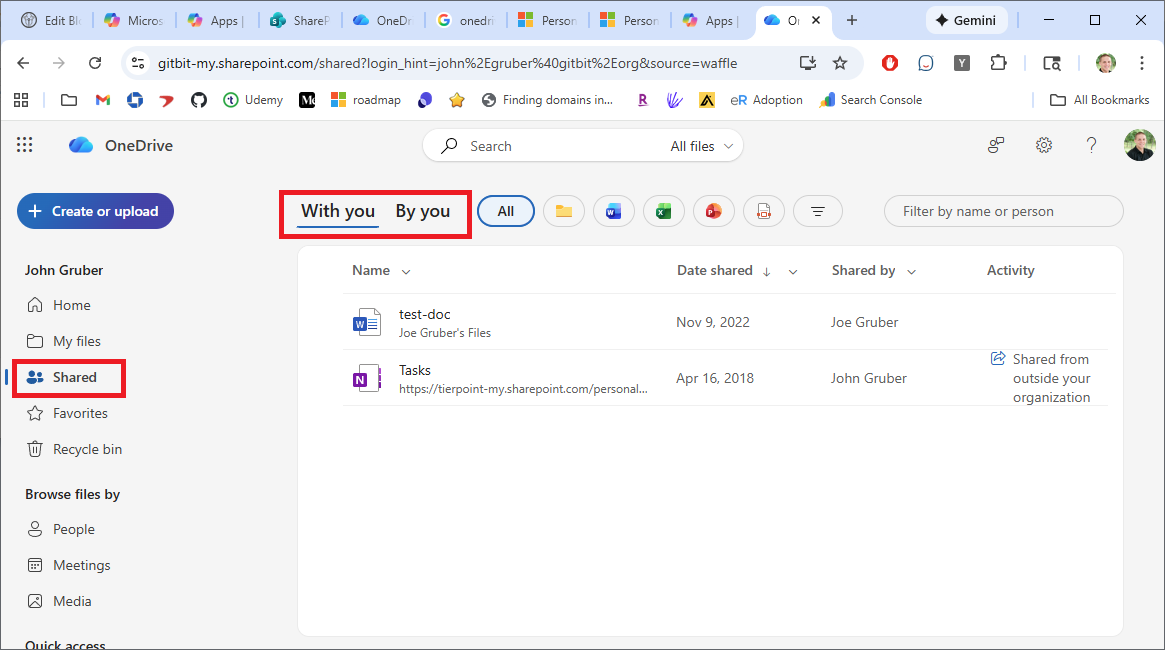
To find files shared with you or by you in a standard chat, go to the Microsoft 365 apps page > OneDrive > Shared. If it was shared with you, it should be on this page. If you shared the file, click By you.
Microsoft Teams files tab is missing from the team
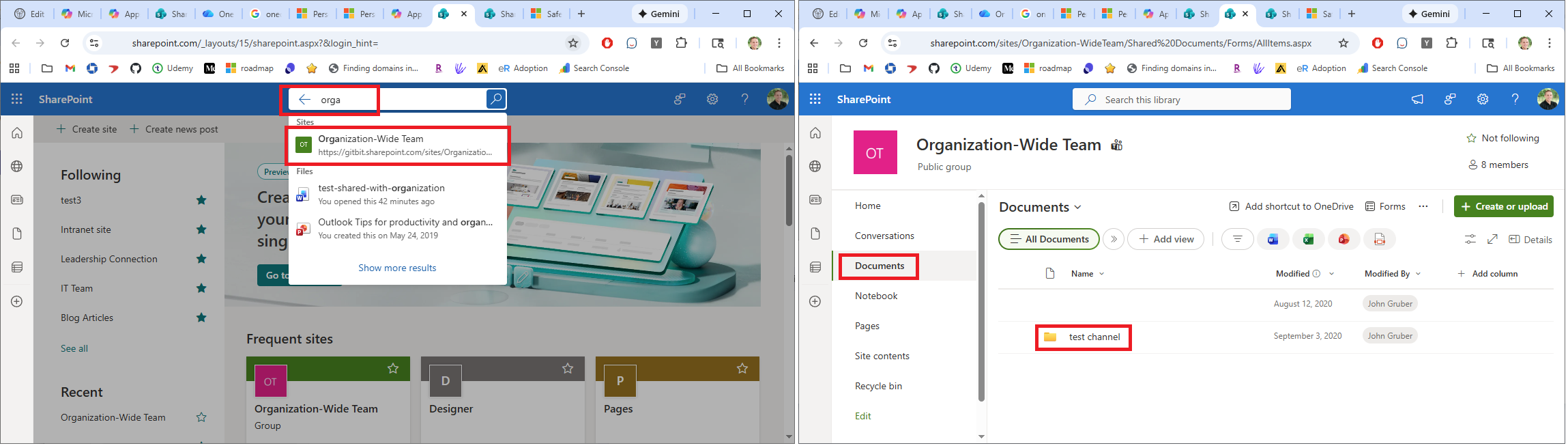
To find files shared within a team, go to the Microsoft 365 apps page > SharePoint > search for the team name > Documents > click the channel name.
How to share documents securely using Microsoft Teams
If the file is very sensitive or you need special permissions on the file, it's best to save the file in OneDrive or SharePoint and share the file with the correct people, setting the permissions manually.
Where are Microsoft Teams files stored locally?
Microsoft Teams files are not stored locally on your computer. If you sync the OneDrive or SharePoint site files to your computer, they will be saved in the following locations:
SharePoint: C:\Users\<you>\OneDrive - <OrgName>\<TeamName>\<ChannelName>\
OneDrive: C:\Users\<you>\OneDrive - <OrgName>\Microsoft Teams Chat Files
It's typically best to find the documents in the browser. See the "Microsoft Teams files tab missing" section above to find the files in your browser.
IT admins: Feel free to bookmark this or send this link to your users the next time they ask, "Where is my file?" because this is one of those weird Microsoft solutions that makes sense on the back end but isn't obvious until you understand the layout.