Stop Wasting Microsoft 365 Licenses: Top Ways to Cut Costs in 2026

Most companies Gitbit has audited are wasting 22% of their Microsoft 365 spend on unused licenses.
Cutting your Microsoft 365 costs doesn’t have to be complicated. With a little work, it’s possible.
Microsoft 365 powers productivity across many enterprises today. But license management isn't easy. It's slowly eating your IT budget.
In this guide, I’ll share five practical strategies to reduce Microsoft 365 costs in 2026, including recommended tools and ways to use built-in reports to find the data you need.
To reduce Microsoft 365 license waste and lower costs, review current usage, remove inactive licenses, and manage renewals proactively. Regular audits help ensure users have the right license types for their needs while accounting for the cost impact of AI features and add-ons such as Power Platform and Microsoft Copilot. Tools like Azure Cost Management and, when needed, expert services, can support ongoing monitoring and optimization.
I've written a complete guide to Microsoft 365 License Audits if you need more information.
Key Strategies
- Remove licenses from disabled users
- Remove licenses from inactive users
- Downgrade licenses on over-licensed users
- Stop paying for unassigned licenses
- Redefine the license terms
Remove Licenses From Disabled Users
Just about everyone has a termination process. Convert the mailbox to a shared mailbox. Move files from OneDrive. Remove the license. Disable the account.
But let’s take a quick example. Let’s say your hit squad of level 1 tech support guys make a mistake 3% of the time. (And if you think your level 1 team that performs the termination process is only making a mistake 3% of the time, you’re probably out of your mind.)
That’s 3% of the accounts where a level 1 tech forgot to remove the license. With 100 employees being turned over in a year, that’s 3 accounts. 3 accounts you’re paying for in a year that are licensed that no one has signed into. And with all honesty, that 3% is probably closer to 7%. And that number doesn’t magically fix itself.
If you compound that over 5 years, now you’re talking about 15 accounts. And that number will keep on growing, unless… you perform a license audit.
There are a couple of ways to check for disabled accounts that are still licensed.
- Run a free Gitbit report
- Export users in Microsoft 365 admin center and review the CSV
I’ll start with Gitbit because it’s much easier.
- Go to https://www.gitbit.org
- Click Get a free license audit
- Sign in with your Microsoft 365 administrator credentials.
- Accept the requested permissions.
- Filter the licenses column by “Not Empty”
- Filter the Is Enabled column by contains > false
For a more detailed set of instructions, check out this License Optimization guide. Now onward to the Microsoft 365 integrated way!
- Go to https://portal.office.com
- Click the admin app (good luck finding it; they keep moving it on me)
- Click Users > Active users (left pane)
- Click Export users > continue
- Wait for the CSV to download and open it.
- Click Sort & Filter > Filter (in the Home ribbon)
- Find the Licenses column > click the drop-down.
- Uncheck Unlicensed
- Find the Block credential column > click the drop-down.
- Uncheck FALSE.
Now you have your list of accounts that are licensed and currently disabled. Go and remove the license from each account!
Remove licenses from inactive users
Here’s another compounding issue with cloud licensing. Users will no longer be using Microsoft 365. Sometimes, HR forgets to tell IT. Sometimes, IT forgets to disable the account AND forgets to remove the license. Sometimes, the user just doesn’t need a Microsoft 365 account and stops logging in. There are probably 100 more reasons. But it’s a constant issue. This one is even more common than a licensed account that’s disabled. It can also be fixed with a Gitbit report or using the built-in reports from Microsoft 365.
How to find licensed M365 accounts that are inactive
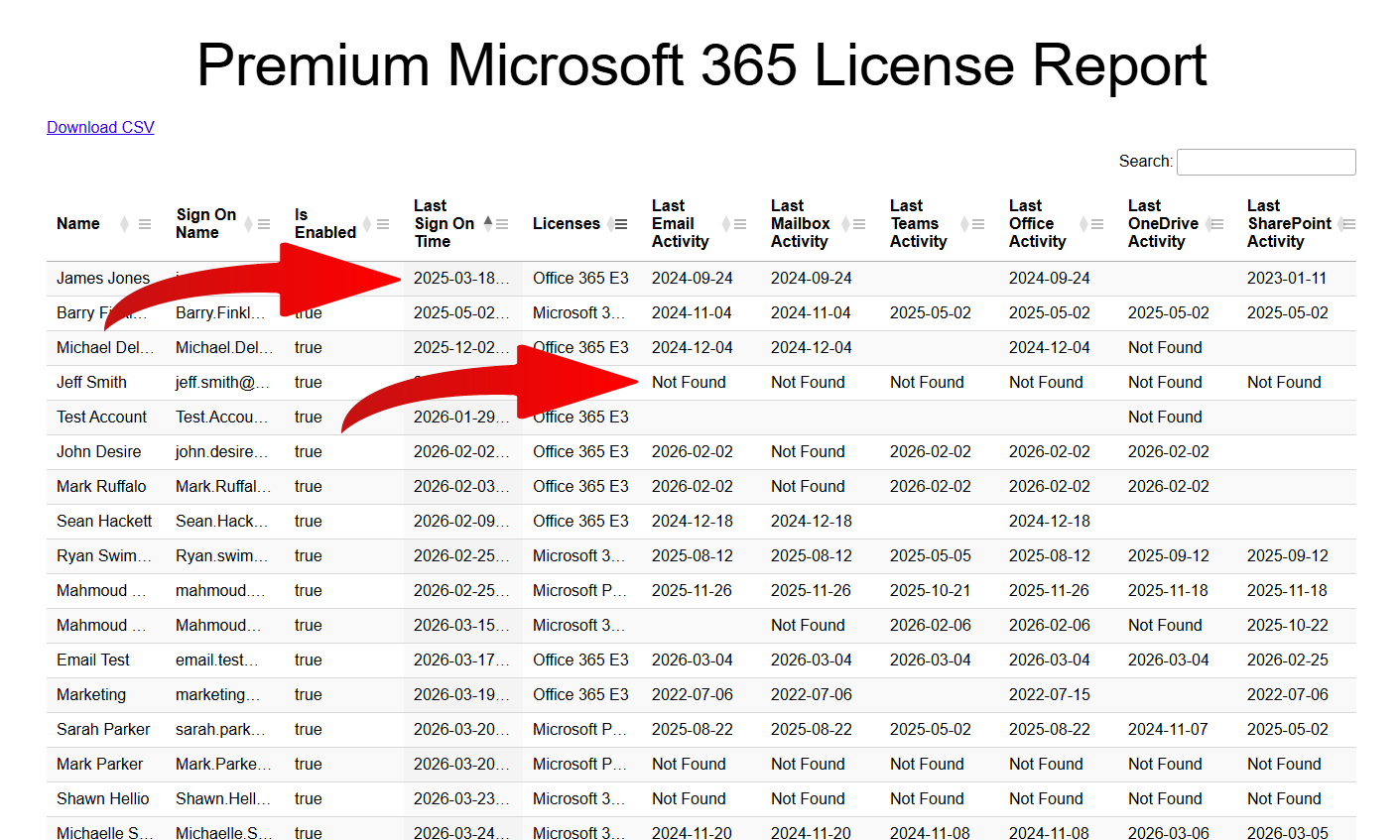
Depending on the licenses in your tenant, the Gitbit report you pulled should have the last sign-on time. You need a Microsoft Entra P1 or better to get it from the basic Gitbit report. We can pull that information from the audit logs and reports, though, but it takes more time. So, instead, we keep that data in the premium report. You can still get that information, though; we just need to contact you and send it to you later.
- Go to https://www.gitbit.org
- Click Get A Free License Audit
- Sign in with your admin account
- Accept the permissions.
- Enter your phone or email and click Yes, please.
The report will take some time, but you’ll receive it shortly.
You can receive this data via the Microsoft 365 admin center too. But there are more steps involved.
- Go to https://portal.office.com
- Click the admin app (good luck finding it; they keep moving it on me)
- Click Show All > Reports > Usage (in the left pane)
- Verify you are in the overview section and click View more in the Active users - Microsoft 365 Services section.
- Click Export and save the CSV.
- Get each of the “Last Activity Date” fields and combine them to get the latest date. You can do that with the MAX function, which would look something like this: =MAX(M3:R3)
Down-Grade Licenses On Over-Licensed Users
This has a couple of names. One of which is down-grade. The other is right-sizing.
This is the most challenging check on this list. In short, everyone in an organization, or in a department, receives the same license. It’s simple and easy. Here’s the problem: most jobs don’t have the same requirements. Even if two people have the same job, they may prefer different things.
For example, you may have two accountants who do the same thing. They may both use Exchange for their email, but one doesn’t use the Microsoft Office suite. They prefer OWA and using their mobile phone. So, one accountant may need Microsoft 365 Business Premium while the other needs Exchange Online Plan 1. Getting the licenses right for each user is important for cost savings. Unfortunately, it’s not simple. Microsoft bundles a LOT into each license.
Let’s take Microsoft 365 Business Premium as an example. Sure, you have Exchange, OneDrive, SharePoint, the Office suite. But there’s more behind the scenes. For example, conditional access policies.
To perform a successful downgrade, you’ll need to review every user's usage carefully. That’s why I typically recommend one of two options:
- Go through them carefully and explain the changes that are coming, and don’t be afraid to make mistakes.
- Hire an expert.
I know what you’re thinking: hiring an expert costs money. We are trying to save money. Well, imagine if an expert can cut your costs by 22%. They can decrease your spending by 22%. They may charge you 5%. But even if they charge you 5%, you’re still saving about 18.1% of your bill.
If you’d like to hire an expert, you can reach out to me at john@gitbit.org, and I’ll put you in touch with one or two people who can review your environment on your behalf.
Stop Paying For Unassigned Licenses
Here’s another tricky one a lot of people may not realize.
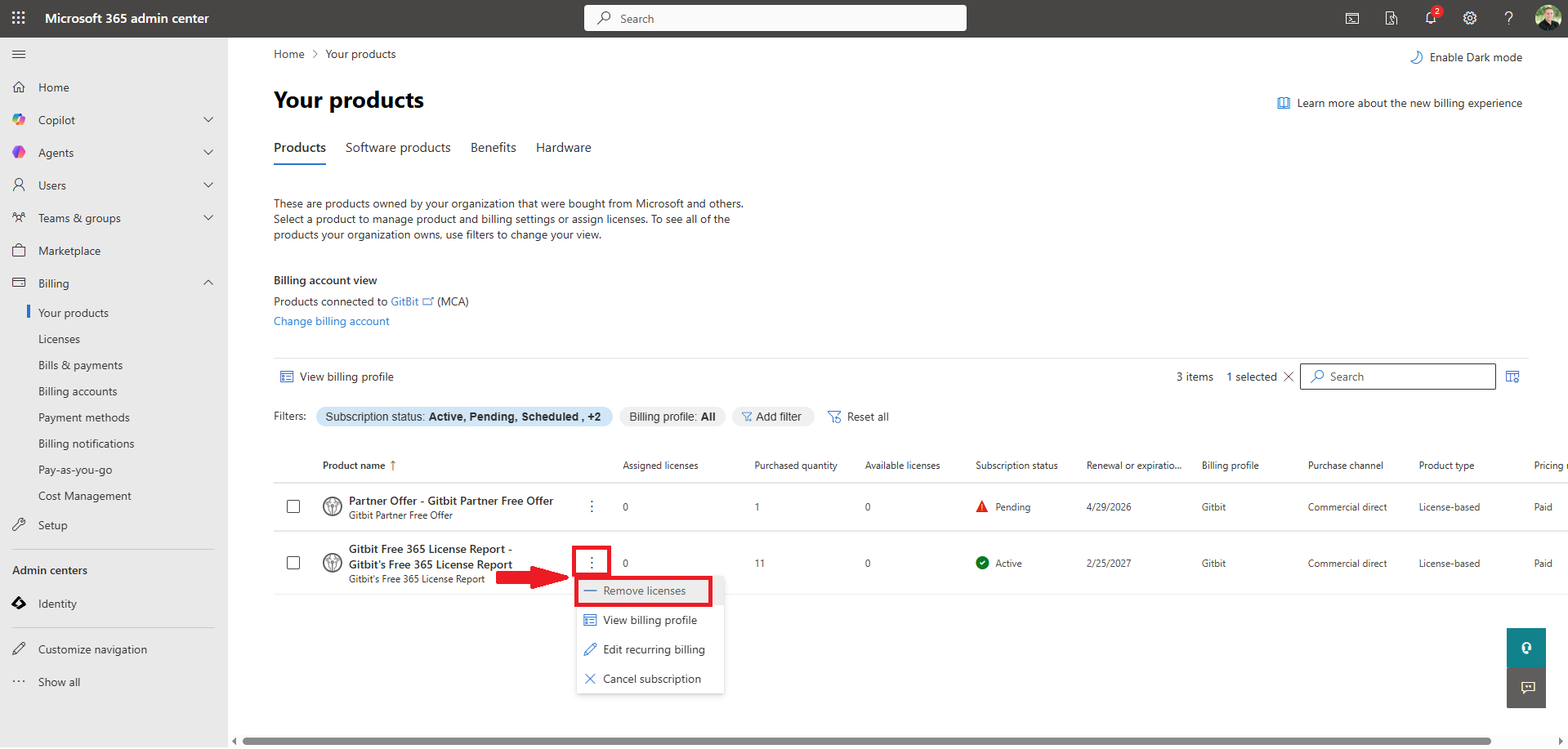
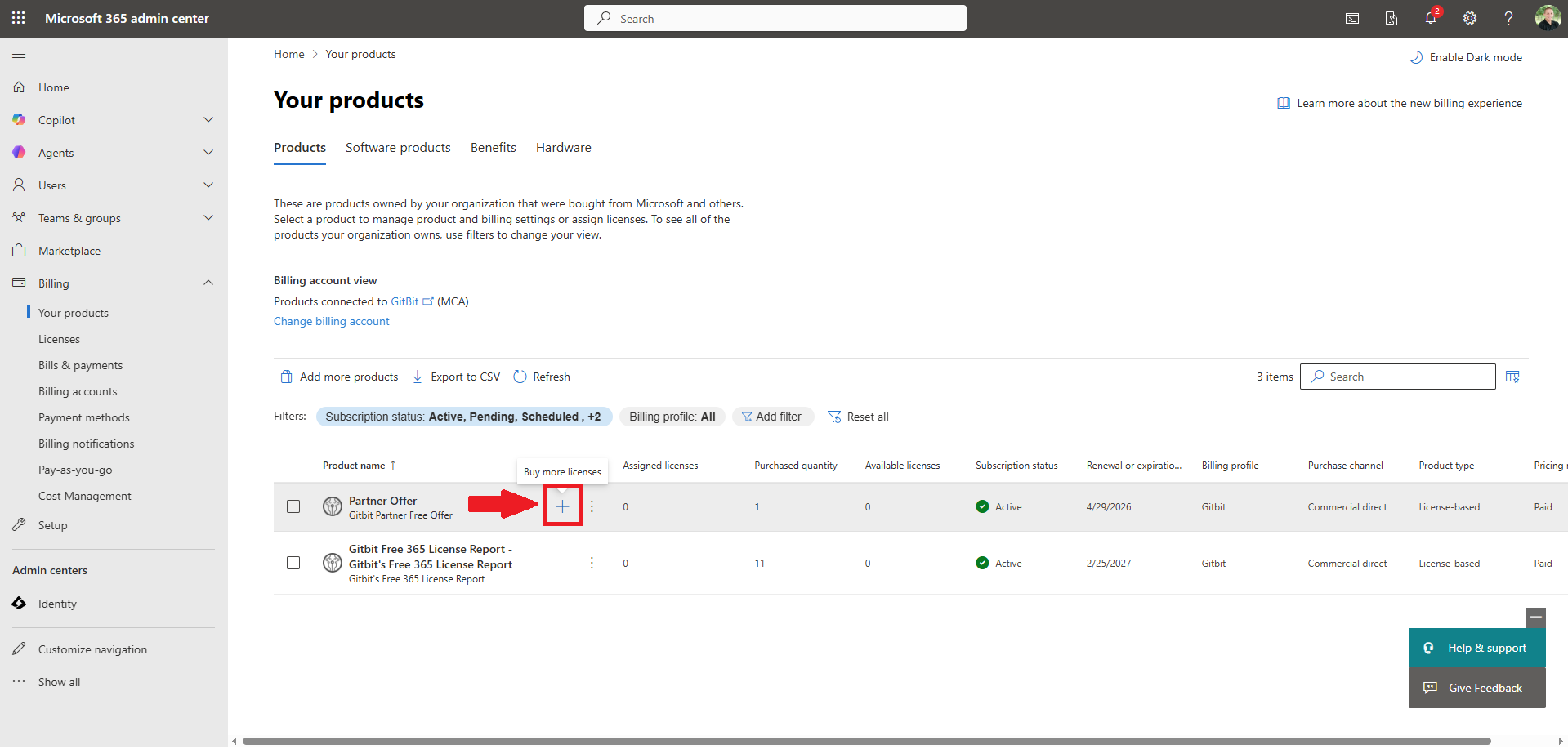
If you purchase 20 Microsoft 365 E3 licenses from Microsoft and only assign 15 of them, you’re still paying for all 20. It doesn’t matter if they aren't assigned to accounts. It doesn’t matter if they are just sitting there. You’re still being charged for them.
Think of it like renting hotel rooms. If you book 20 rooms for a corporate retreat and 5 people don't show up, the hotel doesn't give you a discount. Those empty rooms are still on your credit card. Not sure why it works that way. It's not like you're taking the space in the Microsoft 365 cloud, but I digress.
You pay for the bucket of licenses you committed to, not the ones you actually hand out to your team.
And in this fast-paced, ever-changing world, this unassigned license pool can grow HUGE. Why? Because nobody knows to check it. When you're out of licenses, an admin knows it right away. They'll bring it up. "Hey, I can't do my job and assign a license because we don't have any." But what's your process when you remove 5 licenses from accounts? Does your process include removing those licenses from your environment? Probably not; those employees will probably be replaced. But maybe not.
Unless you are actively tracking your unassigned pool and scaling back your commitments before your NCE renewal window locks, you are essentially throwing money away.
So, keep track of the unassigned licenses in your environment. Can you ditch one? Can you ditch 5? Can you ditch 50?
Redefine The License Terms
I believe most people know this one, but it still needs to be said. Microsoft has completely revamped their pricing structure under the "New Commerce Experience" (NCE), and if you aren't informed of the options, you're probably overpaying.
How much does a Microsoft 365 E3 license cost? That depends. It's no longer one low monthly price for the license.
This one kind of pisses me off. One of the big selling points of the cloud was you only pay for what you use. You can scale back at any point in time. All well.
- Monthly/Monthly: You can pay month-to-month and cancel whenever you want, but you are charged a 20% premium for that luxury. If you have a position that you know you're going to have in a year, you are throwing money away.
- Annual/Monthly: You commit to a 12-month subscription, but you pay on a monthly basis. This is the most common option. You get the lower annual pricing, but you don't have to cut a massive check upfront.
- Annual/Annual: Here you are termed for a year and paying for the year up front. If you have the cash and you know you'll need the license for a year, this makes the most sense. You can cut your budget by 20% from the monthly/monthly option.
The catch?
Once you sign that annual commitment, you are locked in. There's no backing out. They do give you a 7-day window to make changes in case you made an error, but if you want to reduce that license count after a week? Nope.
Too many companies defaulted to the monthly term, monthly pay option because that used to be the only option. It feels safe. It gives you flexibility.
My advice?
Stop guessing. Run an audit, figure out your "base" headcount (the people who actually aren't going anywhere), and lock those into an annual commitment. Then, only keep the bare minimum on the monthly "flex" plan for your contractors or temporary staff.
If you're paying the 20% premium on your entire staff, your "flexibility" is actually costing you a fortune.
If I had to guess, 80% of your employees are essential and not going anywhere. Even if they quit, they’ll be replaced. So, you can split your licenses into two groups. Purchase 80% of your licenses in an annual term and 20% in a monthly term.
This gives you the flexibility to drop licenses when you need to and the cost savings on most of the licenses.