What License Optimization Insights Look Like

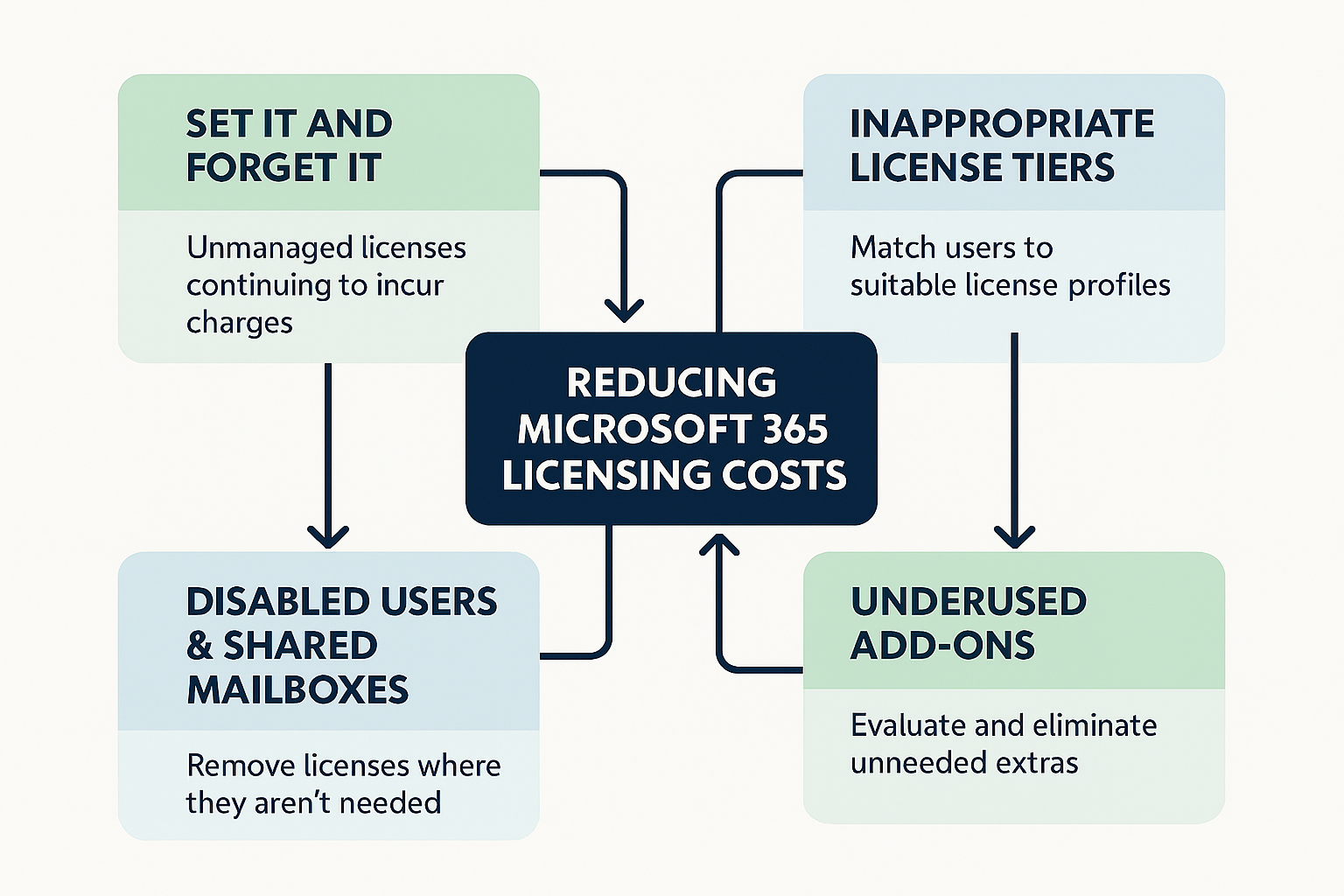
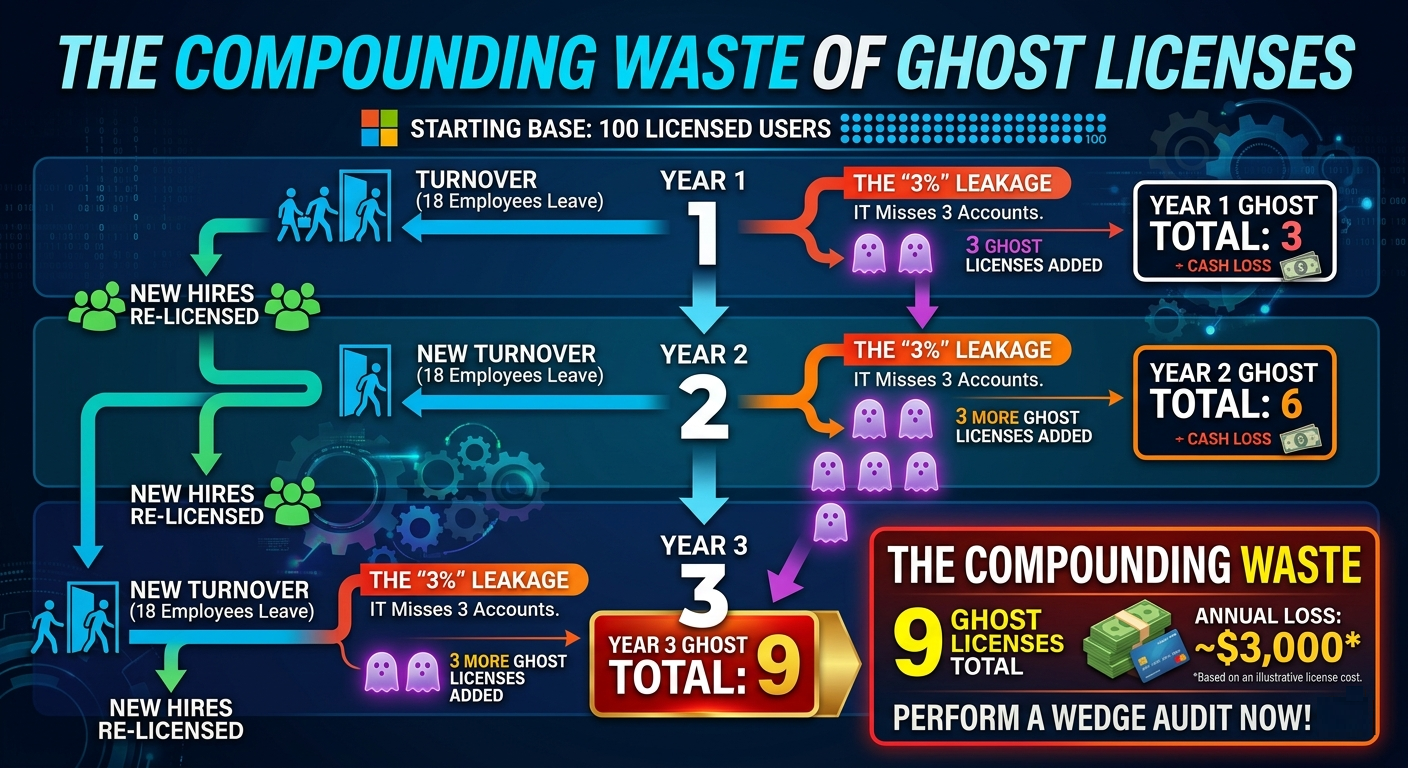
There are multiple steps to review the license optimization reports. The easiest first steps are to review disabled accounts with licenses and accounts that haven't logged in for over 30 days. These two are the most obvious ways to save your customers money. You can also right-size a user's license, which is a bit more complex.
Read the complete Microsoft 365 License Audit guide for additional information.
How to Filter Results on Licensed Accounts
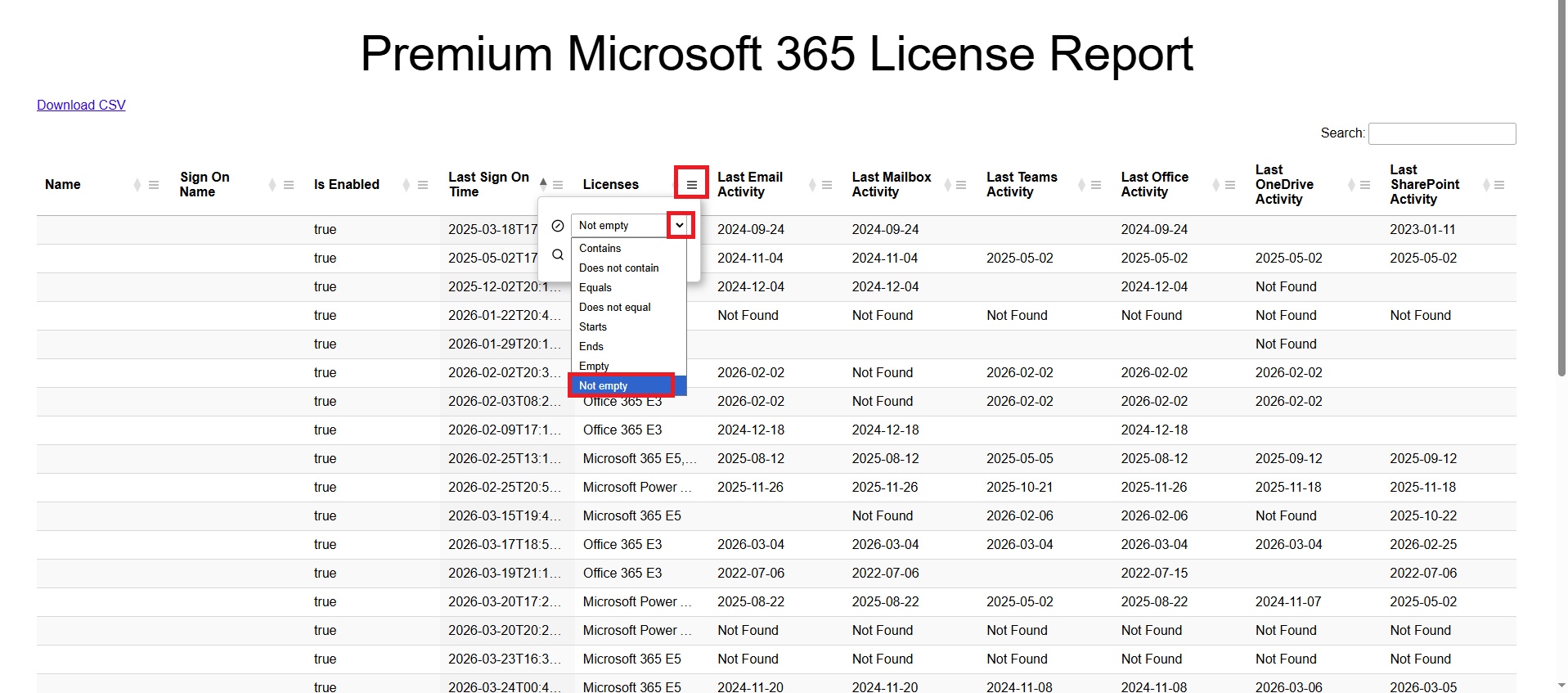
- On the report page, click the Menu button in the Licenses column
- Click the Search Type dropdown and select Not Empty.
How to Filter Results On Disabled Accounts
It's typically safe to decommission disabled accounts. If the account is disabled, a user cannot log in to the account; therefore is typically safe to remove the license. Removing a license automatically deletes data, though, so be sure to set up retention policies and migrate any data away from the user account before removing the license.
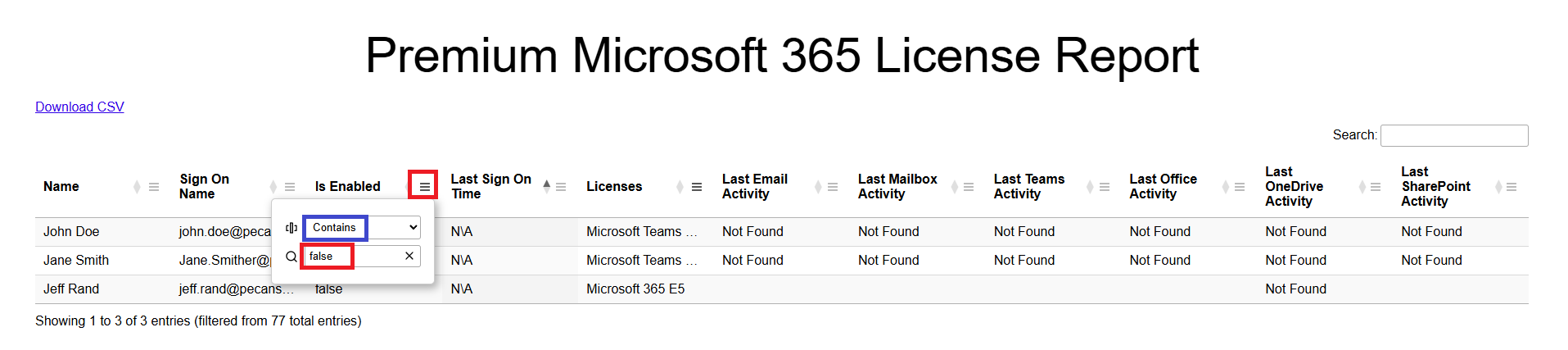
- Start with filtering based on licenses by following the "How to Filter Results on Licensed Accounts" steps above.
- On the report page, click the Menu button in the Is Enabled column.
- Verify that the Search Type dropdown is set to Contains.
- Type false in the filter field.
How To Filter Results On Last Login
Filtering on Last Login isn't as easy in the web portal. It's typically easier to export the data to a CSV and manage it within Microsoft Excel. But it is still possible to at least sort the data and then review.
The Last Sign On Time column can contain 3 different pieces of information.
- A date: Indicates the last sign-on time from Microsoft 365 sign-on logs.
- N/A: The Microsoft 365 sign-in logs did not contain a last sign-on time.
- Empty: Which means I was unable to pull the last sign on time from the logs.
- Start with filtering based on licenses by following the "How to Filter Results on Licensed Accounts" steps above.
- Click the up/down arrows in the Last Sign On Time column to sort by last sign on time.
It's typically safe to disable and remove the licenses from any account that has N/A or a date that is older than 30 days. Microsoft 365 by default retains the user account and data for 30 days after a license is removed, so if there are any issues, you can simply re-assign the license to the user.
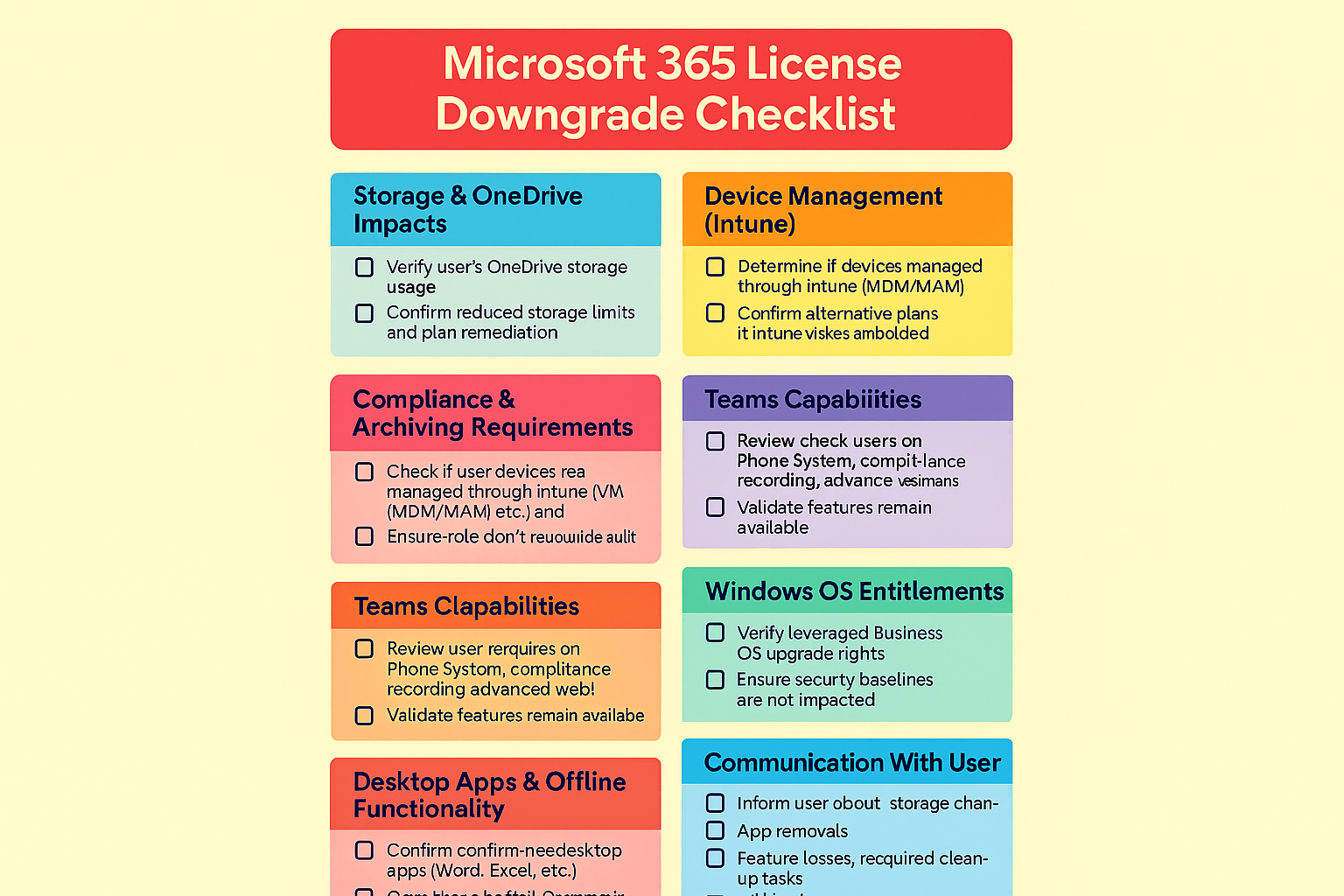
License Right‑Sizing & License Downgrading
License right‑sizing is the process of adjusting a user’s Microsoft 365 license to a more appropriate and cost‑effective level based on their actual usage of features and services. It ensures that users are not assigned higher‑tier or premium licenses when they do not actively use the advanced capabilities included in those plans.
Microsoft 365 is complex. While a user may only be accessing their Exchange mailbox while they have a Microsoft 365 E5 license, the user may also require Intune, Entra P1/P2 licenses, DLP, or retention policies. Since it's currently not possible to pull all of that information from Microsoft 365, I don't release Microsoft 365 app data to the world. I only release that information to Gitbit's partners. That being said, I've found every organization that has a report run has users who are overlicensed. It's critical to right-size your environment to maintain the lowest costs possible.