Ultimate Guide For Handling Terminated Microsoft 365 Users

In 85% of organizations, you can perform three simple steps to decommission an account and retain the data, but you need to make sure you are not in that 15%, or major legal trouble can come your way.
- Convert the mailbox to a shared mailbox.
- Copy the OneDrive data to a new OneDrive or SharePoint site.
- Remove the license.
But Microsoft 365 is complicated. There are a lot of moving parts. In some situations, this is not enough. Here's a short, incomplete list of other things that you may need to worry about.
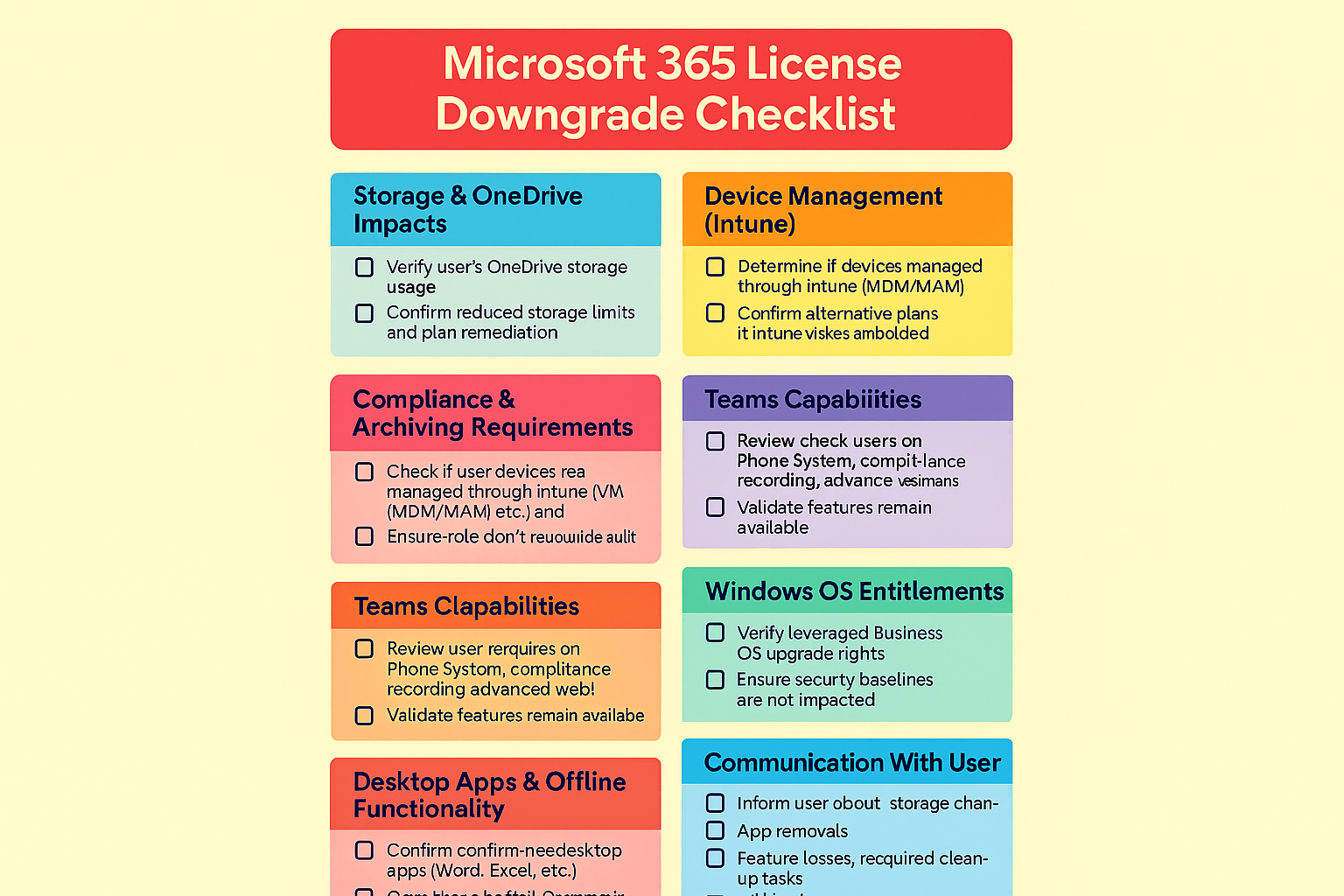
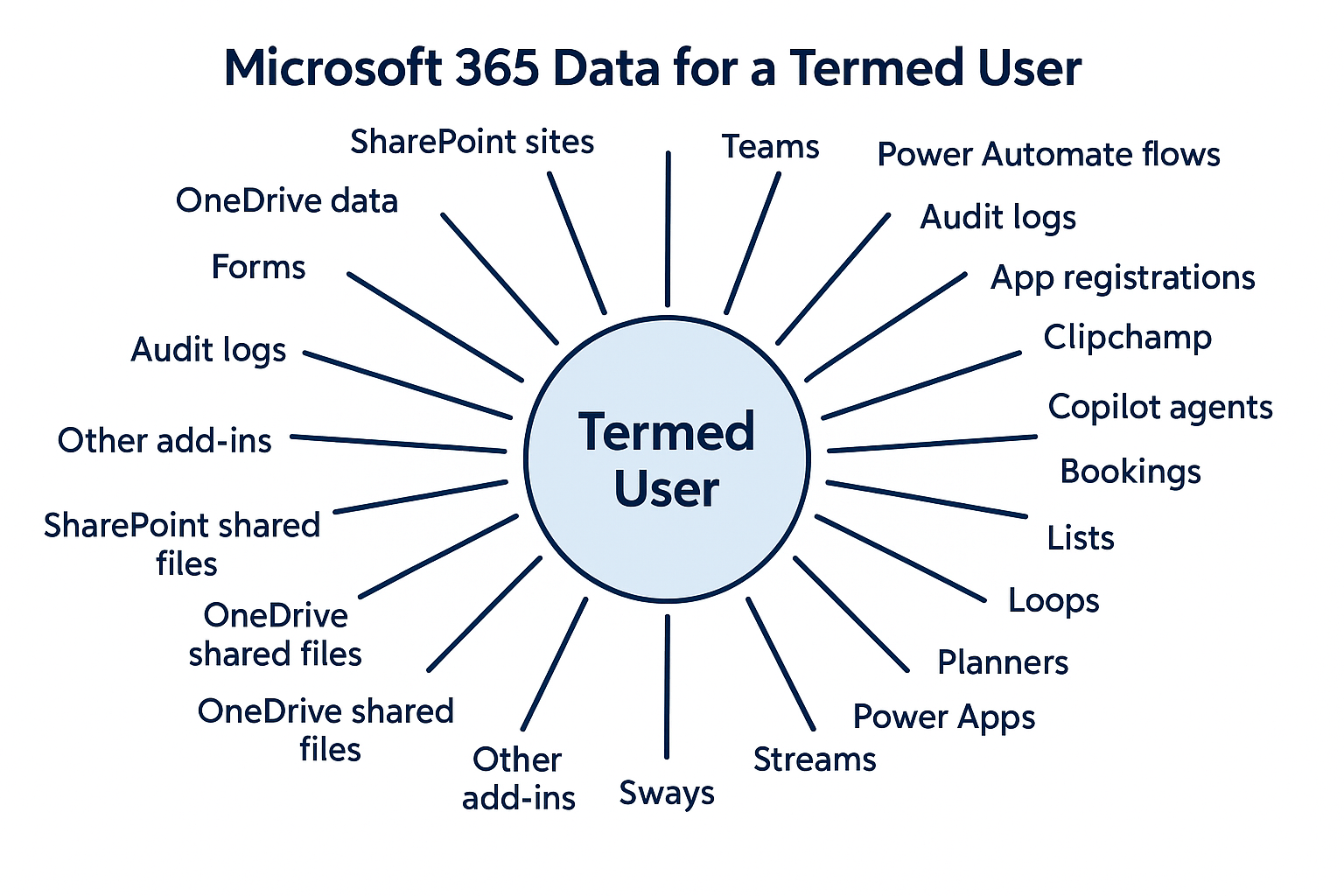
Below is a complete list of everything you need to worry about for a user after you perform a Microsoft 365 license audit and decide to remove a license from a user.
I cannot guarantee this list is complete or up to date. You should work with Microsoft or a partner to verify everything you need to be protected and accessible after a user leaves your organization.
1. Replace Any Litigation Holds
Litigation holds do not continue to function when a mailbox license is removed. Fortunately, they can be replaced with retention policies, but you may want an expert to avoid any illegal data removal.
2. Replace Any eDiscovery Case Holds
eDiscovery cases no longer function when a mailbox license is removed. These, too, can be replaced with retention policies.
3. Shrink The Mailbox Size
With certain mailboxes, your mailbox can grow up to 100 GB. Once the license is removed and the mailbox is converted to a shared mailbox, the max mailbox size is 50 GB.
If a mailbox is larger than 50 GB and you remove its license, Microsoft doesn't delete the data, but the mailbox becomes frozen, unable to send or receive emails until the mailbox size is less than 50 GB.
4. Migrate Data From The Archive Mailbox
When the mailbox is converted to a shared mailbox and the license is removed, the archive mailbox becomes inaccessible. The Archive mailbox is disabled. Any auto-archiving is immediately stopped. No archive content is deleted; however, it becomes inaccessible to the user or eDiscovery searches.
All existing archive data is preserved, and retention policies still protect the data, but it becomes inaccessible. You may want to migrate archived emails to a new mailbox or back to the original mailbox to maintain access.
5. Convert The Mailbox To A Shared Mailbox And Grant The User Full Access
Before removing a license from a user, the easiest way to maintain their mailbox is to convert it to a shared mailbox. A shared mailbox will still send and receive email even when the user does not have a license.
You'll also want to grant the replacement employee, or their manager, full access to their mailbox. Granting someone else full access to the user's mailbox will grant that user the ability to read, edit, and delete any data inside that mailbox. It will not grant them the right to send emails from that mailbox.
6. Grant Replacement User Access To SharePoint Sites
- No SharePoint data is touched when removing a license from a user, which means you don't need to migrate any data.
- Their permissions are unchanged, but the account will no longer be able to access SharePoint. This makes it easy to re-enable an account should a terminated user be re-hired.
You may need to grant the replacement user access to SharePoint sites and files. If a terminated user creates a SharePoint site, they will be made an admin of the site. If they never grant anyone else access or admin rights to the SharePoint site, then no one will be able to manage that site. As a global admin or SharePoint admin, you can grant someone else access, even site administrator access, to any SharePoint site.
Fortunately, most of a user's SharePoint access was granted by the users who managed the data. Those users can grant the new employee the same access, assuming the user needs the same access.
7. Verify The Terminated User Didn't Improperly Share SharePoint Files
If a user shares a SharePoint file with someone else in your organization or someone outside your organization, those permissions will remain even after the license is removed from the user who shared the file. This is typically a good thing since you won't need to re-share everything once a user is terminated. This may not be a good thing, too. If the user is accused of sharing confidential information, you may need to go through the audit logs and find every instance that the user shared SharePoint files and remove those permissions.
8. Move OneDrive Data To A SharePoint Site
Microsoft has recently changed how OneDrive locations function after a license is removed from an account. If retention policies are in place, the data will not be deleted, but it will become inaccessible. If the user being terminated is being replaced, you may want to copy their OneDrive files to the new user's OneDrive or to a SharePoint site that the new user can access.
9. Re-Share OneDrive Files From New Location
Since the files are no longer accessible, they won't be accessible for users if they have been shared too. If you're copying the files to a new location, you may want to share the files from the new location with the user's that had access to the OneDrive files.
10. Retaining Teams Data
Teams data behaves differently depending on what/where the data is stored. Teams is just the “front‑end.” The actual data lives in the following locations:
- Teams Chat Messages: Exchange Online Mailbox
- Teams Channel Files: SharePoint Online
- Teams Wiki: SharePoint Online
- Teams OneNote: SharePoint Online
- Private Chat Files: OneDrive
That being said, you should still configure a retention policy to retain any of the data you will need to retain.
With the exception of private chat files (see Re-Share OneDrive Files From New Location) above, users will maintain access to all the chat history when a user leaves an organization.
11. Migrate Microsoft Forms To A New User
You'll need to migrate any Microsoft Forms within 30 days of removing the license from a user to retain the data and forms. If you do not transfer the ownership in time, the forms and the form results will be deleted.
12. Transfer Ownership of Power Automate Flows
A flow turns into an orphaned flow when it doesn't have a valid owner anymore… often happens when the creator or owner has left the organization. - Microsoft.
Most Power Automate Flows will stop working once a user's license is removed. This is because the Flows use the user's credentials to access data and resources. Since the user no longer has a license, their access to Microsoft 365 data and resources is cut off.
Admins will need to assign a new co-owner, and the admin or the new co-owner will need to re-assign the new co-owner's credentials to any services that are being used by the Flows.
13. Audit Logs Are Not Affected As Long As Retention Policies Are In Place
One thing you don't need to worry about is audit logs. Each audit log has a retention policy assigned when it is first created. If the user has a premium license and there's an audit log retention policy in place, the audit logs will be maintained as long as the retention policy is still in place.
14. Clipchamp Access Is Lost, But Data Remains
When the user is unlicensed, Clipchamp simply becomes unavailable as an app, but all of their Clipchamp project files remain in OneDrive/SharePoint. As long as you've properly managed the OneDrive and SharePoint files, the Clipchamp videos and projects will be maintained. That doesn't mean it's easy to open and edit already existing projects.
15. Change Owner Of Copilot Studio Agents
Copilot Studio Agents will remain, but they will become orphaned. In short, there's no owner of the agent. An admin can log in to the proper admin center and assign a new owner of all the Copilot Studio Agents.
16. Decommission Bookings With Me Page
The user's bookings With Me page is tied directly to their Exchange mailbox. Once you remove the license, the Bookings With Me page is inaccessible. The good news is that the data is stored in the Exchange mailbox, so it will be kept with the retention policy, but you may need to update links on the public website or anywhere else it is shared.
17. Bookings Pages Become Orphaned
Any Booking pages the user creates are built on top of a special "Scheduling Mailbox". The pages will still be accessible and usable, but they may be orphaned, and a new owner may need to be added to the pages.
18. Export / Import Microsoft Lists
Unfortunately, there's no good way to migrate Microsoft Lists to a new user. You'll need to export them to CSV, then import them to the new users' Microsoft Lists.
19. Migrating Planner Ownership Is About Microsoft 365 Groups
Planners don't live inside a user account. So you don't need to worry about data loss when a user leaves the organization. You may get orphaned plans, though. To migrate them, you'll need to update the owner of the Microsoft 365 group that's associated with the Plans.
Of course, you may also need to update the Plan tasks too.
20. Model-Driven Power Apps Need Export/Import
There are two different types of Power Apps that you need to be concerned with when someone leaves the organization. Model Driven Power Apps don't have co-owners. They also don't get destroyed when the owner's account loses its license. They get orphaned.
To update the owner of a Model Driven Power App, you'll need to export and then import the Power App for the replacement user.
21. Assign Co-Owner To Canvas Power Apps
Just like Model Driven Power Apps, you won't lose Canvas Power Apps when an owner leaves the organization. They may become orphaned, though.
Unlike Model Driven Power Apps, Canvas Power Apps do have co-owners. Adding a co-owner is essentially replacing the previous owner.
22. Handle Orphaned Power Pages
Power Pages don't get deleted or stop functioning when the owner loses their license or leaves the organization. They live entirely in Azure, so they don't live inside the user account. That does, however, mean they can be orphaned.
You'll need an environment maker to take or grant someone else ownership of the website for management.
You may also need to handle Flows, Dataverse, and Connectors, though.
23. Access To Streams For A User No Longer With The Business
Like many other Microsoft 365 apps, Microsoft Stream data lives inside OneDrive or SharePoint, depending on where/how the video is uploaded.
If the video is uploaded to a Teams channel, it lives inside the SharePoint site associated with that Team channel. If it is uploaded in a private meeting, it is uploaded directly to that user's OneDrive store.
That means when a user's license is removed, other users may lose access to the videos the user uploaded. Be prepared to migrate those videos or change the ownership depending on where the videos are stored.
24. How To Recover Sways From A Previous Account
Microsoft Sway data is not stored in a user account. That means the data can be orphaned. You will need to reassign Sways to the replacement user, though.
25. What Happens To A User's To Do Tasks When They Leave
Microsoft To Do replaced Outlook/Exchange tasks. That means the data lives inside a user's Exchange mailbox. That doesn't mean it's easily accessible, though.
Once the mailbox becomes a shared mailbox, Microsoft hides Tasks. That means you'll need to re-assign a license, convert to a regular mailbox, access the tasks, and manually copy them to the new user's mailbox... It's a nightmare.
26. Migrating Whiteboards From A Terminated User
Fortunately, whiteboards are files kept in OneDrive so managing the OneDrive correctly manages the Whiteboards correctly.
A user can easily navigate to a whiteboard file in their OneDrive and the file will automatically open in the Whiteboard web app.