How to Enable Multi-Factor Authentication (MFA) in Microsoft 365 (M365)

There are two ways to enable MFA in Microsoft 365. Security Defaults and Conditional Access Policies. Security defaults are the easiest way. It's also impossible to customize, for example, exclude certain users.
What are Security Defaults?
Security Defaults in Microsoft 365 (via Microsoft Entra ID) are a set of basic identity security settings provided for free to help protect organizations from common identity-related attacks. They are designed for organizations that don’t have Conditional Access policies or advanced security configurations.
What Security Defaults do
- Require MFA for all users and admins: Everyone must register for multi-factor authentication and use it during sign-in.
- Block legacy authentication protocols: Stops older protocols (like POP, IMAP, SMTP) that don’t support MFA.
- Protect privileged accounts: Admins must use MFA and modern authentication.
- Require registration for MFA within 14 days: Users are prompted to set up MFA when they sign in.
Check if Security Defaults are enabled
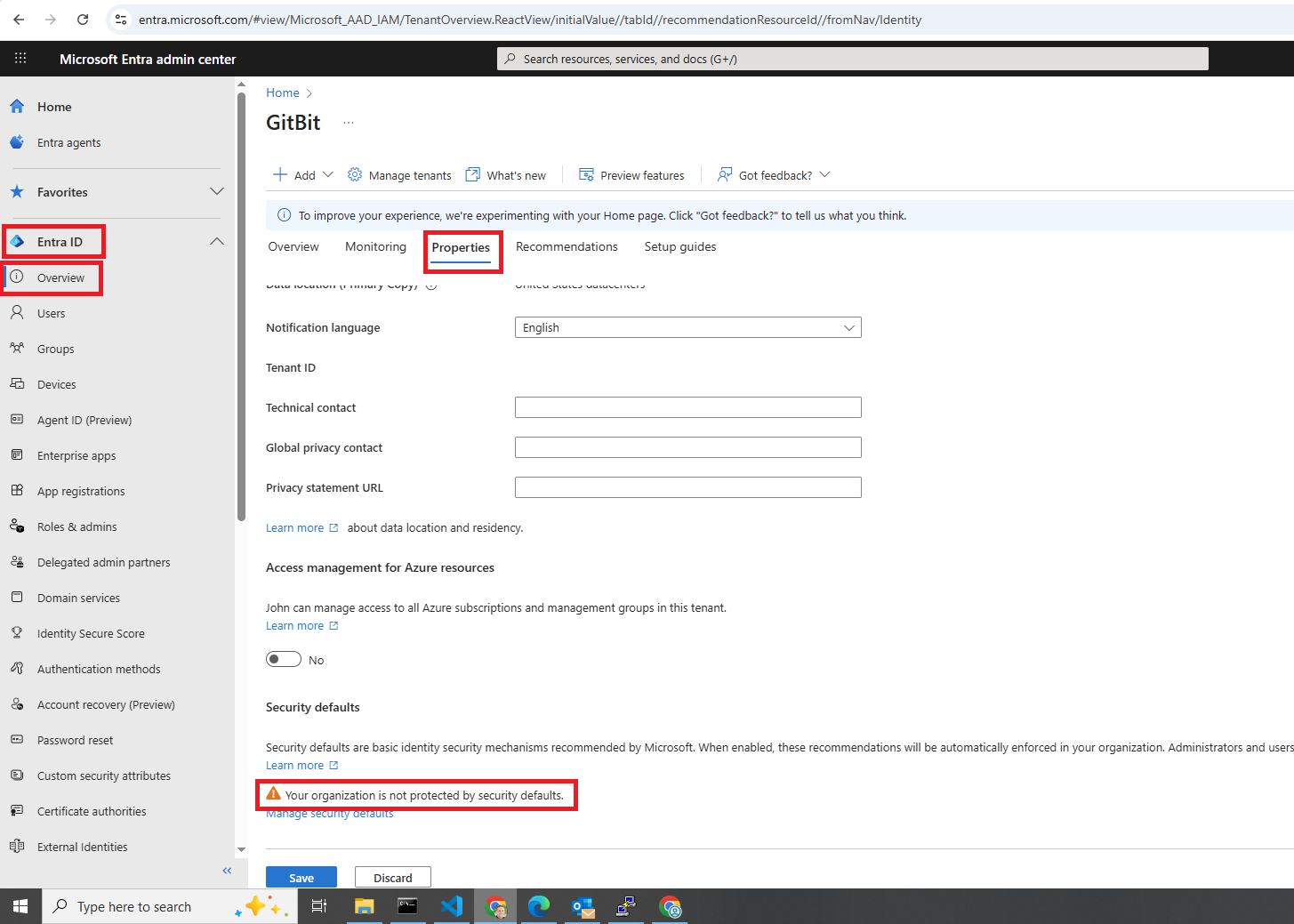
- Sign in to the Microsoft Entra admin center as a Global Administrator or Security/Conditional Access Administrator.
- Click Entra ID > Overview > Properties.
- Scroll to the bottom. If you see a message Your organization is not protected by security defaults then security defaults are not enabled.
 Enable/disable Security Defaults
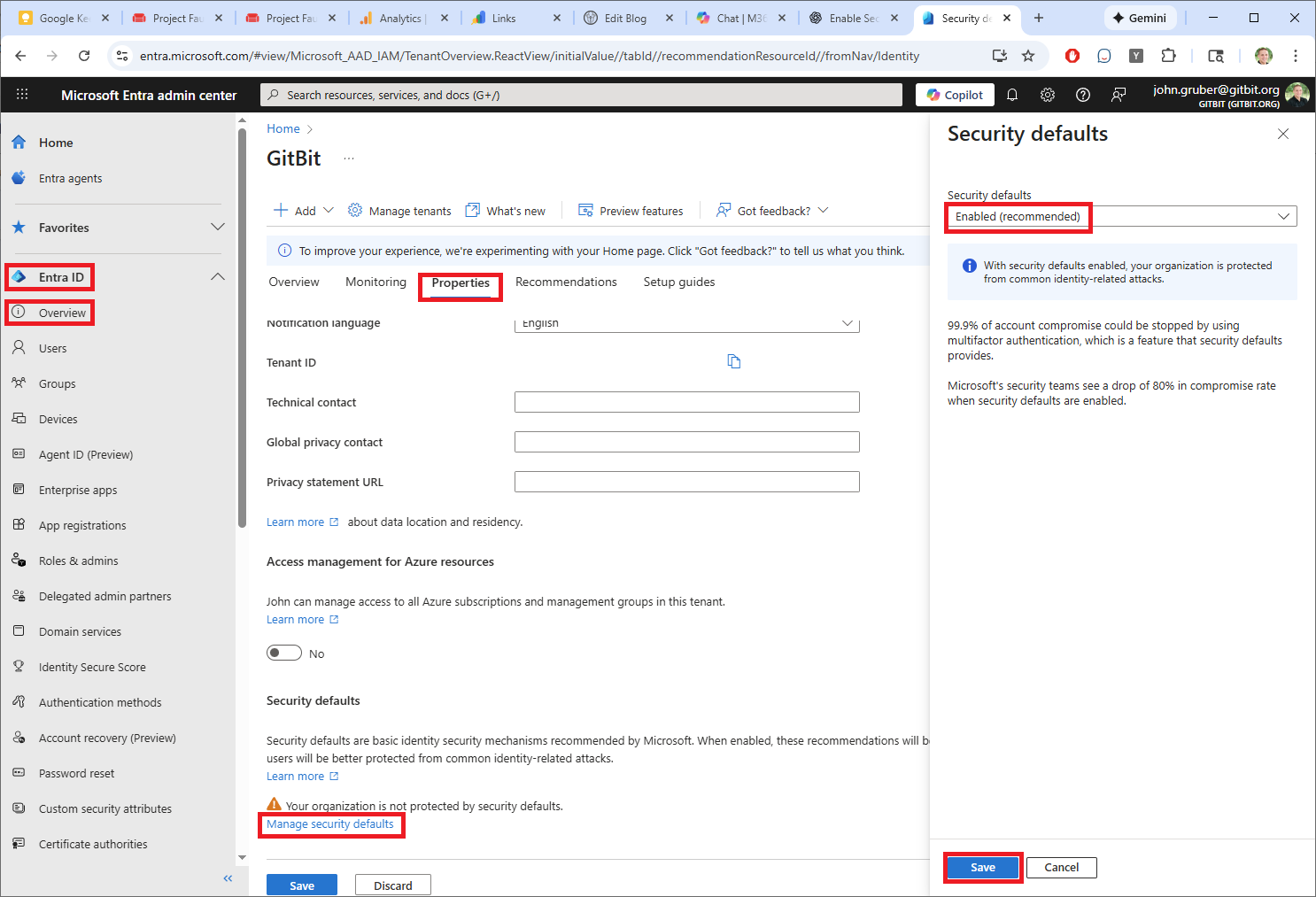
- Sign in to the Microsoft Entra admin center as a Global Administrator or Security/Conditional Access Administrator.
- Click Entra ID > Overview > Properties > Manage security defaults
- Enable or disable security defaults and click Save.
 Enable/disable MFA using Conditional Access policies
Conditional access policies give you a lot more control than security defaults. You can enable it for certain users, or exclude certain users, or roles. You can disable MFA when users are in the office, a whole bunch of different options.
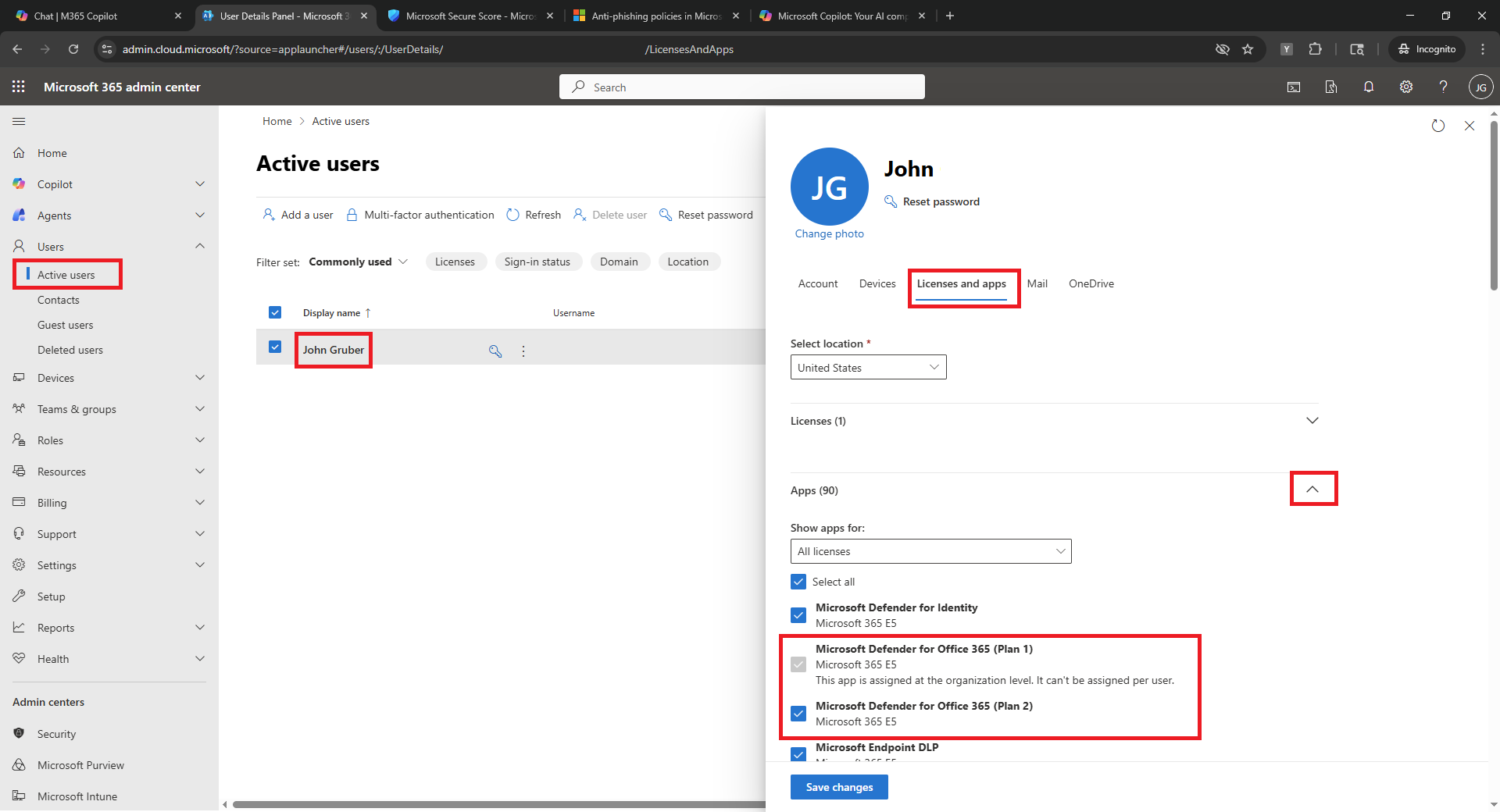
To use a Conditional Access policy, you'll first need a Microsoft Entra P1 or Microsoft Entra P2 license.
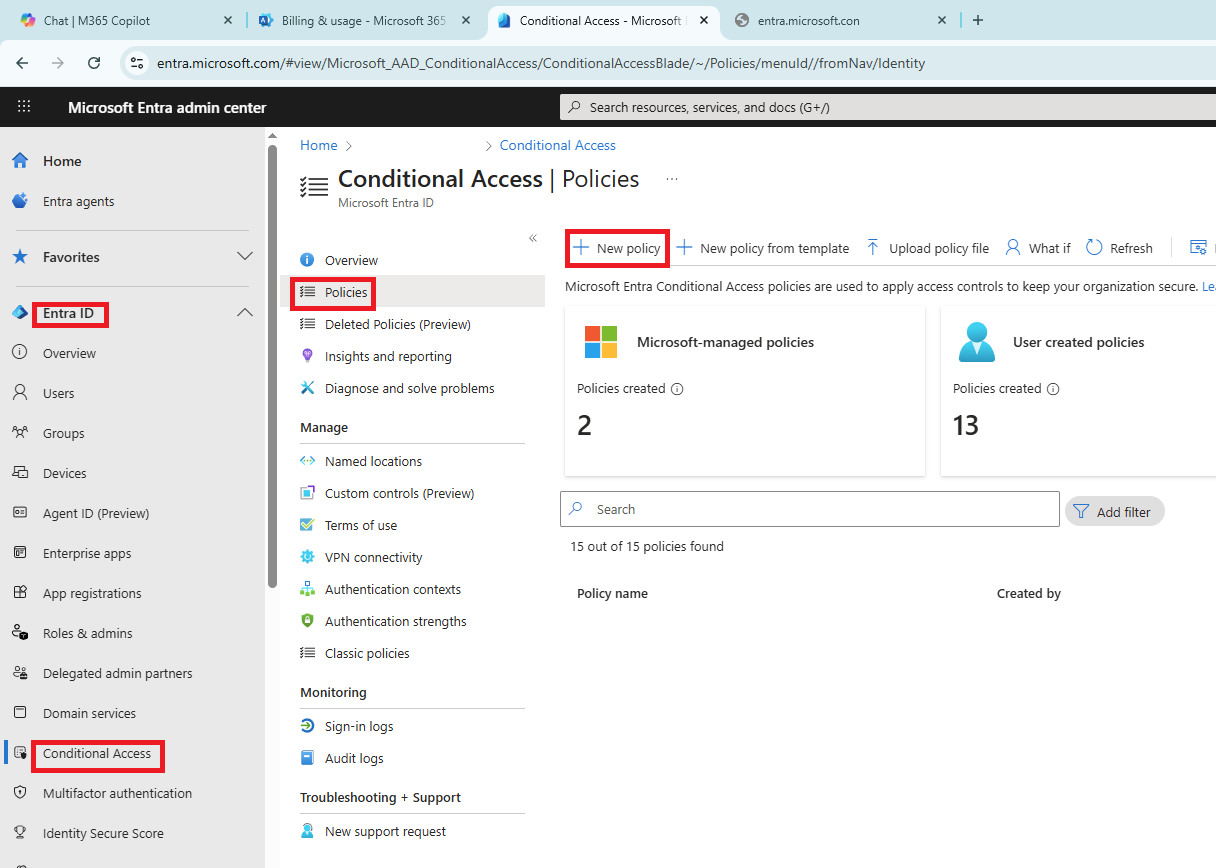
- Sign in to the Microsoft Entra admin center as a Global Administrator or Security/Conditional Access Administrator.
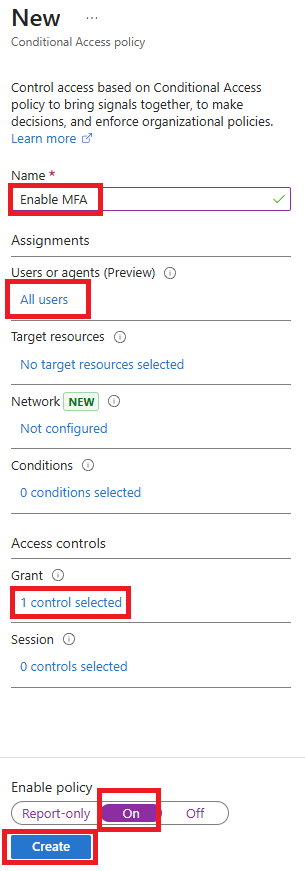
- Click Entra ID > Conditional Access > Policies > New policy.
- Give it a name.
- Click 0 users or agents > All Users or select the users you want to enable MFA for.
- Click 0 controls selected (under Grant).
- Click Require multifactor authentication > Select.
- Click on (under Enable policy)
- Click Create.
 If you don't have conditional access policies, you'll want to use security defaults. If you do have conditional access policies, then I'd recommend switching to them.