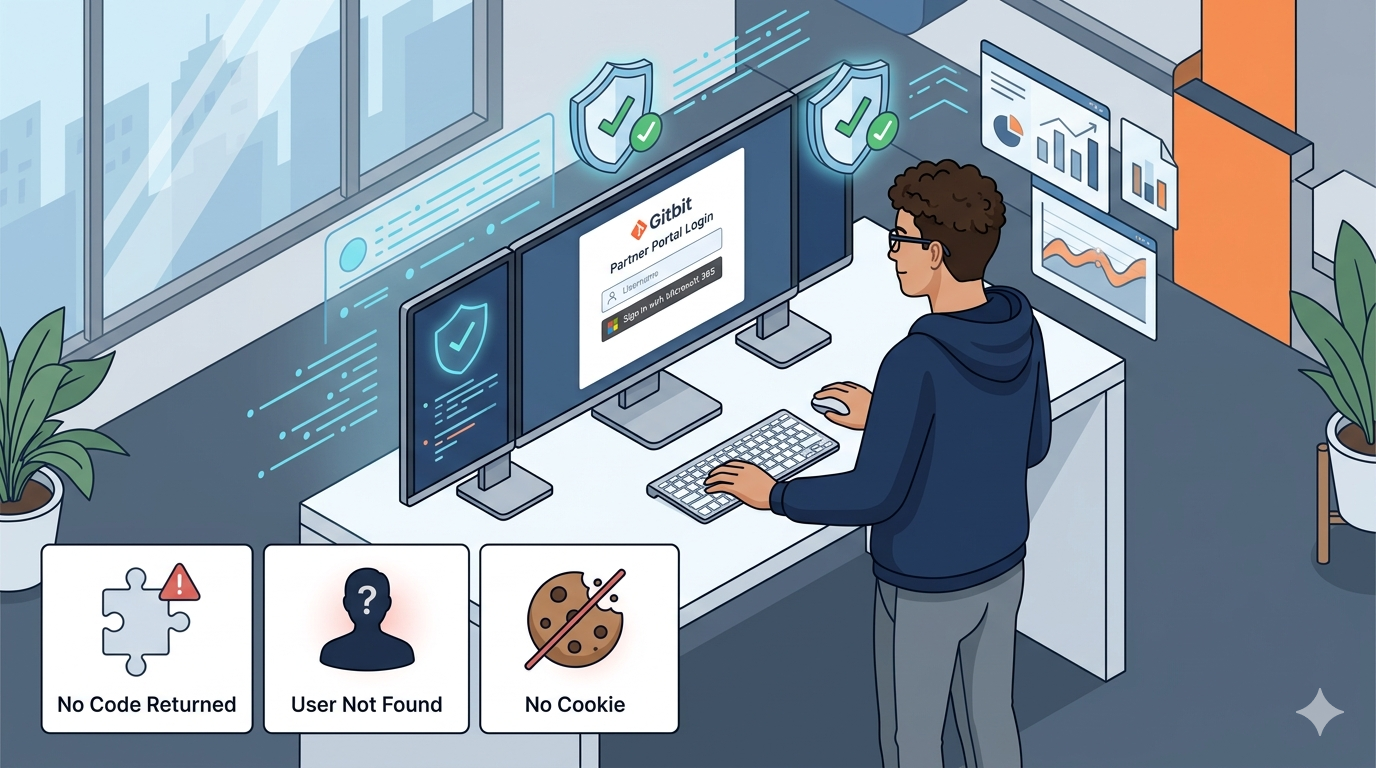
How To Run Customer Reports

Running reports for customers in Gitbit isn’t complicated. It just feels that way the first time, mostly because everything hinges on one small thing: a link. Get that right, and the rest is basically a straight line.
Here’s how it actually works, without the fluff.
It All Starts With the Client Report Link
Before anything else, you need to be a licensed operator in Gitbit. No license, no report. Simple as that.
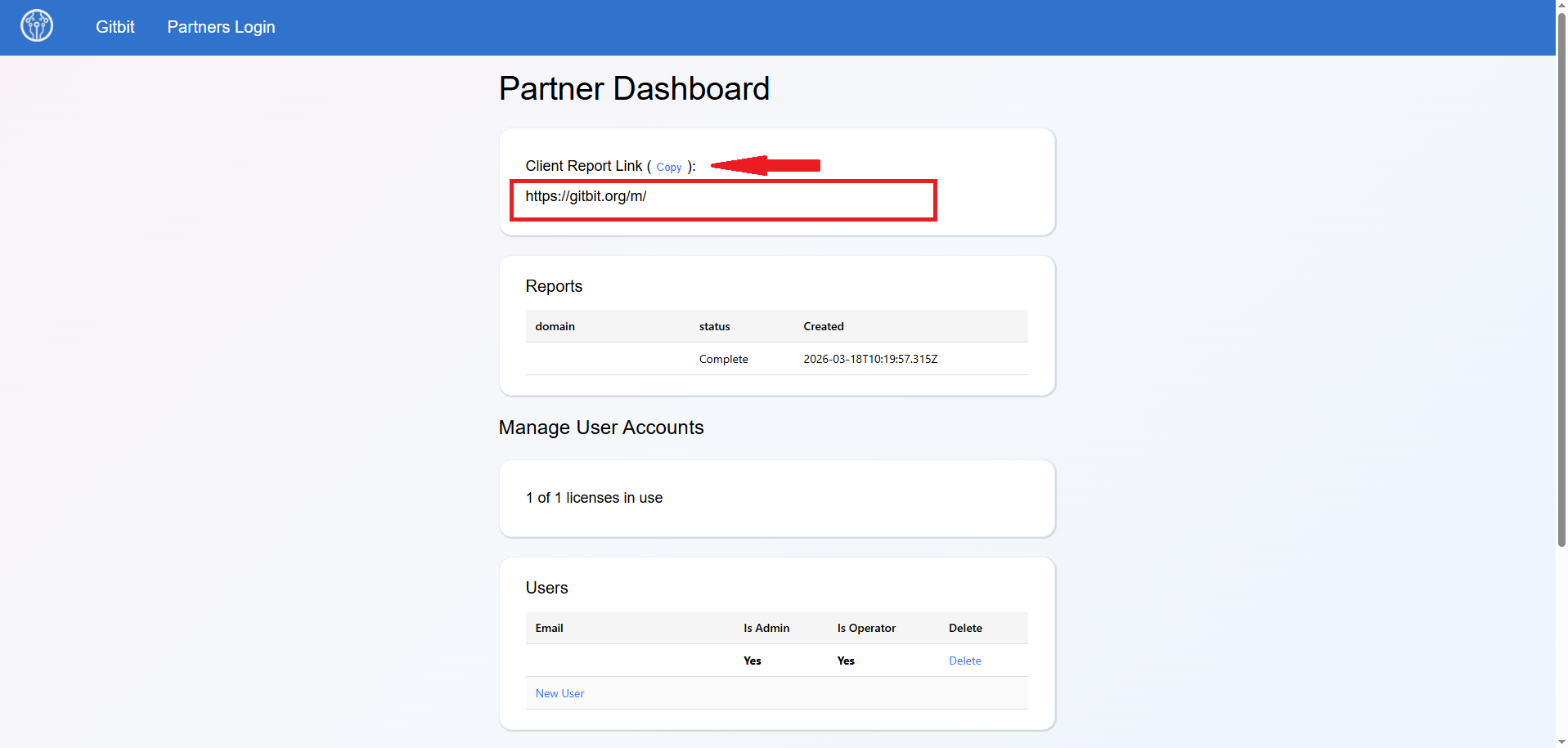
Once you’re licensed:
- Log in to the Gitbit portal using your operator credentials.
- (If something breaks here, there’s a separate troubleshooting doc—don’t try to brute-force it.)
- Find your Client Report Link.
- Click the copy button.
That link is the golden ticket. Every report run through it is permanently tied to you as the operator. Lose track of it, and you’ll be wondering later why a report never shows up in your dashboard.
Getting the Link in Front of the Customer
The link itself is flexible. You can:
- Email it
- Shorten it
- Drop it into a customer portal
- Put it on your website
Doesn’t matter how it gets there—what matters is where it’s opened.
The link must be opened in a browser where someone is signed into the customer’s Microsoft 365 tenant with admin credentials.
That admin can be:
- Your customer (often the cleanest option), or
- You, if you have access to their tenant
Either works.
Running the Report (This Is the “Easy” Part)
Once the link is opened in the right browser:
- Go to the Client Report Link.
- Sign in with a Microsoft 365 admin account for that tenant.
- Approve the requested Gitbit permissions.
That’s it. No hidden steps. No extra configuration screens.
At this point, Gitbit has what it needs and starts pulling data automatically.
Waiting Without Hovering
For small environments, reports are usually ready almost right away. Bigger tenants take longer; there’s just more data to chew through.
If a report looks genuinely stuck (not just slow), that’s when you loop in Gitbit support. Otherwise, hands off.
Viewing the Finished Report
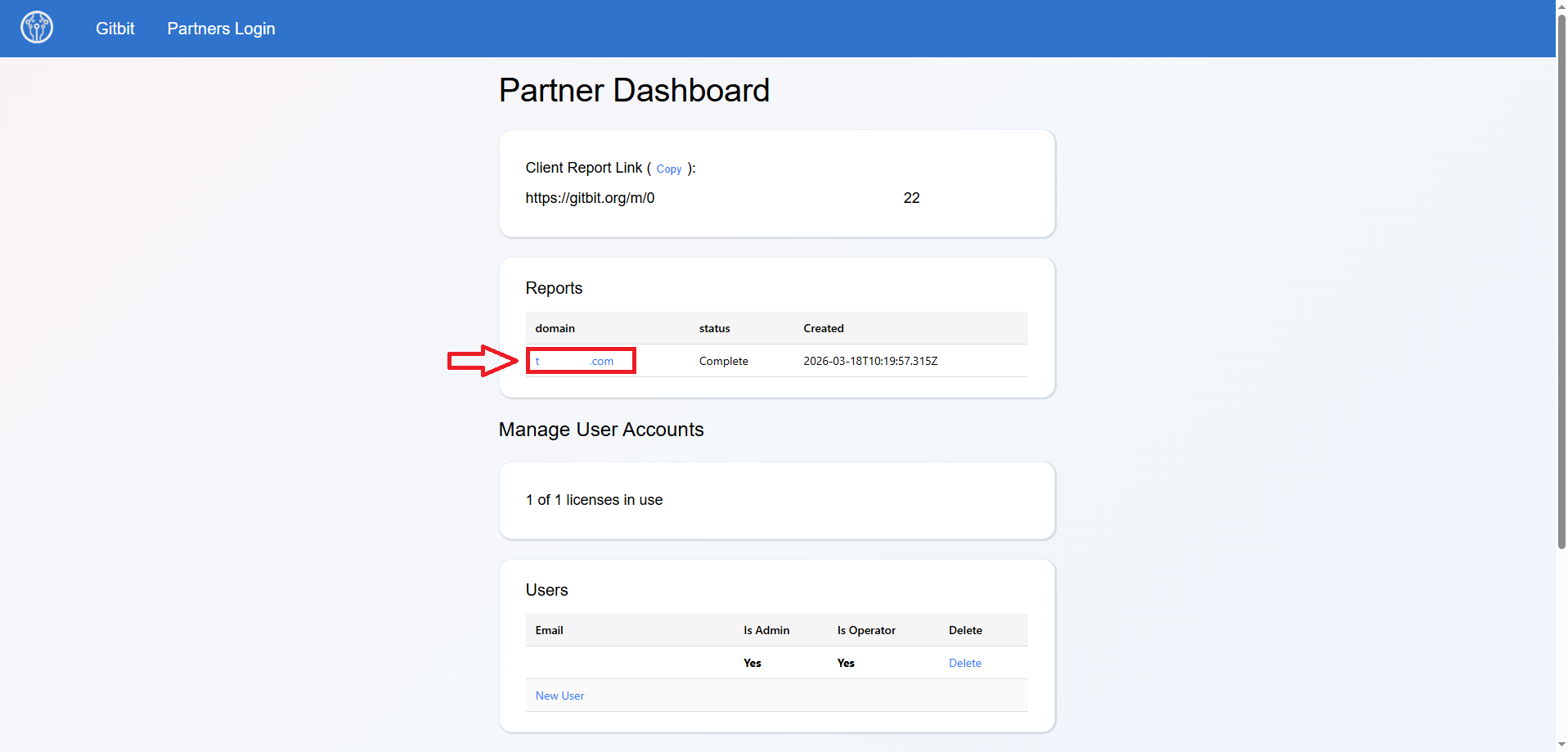
When the data is ready:
- Log back into Gitbit using your operator account.
- Open the Partner Dashboard.
- Click the report you want.
From there, you can:
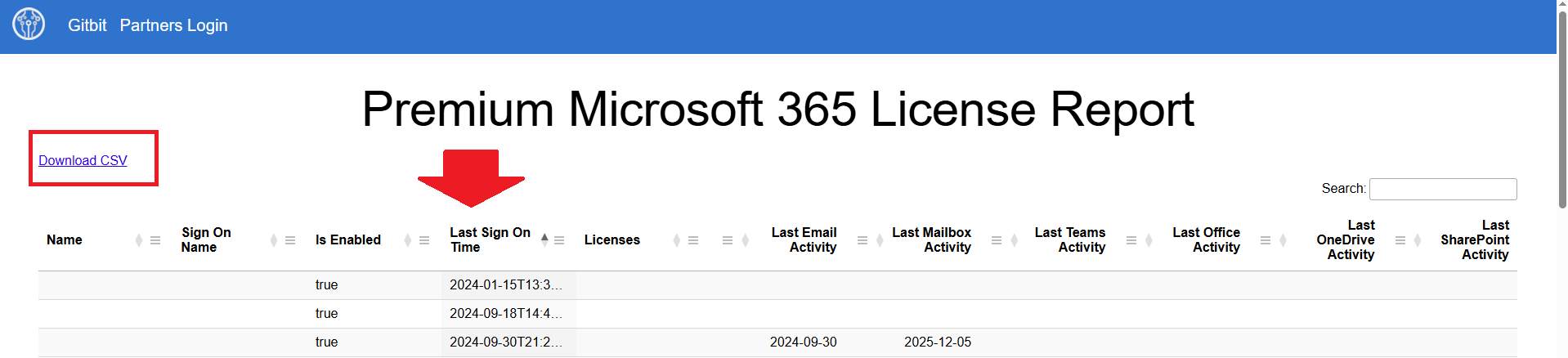
- Review it directly in the browser, or
- Download the CSV if you want to slice it up elsewhere
And that’s the whole lifecycle. One link. One approval. One dashboard.
If there’s a moral here, it’s this: don’t complicate the middle. Almost every hiccup people run into with Gitbit reporting comes from using the wrong link, the wrong browser, or the wrong account. Nail those three, and the rest just works.