Windows Device Management Could Not Be Enabled (80180014)

I've spoken in detail about all the Intune enrollment errors I've found, but I haven't discussed one issue I see crop up again and again because the setting isn't intuitive and that's the "Your account was not set up on this device because device management could not be enabled" Error Code: 80180014 which is caused by the Device enrollment restrictions in Microsoft Intune.
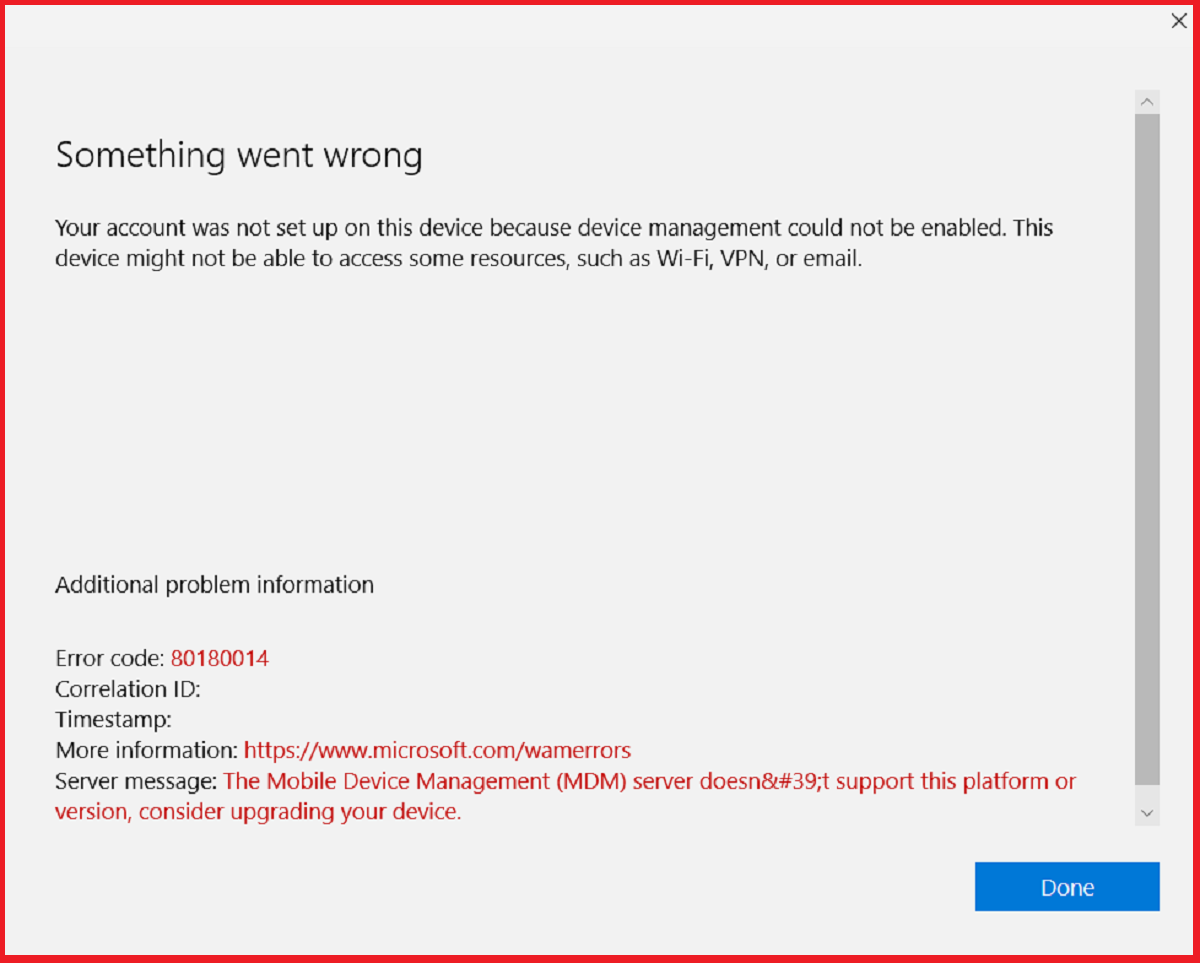
This error can happen during a ton of different events within Microsoft 365 device joins:
- Joining a Windows device to Microsoft Intune (enrolling a Windows device into Intune) (Intune error 80180014)
- Registering devices using Windows Autopilot (Autopilot error 80180014)
- Join/enroll a Windows device in Microsoft Entra ID (Microsoft Entra join error 80180014)
Regardless, it's a common Windows MDM enrollment error caused by a misconfiguration in Microsoft Intune. It happens because Device enrollment restrictions are blocking your Windows device from registering/enrolling/joining, which is throwing the "Device enrollment restrictions 80180014".
Essentially, admins enter the wrong build number in the "allow min/max range". A lot of times, admins believe Windows 11's build number is 11.0, but that's incorrect.
How to fix Windows MDM Error Code 80180014
- Open Intune Admin Center > Devices > Windows > Enrollment > Device Platform Restirictions (https://intune.microsoft.com/#view/Microsoft_Intune_Enrollment/DeviceTypeRestrictions.ReactView)
- One by one, go through each Policy > Properties > Edit (Platform settings)
- Check the Allow min/max range.
- Set the numbers using the data below.
Allow min/max range
This pesky setting isn't very clear. It actually wants the "major.minor.build" number associated with the version of Windows you want. I've seen it multiple times where admins put 11.0, thinking that it will block Windows 10 and only allow Windows 11. Before I give you all the numbers, know that Microsoft didn't always follow the same build number patterns.
If you want to allow Windows 10 and up, I use 10.0.0 as the build number.
Correct build numbers for Windows 10:
| 10.0.19045 – Windows 10 Version 22H2 (Oct 18th, 2022) |
| 10.0.19044 – Windows 10 Version 21H2 (Nov 16th, 2021) |
| 10.0.19042 – Windows 10 Version 20H2 (Oct 20th, 2020) |
| 10.0.19043 – Windows 10 Version 21H1 (May 18th, 2021) |
| 10.0.19041 – Windows 10 Version 2004 (May 27th, 2020) |
| 10.0.18363 – Windows 10 Version 1909 (Nov 12th, 2019) |
| 10.0.18362 – Windows 10 Version 1903 (May 21st, 2019) |
| 10.0.17763 – Windows 10 Version 1809 (Nov 13th, 2018) |
| 10.0.17134 – Windows 10 Version 1803 (Apr 30th, 2018) |
| 10.0.16299 – Windows 10 Version 1709 (Oct 17th, 2017) |
| 10.0.15063 – Windows 10 Version 1703 (Apr 5th, 2017) |
| 10.0.14393 – Windows 10 Version 1607 (Aug 2nd, 2016) |
| 10.0.10586 – Windows 10 Version 1511 (Nov 10th, 2015) |
| 10.0.10240 – Windows 10 Version 1507 (Jul 29th, 2015) |
Correct build numbers for Windows 11:
| 10.0.28000 – Windows 11 Version 26H1 (Feb 10th, 2026) |
| 10.0.26200 – Windows 11 Version 25H2 (Sep 30th, 2025) |
| 10.0.26100 – Windows 11 Version 24H2 (Oct 1st, 2024) |
| 10.0.22631 – Windows 11 Version 23H2 (Oct 31st, 2023) |
| 10.0.22621 – Windows 11 Version 22H2 (Sep 20th, 2022) |
| 10.0.22000 – Windows 11 Version 21H2 (Oct 5th, 2021) |
In summary, if you want Windows 10 or later use:
- Allow min range: 10.0.0
- Allow max range:
If you want Windows 11 or later, use:
- Allow min range: 10.0.28000
- Allow max range:
If you want Windows 10, only use:
- Allow min range: 10.0.0
- Allow max range: 10.0.27999