Beware Of Phishing Attacks Which Utilize Device Codes

Why Is Device Code Authentication So Effective?
Device Code Hacking is so effective because everything about it looks legitimate. You're sent to a valid Microsoft website. You aren't asked for additional permissions, as you would for a third-party app. It appears that the website simply wants to verify you are who you say you are.
This is such a problem, I can practically guarantee I could trick 75% or more of your sales team for falling for it.
Why are sales teams so prone to this type of attack? Because members of your sales team can receive unsolicited emails and messages on LinkedIn asking about the company.
Members of your sales team would, without a doubt, click a link that provides details about a proposal or project.
They probably do receive project proposals, requests for proposal (RFP), and/or requests for quote (RFQ) that are unsolicited.
Heck, I could probably send that information to your primary company contact information, and your team would probably pass it along to one of your sales members, making it seem even more legit.
But I digress, let's jump in
What Is Device Code Authentication?
Device code authentication is a way to sign into devices, like smart TVs, without entering your entire credentials.
In short, it's a way to simplify your login process so you don't need to type a long, complex password and then complete MFA... Which is exactly the problem. (If you can't tell, I'm not a fan)
What Problem Does Device Code Authentication Solve?
Device code authentication makes sense for my Chromecast or Netflix. In short, it's a pain to type a long username and password using my TV remote, so I can bypass that by creating a code on my Android phone, then typing that code into my TV, and voila, the Chromecast is now authenticating to my account.
I don't believe it has any place in a workplace, especially one that stores so much of your data, like Microsoft 365. The FBI recently warned against this very type of attack.
How Device Code Authentication Works
Threatscape does a great job walking through how the breach works. Here are the steps it takes for someone to set up a phish your users using device codes:
- The malicious actor creates a device authentication token.
- They pass that device authentication token to your user.
- The user goes to https://microsoft.com/devicelogin and enters that authentication token.
- If the user is previously authenticated, that may be it. If not, the user may need to enter their username, password, and complete the MFA.
- The authentication token is then passed to the malicious actor (and not to the user/user's browser)
That's why this attack is such a problem. The user is authenticating against Microsoft. They can verify the URL. They can check the SSL certificate. Heck, they can type the URL into their browser; they are, in fact, going to microsoft.com and authenticating. The problem is, Microsoft is handing the authentication token over to the malicious actor instead of the user.
What's An Authentication Token?
An authentication token is what's passed to your device after you authenticate.
A long time ago, we used to have the browser store your username and password, then pass your username and password to the server on every request. The server would reauthenticate you using the username and password every time. This, of course, is an issue.
If a malicious actor got in between you and the server, they would have your username and password. So, cybersecurity experts came up with a new idea.
You pass the username and password to the server once. The server then issues you a unique token (a string of characters that looks something like this:
eyJhbGciOiJIUzI1NiIsInR5cCI6IkpXVCJ9.eyJzdWIiOiIxMjM0NTY3ODkwIiwibmFtZSI6IkpvaG4gRG9lIiwiaWF0IjoxNTE2MjM5MDIyfQ.SflKxwRJSMeKKF2QT4fwpMeJf36POk6yJV_adQssw5c
The server can then decipher that, or link that to your account. That way, your password isn't floating back and forth over the internet. If the token is hijacked, the server can simply stop allowing that token and issue you a new one.
Read this Fortinet guide for more technical details.
How To Hack Someone Using Device Code Authentication
Here's why the device code is such a problem.
A malicious actor can simply start the device code authentication on their end and send you an email. The email can say virtually anything. Here are a couple of examples:
"Hi, I'm looking for someone who can perform X. I found your company on Google. Can you check out this PDF that has my business requirements? This project is confidential, so we need to validate it's you before you can access it."
"Hi, I'm from your trusted partner. We need to renew your account. Can you go to Microsoft.com/devicelogin to verify it's still you?"
The user then clicks the link. Is redirected to microsoft.com/devicelogin. The user verifies they are on a Microsoft website, so everything seems good. Once they go to the site, they receive an automated email with the device code. Once they enter the code, Microsoft verifies the access and passes the token to the malicious actor.
How To Protect Your Users From Device Code Flow Abuse In Microsoft 365
There's only one way to secure a Microsoft 365 environment from Device Code authentication exploits. By blocking device authentication codes. There are two ways to do that.
- Security Defaults.
- Conditional Access Policies.
How To Block Device Code Authentication Using Security Defaults
Security defaults are typically only used if you don't have the licensing required for conditional access policies. If you do have conditional access policies, I recommend using them. If you don't have conditional access policies, you'll want to enable security defaults. Be warned: security defaults enable more than just device code blocking.
Note: Microsoft is still deploying the device code block in Security defaults, so you may not have it blocked right away.
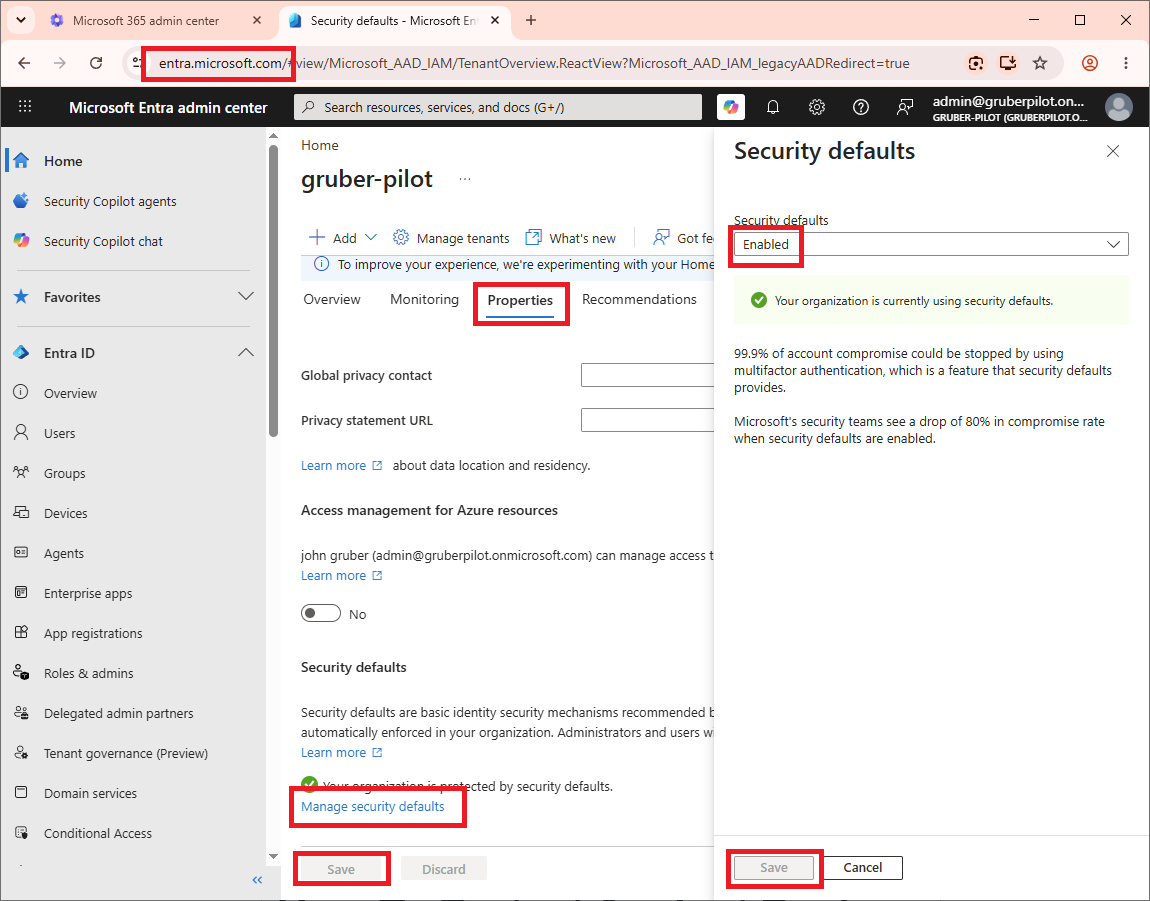
- Go to the Entra Admin Center.
- Click Properties > Manage security defaults.
- Set Security defaults to: Enabled.
- Click Save > Save.
How To Block Device Code Authentication Using Conditional Access Policies
Conditional Access Policies provide more robustness than security defaults while blocking device code authentication. You do need at least 1 Microsoft Entra ID Premium P1 or a license that contains the Microsoft Entra ID Premium P1 license in it.
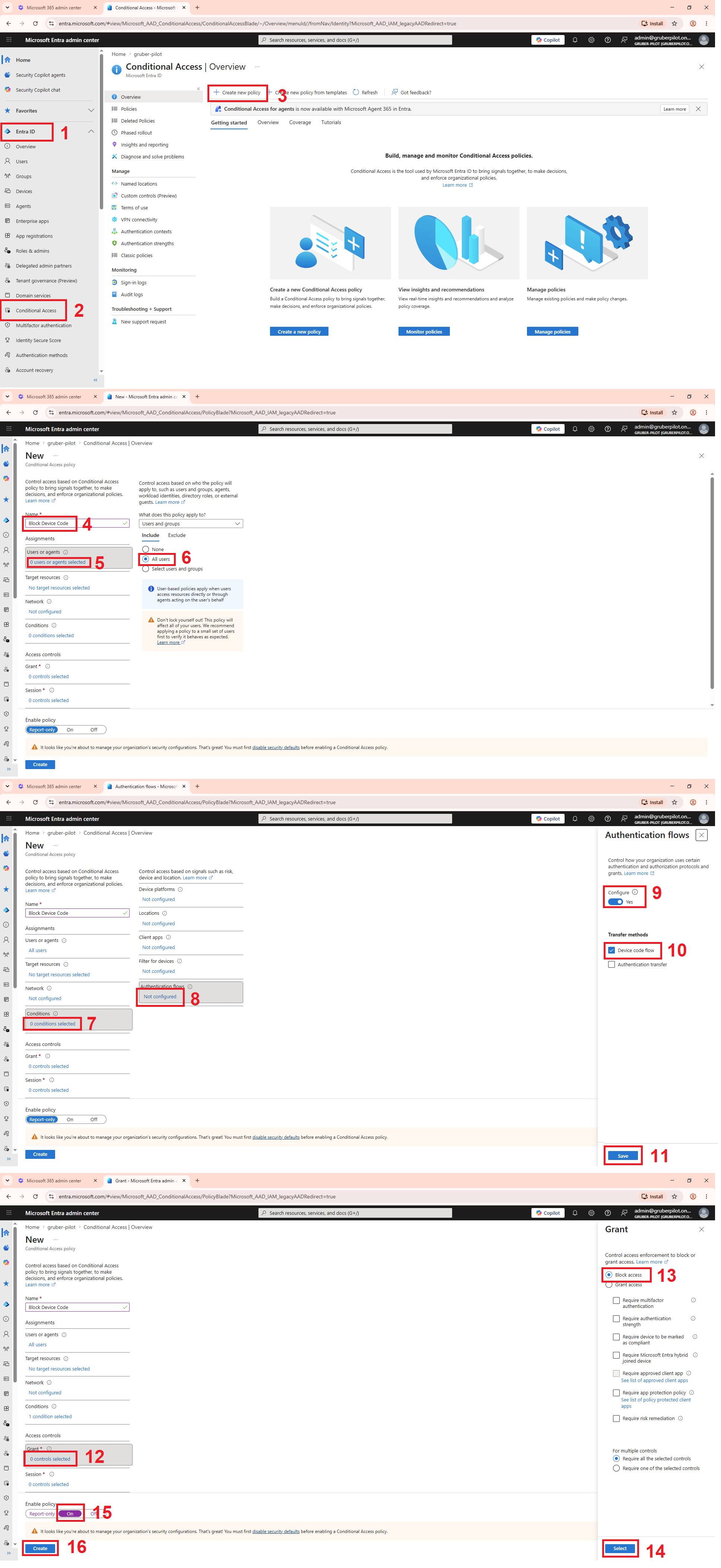
- Go to the Entra Admin Center.
- Entra ID > Conditional Access > Create new policy.
- Enter a unique name for the policy.
- Click 0 agents or users selected > All users.
- Click 0 conditions selected > Not configured (under Authentication flows)
- Configured: Yes.
- Device code flow: Checked.
- Save.
- Click 0 controls selected (under Grant) > Block > Select.
- Turn the Enable policy switch to On.
- Click Save.
How To Track Device Code Authentication Logins
Tracking Device Code Authentication is an important step. Not only can it show you who's been breached thanks to Device Code Authentication, but it can also show you who's using it and will get blocked once you lock down Device Code Authentication.
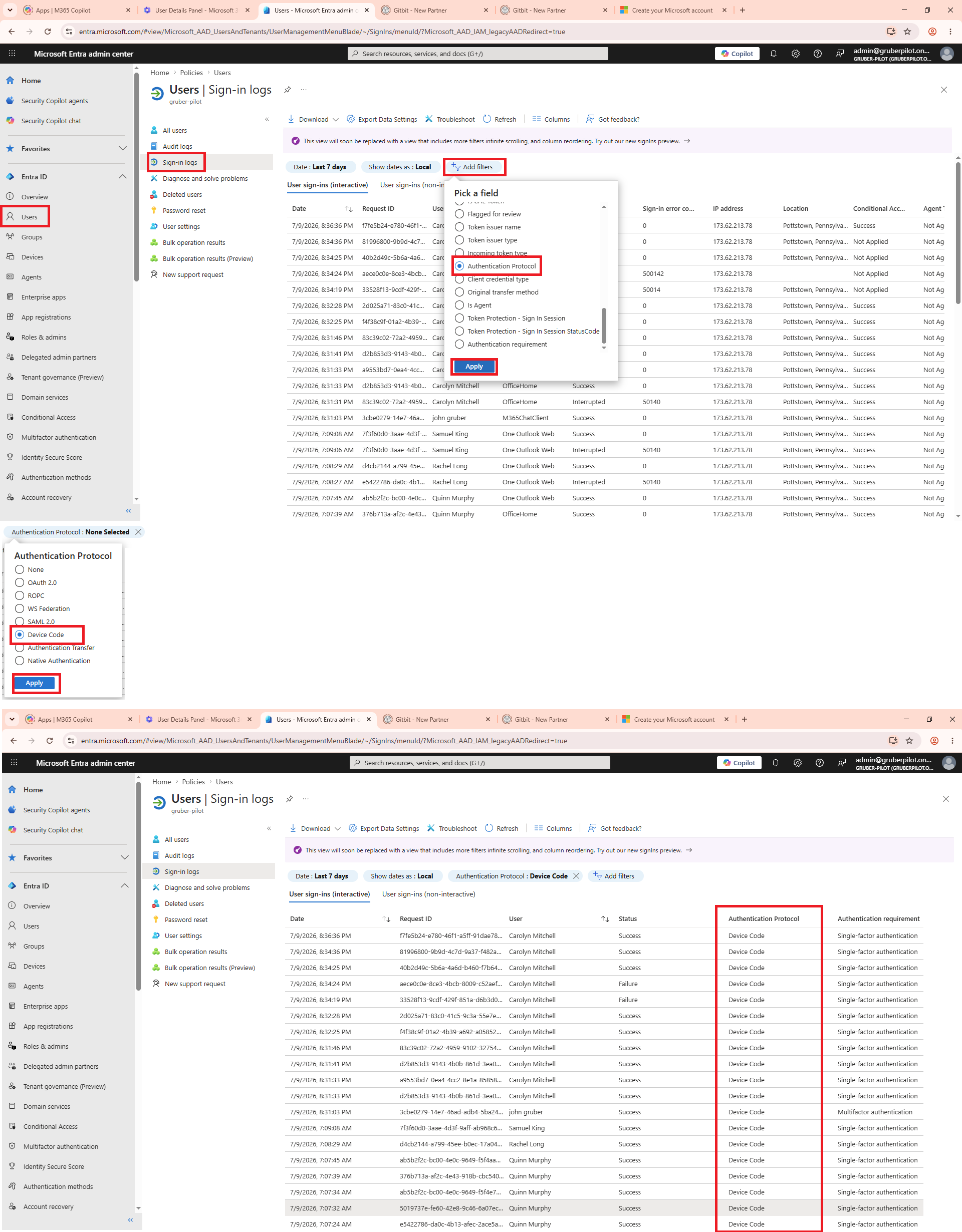
- Go to Microsoft Entra Admin Center > Users > Sign-in logs.
- Click Add filter > Authentication Protocol > Apply.
Now you have the complete list of everyone who has authenticated using Device Code Authentication. To determine who is actually using it compared to who's been breached, you can review the IP addresses or reach out to each user and ask.